> ## Documentation Index
> Fetch the complete documentation index at: https://docs.benefitflow.com/llms.txt
> Use this file to discover all available pages before exploring further.
# Bulk Data Access Setup Guide
> How to connect to BenefitFlow's SFTP server for bulk data access
**This capability is available to select customers.** Need help? Email your customer success manager to get access.
## What is SFTP?
SFTP (SSH File Transfer Protocol) is a way to access, transfer, and manage files securely over the internet. It runs on top of SSH, which means all communication is encrypted and requires authentication before any data moves.
## How It Works
Our SFTP server uses public key authentication for secure, passwordless access:
| Setting | Value |
| --------------- | ---------- |
| Connection Type | SFTP |
| Authentication | Public Key |
## Steps to Connect
Generate an SSH key pair and email the `.pub` file to your customer success manager. Don't worry — public keys are public and can be sent unencrypted.
BenefitFlow will create a username for your organization and associate it with the public key you provided.
Use any SFTP client (e.g., Cyberduck, FileZilla, WinSCP) to connect with the details below.
## Connection Details
| Setting | Value |
| --------------- | -------------------------------------------------------------- |
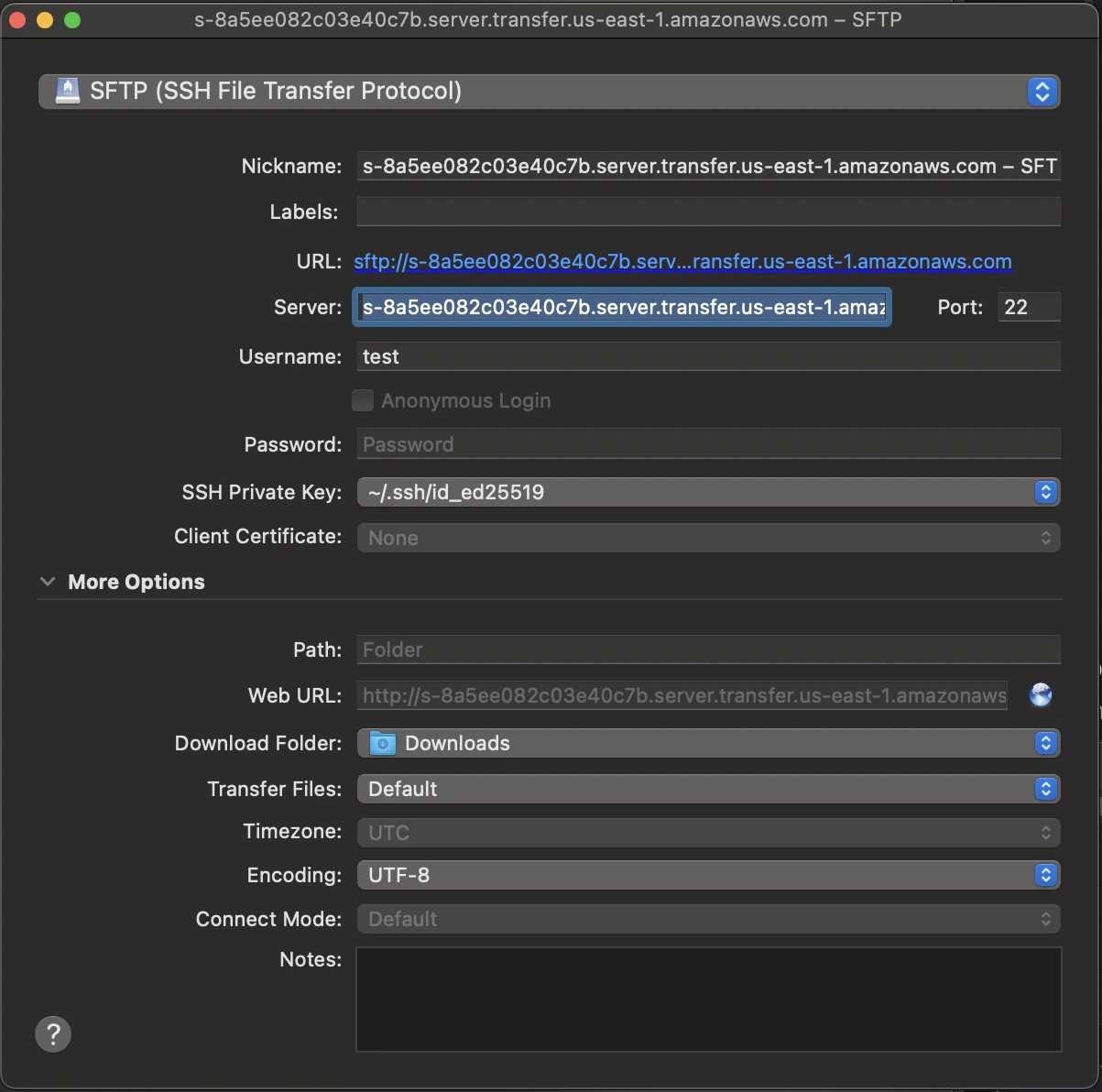
| Server | `s-8a5ee082c03e40c7b.server.transfer.us-east-1.amazonaws.com` |
| Username | Your company name (provided by BenefitFlow) |
| SSH Private Key | The private key that corresponds to the public key you gave us |
| Port | `22` |
## Example Connection Setup
Below is an example of how to configure your SFTP client (shown using Cyberduck):
 ## Working with Data
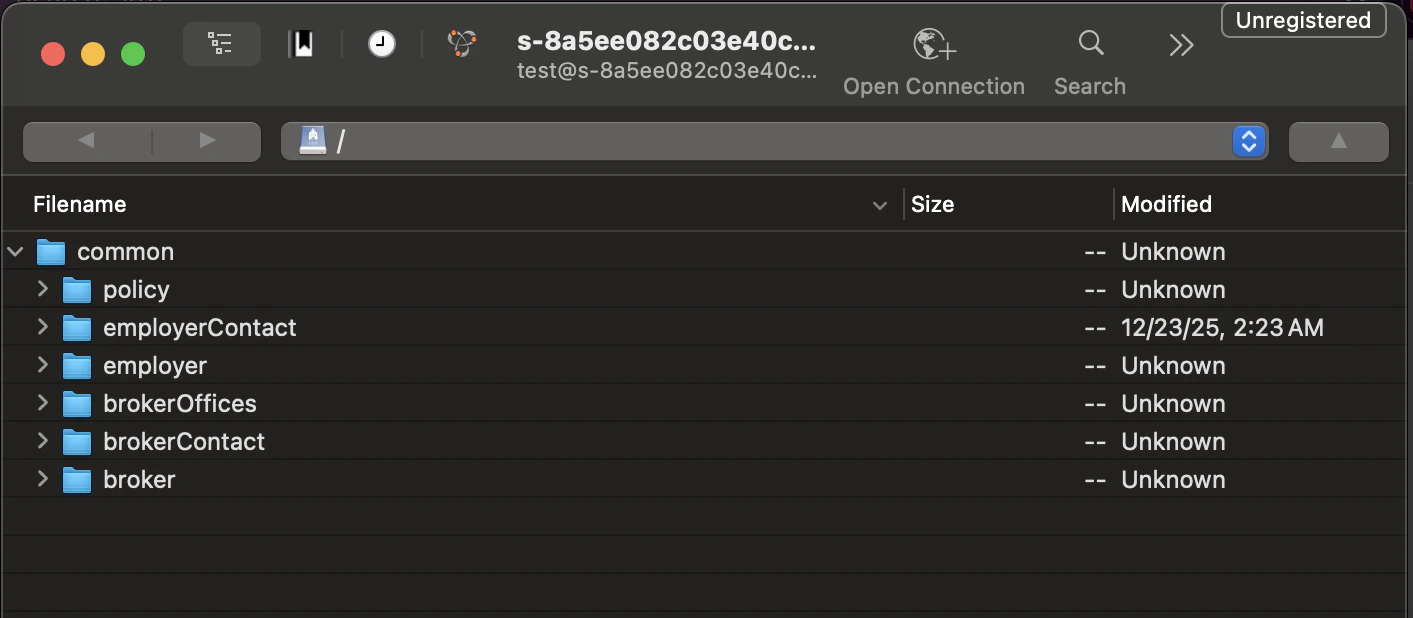
Once connected, you'll see six folders — one for each dataset:
| Folder | Dataset | Description |
| :----------------- | :--------------- | :----------------------------------------- |
| `broker/` | Broker | Brokerage firms with aggregated metrics |
| `brokerContact/` | Broker Contact | Individual contacts at brokerages |
| `brokerOffices/` | Broker Office | Office locations with local metrics |
| `employer/` | Employer | Employers with benefits program details |
| `employerContact/` | Employer Contact | Individual contacts at employers |
| `policy/` | Policy | Individual insurance policies per employer |
Each folder contains weekly CSV snapshots with \~13 rolling weeks of history. Files are named `TYPE-YYYYMMDD.csv` (e.g., `EMPLOYER-20260405.csv`).
The `broker/`, `brokerOffices/`, and `employer/` folders also contain ID mapping files (e.g., `BROKER_ID_MAPPING-20260621.csv`). These let you carry forward IDs that change between releases. See [SFTP Update — June 2026](/knowledge-base/bulk-data-id-migration-june-2026) for how to use them.
## Working with Data
Once connected, you'll see six folders — one for each dataset:
| Folder | Dataset | Description |
| :----------------- | :--------------- | :----------------------------------------- |
| `broker/` | Broker | Brokerage firms with aggregated metrics |
| `brokerContact/` | Broker Contact | Individual contacts at brokerages |
| `brokerOffices/` | Broker Office | Office locations with local metrics |
| `employer/` | Employer | Employers with benefits program details |
| `employerContact/` | Employer Contact | Individual contacts at employers |
| `policy/` | Policy | Individual insurance policies per employer |
Each folder contains weekly CSV snapshots with \~13 rolling weeks of history. Files are named `TYPE-YYYYMMDD.csv` (e.g., `EMPLOYER-20260405.csv`).
The `broker/`, `brokerOffices/`, and `employer/` folders also contain ID mapping files (e.g., `BROKER_ID_MAPPING-20260621.csv`). These let you carry forward IDs that change between releases. See [SFTP Update — June 2026](/knowledge-base/bulk-data-id-migration-june-2026) for how to use them.
 Data is refreshed every **Saturday**.
Complete field-level reference for all six datasets — column definitions, data types, join keys, and implementation notes.
Data is refreshed every **Saturday**.
Complete field-level reference for all six datasets — column definitions, data types, join keys, and implementation notes.