> ## Documentation Index
> Fetch the complete documentation index at: https://docs.benefitflow.com/llms.txt
> Use this file to discover all available pages before exploring further.
# Connect BenefitFlow to Claude, ChatGPT, and other AI assistants
> Set up the BenefitFlow connection so your AI assistant can search employers, brokers, and contacts directly.
**Connection URL** — paste this into your assistant's connector settings:
```text theme={null}
https://mcp.benefit-flow.com/mcp
```
This URL is for your AI assistant, not your browser — opening it directly won't load a page. Jump to the setup steps: [Claude](#connect-from-claude) · [ChatGPT](#connect-from-chatgpt) · [Another assistant](#connect-from-another-assistant).
The BenefitFlow MCP lets your AI assistant search our employer, broker, and contact data directly (MCP is the Model Context Protocol, the open standard for connecting AI assistants to live tools). Ask your assistant a question in plain English and it queries BenefitFlow live — no exports, no copy-paste. You need a BenefitFlow account: your assistant signs in as you, and everything it does is covered by your permissions and credits.
## What you can do
Once connected, your assistant gets these BenefitFlow tools (you'll see the same names in your assistant's permission settings):
| Tool | What it does |
| :------------------------ | :------------------------------------------------------------------------------------------------------------------------------------------ |
| **Search employers** | Filter the employer universe by size, location, industry, funding type, renewal month, current broker or carrier, retirement plan, and more |
| **Search brokers** | Find brokerages by name, size, office locations, and client characteristics |
| **Search contacts** | Find people at employers or brokerages by role, title, and location |
| **Get employer** | Pull a full employer profile: key partners, renewal date, recent signals, deep research |
| **Get broker** | Pull a broker firm profile: offices, clients, commissions, premiums |
| **Get contact** | Reveal a contact's email and phone — uses contact credits; you confirm before anything is spent |
| **Enrich companies** | Match a pasted list of company names or domains to BenefitFlow records |
| **Get filter options** | Look up the exact filter values available (carrier names, industries, job titles) |
| **Search knowledge base** | Ask how BenefitFlow features work — answers come from the help center, with links to the full articles |
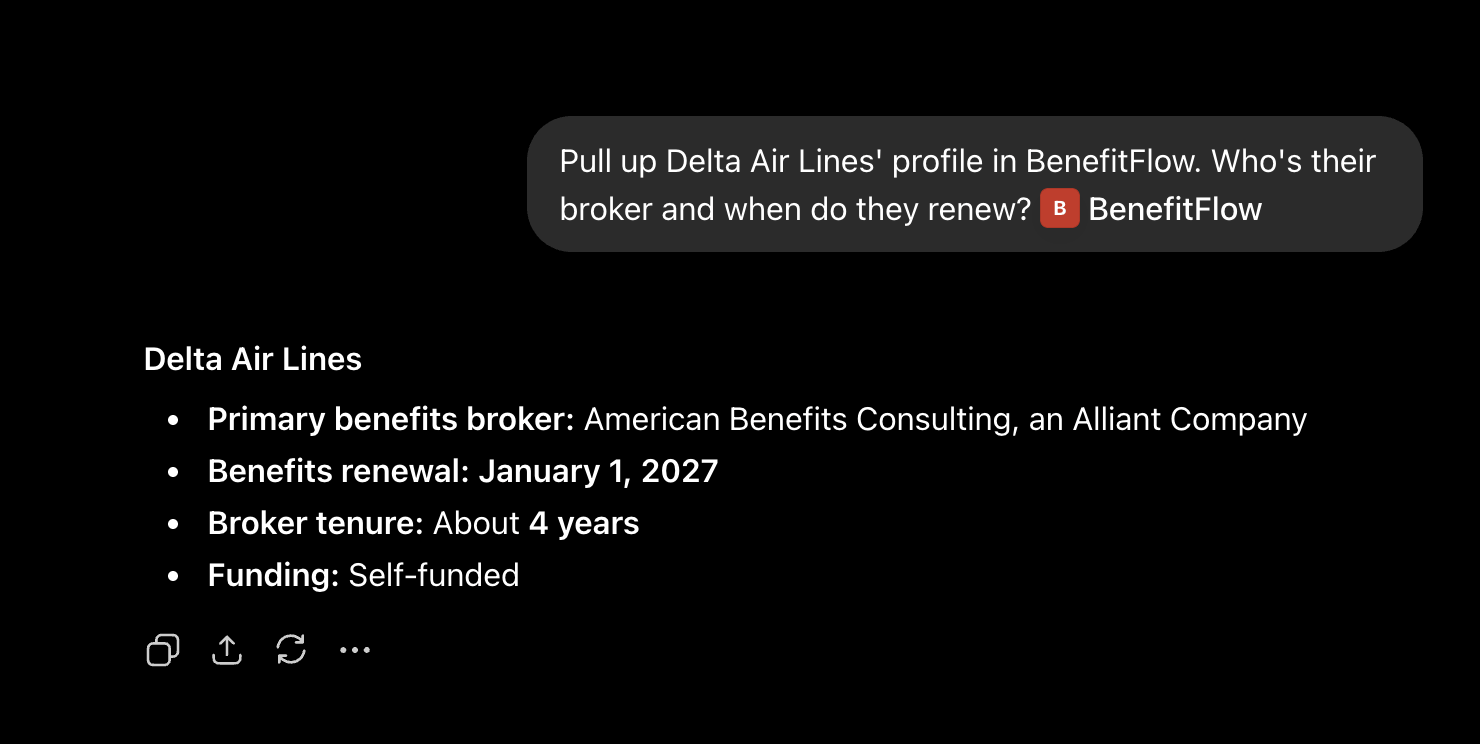
Here's what it looks like in practice:
 Prompts to try:
* "Find self-funded manufacturers in Ohio with 100 to 1,000 employees that renew in Q1, and show me their brokers."
* "Match this list against BenefitFlow: \[paste 5 to 10 company names or domains]"
* "Pull up Delta Air Lines' profile. Who's their broker and when do they renew?"
* "Find benefits and HR leaders at Target."
## Connect from Claude
**Open connector settings**
In Claude (web or desktop app), go to [**Settings → Connectors**](https://claude.ai/new#settings/customize-connectors).
**Check the list first:** if your team already uses BenefitFlow, your admin may have added the connector for everyone — if you see it listed, skip to signing in. Otherwise, click **Add custom connector**.
**Add BenefitFlow**
Name it `BenefitFlow`, paste the connection URL above, and save.
**Sign in**
Claude opens a BenefitFlow sign-in window. Enter your work email, then the verification code we send you.
**Try it**
Start a new chat, confirm BenefitFlow is enabled in the tools menu, and try one of the prompts above.
**On a company-managed (Enterprise) Claude account**, your Claude admin has to approve the BenefitFlow connector before you can add it yourself. If it isn't already in your connector list and you don't see the option to add a custom connector, ask your admin.
The first time Claude uses a BenefitFlow tool in a chat, it asks for your approval. You (or your admin, on managed accounts) can set per-tool permissions — always allow, ask first, or never — in the connector's settings:
Prompts to try:
* "Find self-funded manufacturers in Ohio with 100 to 1,000 employees that renew in Q1, and show me their brokers."
* "Match this list against BenefitFlow: \[paste 5 to 10 company names or domains]"
* "Pull up Delta Air Lines' profile. Who's their broker and when do they renew?"
* "Find benefits and HR leaders at Target."
## Connect from Claude
**Open connector settings**
In Claude (web or desktop app), go to [**Settings → Connectors**](https://claude.ai/new#settings/customize-connectors).
**Check the list first:** if your team already uses BenefitFlow, your admin may have added the connector for everyone — if you see it listed, skip to signing in. Otherwise, click **Add custom connector**.
**Add BenefitFlow**
Name it `BenefitFlow`, paste the connection URL above, and save.
**Sign in**
Claude opens a BenefitFlow sign-in window. Enter your work email, then the verification code we send you.
**Try it**
Start a new chat, confirm BenefitFlow is enabled in the tools menu, and try one of the prompts above.
**On a company-managed (Enterprise) Claude account**, your Claude admin has to approve the BenefitFlow connector before you can add it yourself. If it isn't already in your connector list and you don't see the option to add a custom connector, ask your admin.
The first time Claude uses a BenefitFlow tool in a chat, it asks for your approval. You (or your admin, on managed accounts) can set per-tool permissions — always allow, ask first, or never — in the connector's settings:
 Connectors added on the web sync to Claude's mobile apps automatically.
**Claude Code (terminal):**
```bash theme={null}
claude mcp add --transport http benefitflow https://mcp.benefit-flow.com/mcp
```
Then run `/mcp` inside Claude Code to sign in.
## Connect from ChatGPT
Custom connections require a paid ChatGPT plan. Setup takes about two minutes.
**Turn on Developer mode**
Click your profile picture → **Settings → Security and login**. Scroll to **Developer mode** and turn it on. You'll see an "elevated risk" note — that's standard for any tool OpenAI hasn't reviewed.
**Create the plugin**
Go to **Settings → Plugins** and click the **+** button in the top right. In the form:
* **Name:** `BenefitFlow`
* **Connection:** leave on **Server URL** and paste the connection URL above
* **Authentication:** leave on **OAuth** — ChatGPT discovers BenefitFlow's sign-in settings automatically
* Check **"I understand and want to continue"**, then click **Create**
Connectors added on the web sync to Claude's mobile apps automatically.
**Claude Code (terminal):**
```bash theme={null}
claude mcp add --transport http benefitflow https://mcp.benefit-flow.com/mcp
```
Then run `/mcp` inside Claude Code to sign in.
## Connect from ChatGPT
Custom connections require a paid ChatGPT plan. Setup takes about two minutes.
**Turn on Developer mode**
Click your profile picture → **Settings → Security and login**. Scroll to **Developer mode** and turn it on. You'll see an "elevated risk" note — that's standard for any tool OpenAI hasn't reviewed.
**Create the plugin**
Go to **Settings → Plugins** and click the **+** button in the top right. In the form:
* **Name:** `BenefitFlow`
* **Connection:** leave on **Server URL** and paste the connection URL above
* **Authentication:** leave on **OAuth** — ChatGPT discovers BenefitFlow's sign-in settings automatically
* Check **"I understand and want to continue"**, then click **Create**
 **Sign in**
An "Add BenefitFlow to ChatGPT" window appears. Click **Sign in with BenefitFlow**, enter your work email, then the verification code we email you.
**Sign in**
An "Add BenefitFlow to ChatGPT" window appears. Click **Sign in with BenefitFlow**, enter your work email, then the verification code we email you.
 **Try it**
You'll see "BenefitFlow is installed." Open a new chat and just ask — or type `@BenefitFlow` in your message to call it explicitly.
By default, ChatGPT allows low-risk actions and asks permission for anything else. You can adjust this under **Settings → Plugins → BenefitFlow → Permissions**.
**On Team or Enterprise ChatGPT**, your workspace admin may have Developer mode disabled, or may need to allowlist BenefitFlow. If Developer mode isn't visible under Security and login, ask your admin.
## Connect from another assistant
BenefitFlow uses the open MCP standard, so any AI assistant that supports remote MCP connectors can connect. You'll need three things, the same for every assistant:
| Setting | Value |
| :----------------- | :------------------------------------------------------------------------- |
| **Server URL** | `https://mcp.benefit-flow.com/mcp` |
| **Transport** | Streamable HTTP (remote) |
| **Authentication** | OAuth, using your BenefitFlow work email and the verification code we send |
Where each assistant stands today:
* **Grok (xAI):** Supported. At [grok.com/connectors](https://grok.com/connectors), choose **New Connector → Custom**, paste the connection URL, and sign in.
* **Google Gemini:** Connect through the [Gemini CLI](https://github.com/google-gemini/gemini-cli) or Gemini Enterprise, where custom MCP connectors live today. Set up the CLI yourself, or ask your admin about Enterprise.
* **Microsoft Copilot:** Available in Copilot Studio and Microsoft 365 Copilot, added by your workspace admin. Ask them to add the connection URL above.
These assistants change their setup screens often. When the steps above don't match what you see, check the assistant's own MCP or connector documentation for the current flow.
## Data, permissions, and credits
1. **Read-only, with one exception.** Your assistant can search and read BenefitFlow data but can't change your account. The exception: revealing a contact's email or phone spends your BenefitFlow contact credits (the same credits as the web app), and that requires your confirmation.
2. **Reveals are quoted first.** Your assistant gets a free quote — how many credits, your current balance — and nothing is spent until you say yes. Re-revealing an already-unlocked contact is free. If your assistant asks "should I spend 3 credits?", that's the system working as intended. New to credits? See [Credits and Exporting](/knowledge-base/credits-and-exporting) for how your balance works and when it resets.
3. **It sees only what you can see.** The connection signs in as you, so results are scoped to your BenefitFlow permissions.
4. **You control the tools.** Your assistant lets you (or your admin) allow, require approval for, or block each BenefitFlow tool individually.
## Troubleshooting
You're likely on a company-managed account and the connector isn't approved yet. Ask your Claude admin, or contact us and we'll help coordinate.
It lives under **Settings → Security and login**. If it's not there, you're on a free plan or your workspace admin has it disabled.
Make sure you're using the email on your BenefitFlow account, and check spam for the verification code. Codes expire after 15 minutes.
In ChatGPT, open **Settings → Plugins → BenefitFlow** and click **Refresh**, then start a fresh chat. In Claude, remove and re-add the connector. Connections occasionally need a re-link after we ship updates.
Check that **Lockdown mode** (Settings → Security and login) is off — it blocks features that reach external services.
Results come back a page at a time (25 records). For big lists, ask your assistant to keep paging, or narrow the filters.
## Official documentation
AI assistants update their settings screens regularly. If the menus above don't match what you see:
* Claude: [Get started with custom connectors using remote MCP](https://support.claude.com/en/articles/11175166-get-started-with-custom-connectors-using-remote-mcp)
* Claude Code: [Connect Claude Code to MCP servers](https://docs.claude.com/en/docs/claude-code/mcp)
* ChatGPT: [Developer mode and MCP apps in ChatGPT](https://help.openai.com/en/articles/12584461-developer-mode-and-mcp-apps-in-chatgpt)
* Grok, Gemini, or Copilot: use the doc links in [Connect from another assistant](#connect-from-another-assistant)
Questions or problems? Email [customerteam@benefit-flow.com](mailto:customerteam@benefit-flow.com).
**Try it**
You'll see "BenefitFlow is installed." Open a new chat and just ask — or type `@BenefitFlow` in your message to call it explicitly.
By default, ChatGPT allows low-risk actions and asks permission for anything else. You can adjust this under **Settings → Plugins → BenefitFlow → Permissions**.
**On Team or Enterprise ChatGPT**, your workspace admin may have Developer mode disabled, or may need to allowlist BenefitFlow. If Developer mode isn't visible under Security and login, ask your admin.
## Connect from another assistant
BenefitFlow uses the open MCP standard, so any AI assistant that supports remote MCP connectors can connect. You'll need three things, the same for every assistant:
| Setting | Value |
| :----------------- | :------------------------------------------------------------------------- |
| **Server URL** | `https://mcp.benefit-flow.com/mcp` |
| **Transport** | Streamable HTTP (remote) |
| **Authentication** | OAuth, using your BenefitFlow work email and the verification code we send |
Where each assistant stands today:
* **Grok (xAI):** Supported. At [grok.com/connectors](https://grok.com/connectors), choose **New Connector → Custom**, paste the connection URL, and sign in.
* **Google Gemini:** Connect through the [Gemini CLI](https://github.com/google-gemini/gemini-cli) or Gemini Enterprise, where custom MCP connectors live today. Set up the CLI yourself, or ask your admin about Enterprise.
* **Microsoft Copilot:** Available in Copilot Studio and Microsoft 365 Copilot, added by your workspace admin. Ask them to add the connection URL above.
These assistants change their setup screens often. When the steps above don't match what you see, check the assistant's own MCP or connector documentation for the current flow.
## Data, permissions, and credits
1. **Read-only, with one exception.** Your assistant can search and read BenefitFlow data but can't change your account. The exception: revealing a contact's email or phone spends your BenefitFlow contact credits (the same credits as the web app), and that requires your confirmation.
2. **Reveals are quoted first.** Your assistant gets a free quote — how many credits, your current balance — and nothing is spent until you say yes. Re-revealing an already-unlocked contact is free. If your assistant asks "should I spend 3 credits?", that's the system working as intended. New to credits? See [Credits and Exporting](/knowledge-base/credits-and-exporting) for how your balance works and when it resets.
3. **It sees only what you can see.** The connection signs in as you, so results are scoped to your BenefitFlow permissions.
4. **You control the tools.** Your assistant lets you (or your admin) allow, require approval for, or block each BenefitFlow tool individually.
## Troubleshooting
You're likely on a company-managed account and the connector isn't approved yet. Ask your Claude admin, or contact us and we'll help coordinate.
It lives under **Settings → Security and login**. If it's not there, you're on a free plan or your workspace admin has it disabled.
Make sure you're using the email on your BenefitFlow account, and check spam for the verification code. Codes expire after 15 minutes.
In ChatGPT, open **Settings → Plugins → BenefitFlow** and click **Refresh**, then start a fresh chat. In Claude, remove and re-add the connector. Connections occasionally need a re-link after we ship updates.
Check that **Lockdown mode** (Settings → Security and login) is off — it blocks features that reach external services.
Results come back a page at a time (25 records). For big lists, ask your assistant to keep paging, or narrow the filters.
## Official documentation
AI assistants update their settings screens regularly. If the menus above don't match what you see:
* Claude: [Get started with custom connectors using remote MCP](https://support.claude.com/en/articles/11175166-get-started-with-custom-connectors-using-remote-mcp)
* Claude Code: [Connect Claude Code to MCP servers](https://docs.claude.com/en/docs/claude-code/mcp)
* ChatGPT: [Developer mode and MCP apps in ChatGPT](https://help.openai.com/en/articles/12584461-developer-mode-and-mcp-apps-in-chatgpt)
* Grok, Gemini, or Copilot: use the doc links in [Connect from another assistant](#connect-from-another-assistant)
Questions or problems? Email [customerteam@benefit-flow.com](mailto:customerteam@benefit-flow.com).