> ## Documentation Index
> Fetch the complete documentation index at: https://docs.benefitflow.com/llms.txt
> Use this file to discover all available pages before exploring further.
# Contact Masking
> How to restrict contact visibility for specific individuals in BenefitFlow
## What is Contact Masking?
Contact Masking lets admins restrict the visibility of specific contacts across BenefitFlow. By uploading a list of email addresses, you can ensure that those contacts' email and phone fields are hidden from all users in your organization.
This is useful when your organization needs to prevent outreach to certain individuals — whether for compliance, internal policy, or relationship management reasons.
## How It Works
| Feature | Details |
| -------------- | ---------------------------------------------------------------------------------------------------------- |
| Global Toggle | Admins can enable or disable Contact Masking for the entire organization |
| Upload List | Upload a CSV of email addresses to mask |
| What's Hidden | Email and phone fields are masked (e.g. `********@******.com`) and the "Unlock Contact" button is disabled |
| What's Visible | All other profile information (name, title, employer, etc.) remains visible |
| Who Can Manage | Admins only |
## Steps to Enable
Log in as an admin and navigate to [Team Management → Settings](https://benefit-flow.com/Team?tab=settings). You'll see a **Contact Masking** section.
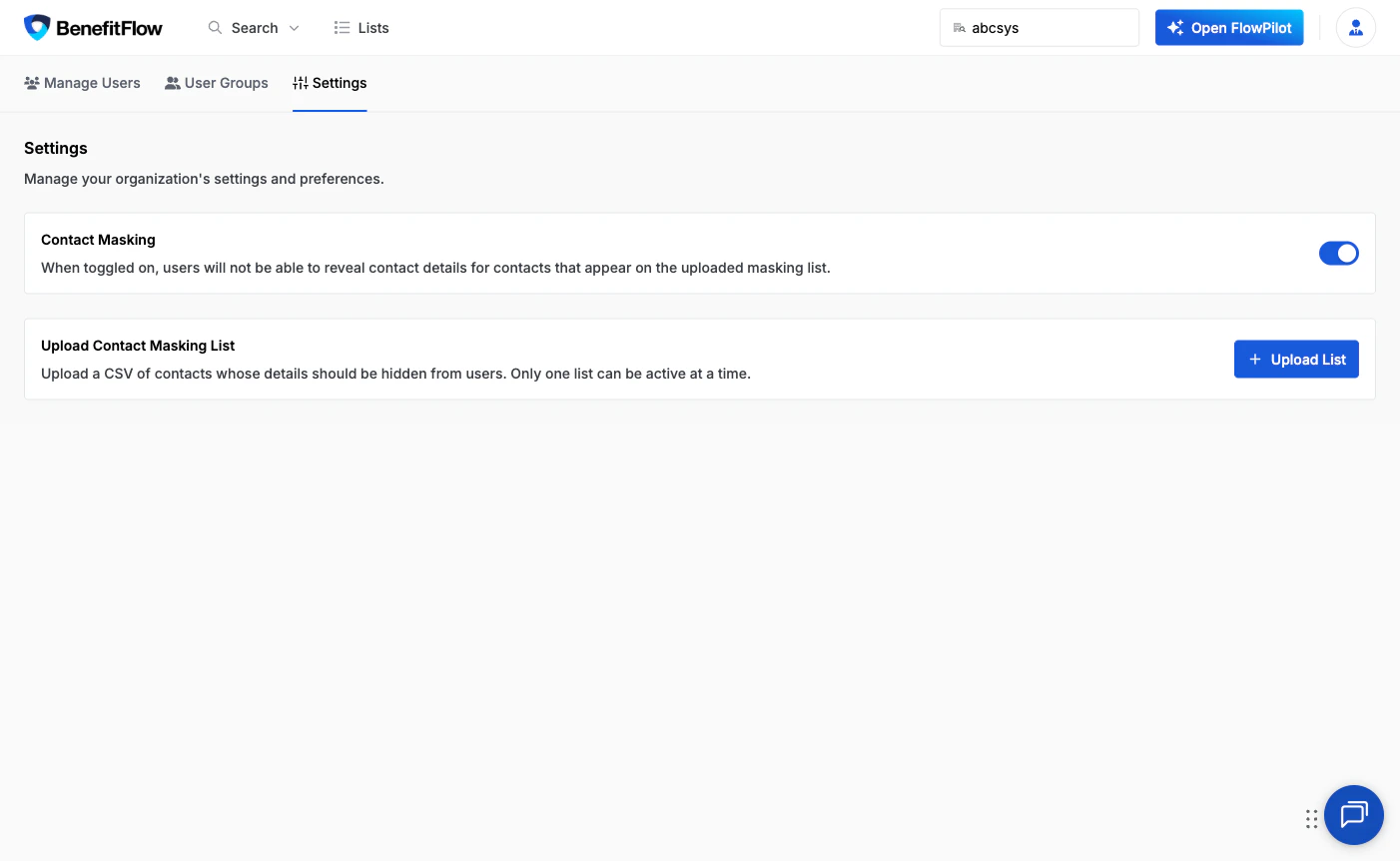 Turn on the **Contact Masking** toggle to activate the feature for your organization.
 Upload a CSV file containing the email addresses of contacts you want to mask. Once uploaded, those contacts will be restricted immediately.
 ## CSV Format Requirements
Your CSV file should contain one email address per line. The first line can be a header (`emails`) or a valid email address.
```csv theme={null}
emails
jane.doe@example.com
john.smith@acme.com
sarah.jones@company.org
```
* One email address per line
* First line can be a header (`emails`) or a valid email address
* Trailing commas are accepted
* No additional columns required
* Maximum file size: **200MB** — large block lists are fully supported
## What Users See
When a contact has been masked, their email and phone fields are replaced with asterisks (e.g. `********@******.com`) and the **"Unlock Contact"** button is disabled. All other profile information — name, title, employer, and other details — remains fully visible.
## CSV Format Requirements
Your CSV file should contain one email address per line. The first line can be a header (`emails`) or a valid email address.
```csv theme={null}
emails
jane.doe@example.com
john.smith@acme.com
sarah.jones@company.org
```
* One email address per line
* First line can be a header (`emails`) or a valid email address
* Trailing commas are accepted
* No additional columns required
* Maximum file size: **200MB** — large block lists are fully supported
## What Users See
When a contact has been masked, their email and phone fields are replaced with asterisks (e.g. `********@******.com`) and the **"Unlock Contact"** button is disabled. All other profile information — name, title, employer, and other details — remains fully visible.
 ## FAQ
Yes. Upload a new CSV that does not include the contacts you want to unmask. The new upload replaces the previous list entirely.
Yes. Exported data for masked contacts will show restricted values for email and phone fields.
Only admins can enable/disable the toggle and upload the CSV. Non-admin users will see the masked fields but cannot change the settings.
## FAQ
Yes. Upload a new CSV that does not include the contacts you want to unmask. The new upload replaces the previous list entirely.
Yes. Exported data for masked contacts will show restricted values for email and phone fields.
Only admins can enable/disable the toggle and upload the CSV. Non-admin users will see the masked fields but cannot change the settings.