> ## Documentation Index
> Fetch the complete documentation index at: https://docs.benefitflow.com/llms.txt
> Use this file to discover all available pages before exploring further.
# CRM Enrichment: Getting Started
> Keep your existing CRM accounts and contacts up to date automatically with verified BenefitFlow data.
**Enrich is enabled per team.** To turn it on for your team, reach out to your CSM or [customerteam@benefit-flow.com](mailto:customerteam@benefit-flow.com).
## Overview
CRM Enrichment (Enrich) keeps the records already in your CRM up to date with BenefitFlow data, automatically, on a schedule you set. Where [Lists](/knowledge-base/lists) add net-new records to your CRM, Enrich refreshes the records you already have: it matches them to BenefitFlow and writes current field values back.
## What you can enrich
Enrich keeps both your **accounts** and your **contacts** up to date:
| BenefitFlow object | Writes to your CRM | Matched on |
| --------------------- | ------------------ | ---------------------------------------------- |
| **Employer Accounts** | Account / Company | Website or domain, then company name and state |
| **Employer Contacts** | Contact | Email |
| **Broker Contacts** | Contact | Email |
Broker company enrichment is not available yet. You can run up to **3 account enrichments** and **3 contact enrichments** at a time. When you reach the limit for a type, archive one to add another.
Enrich is set up by an admin and writes directly to your CRM, so it includes a filter check and per-field controls before anything goes live.
## Before you start
You'll need:
1. A connected CRM (Salesforce, HubSpot, or Microsoft Dynamics).
2. Field mappings configured in Integration Settings. Enrich updates the fields you have already mapped.
3. An admin to set it up. Only admins can create or edit enrichments.
Set up your integration and map fields between BenefitFlow and your CRM.
Learn how BenefitFlow matches your CRM records to its data.
## Create an enrichment
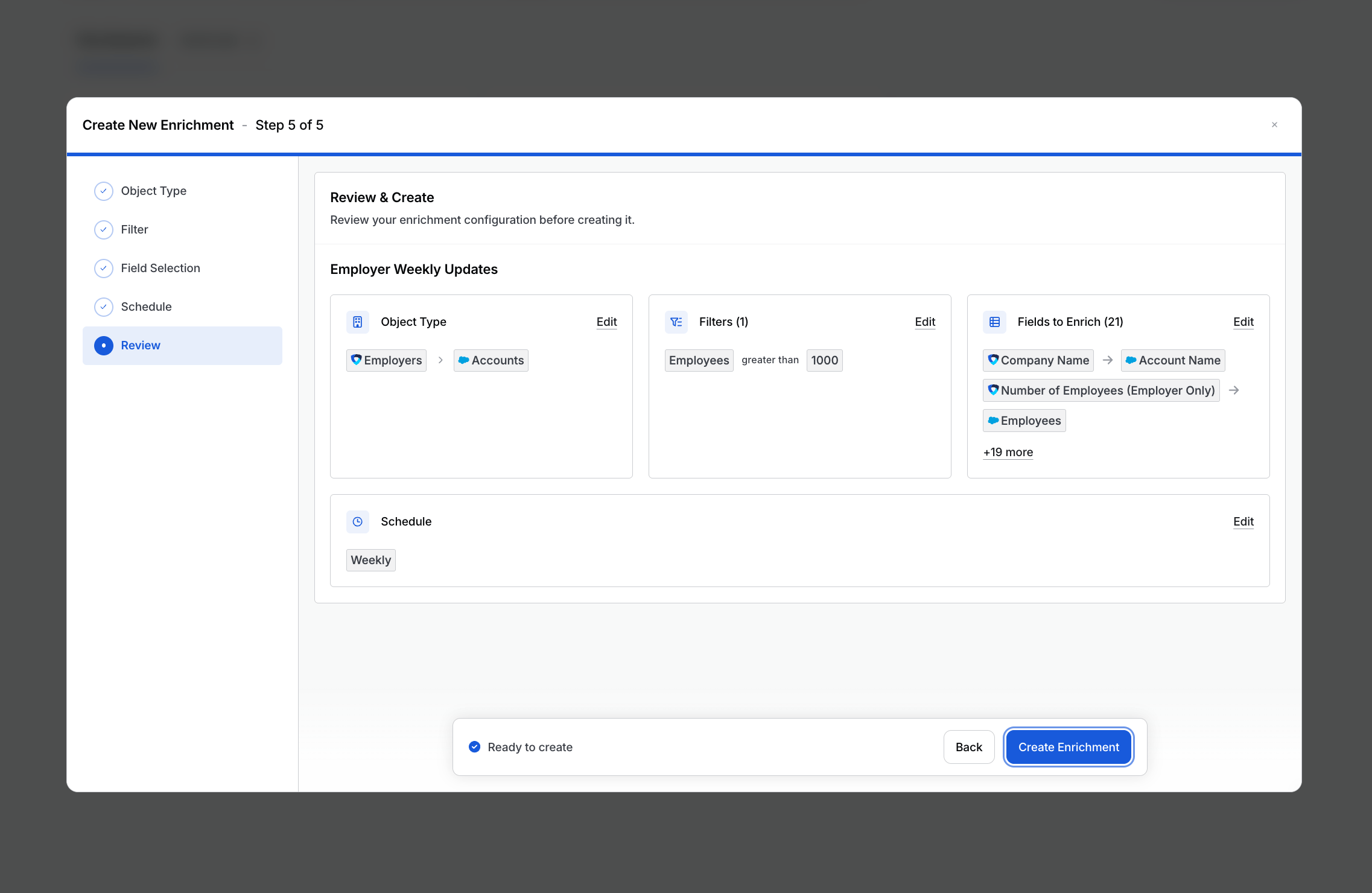
From the **Enrich** tab, click **Create New Enrichment** and follow the five steps:
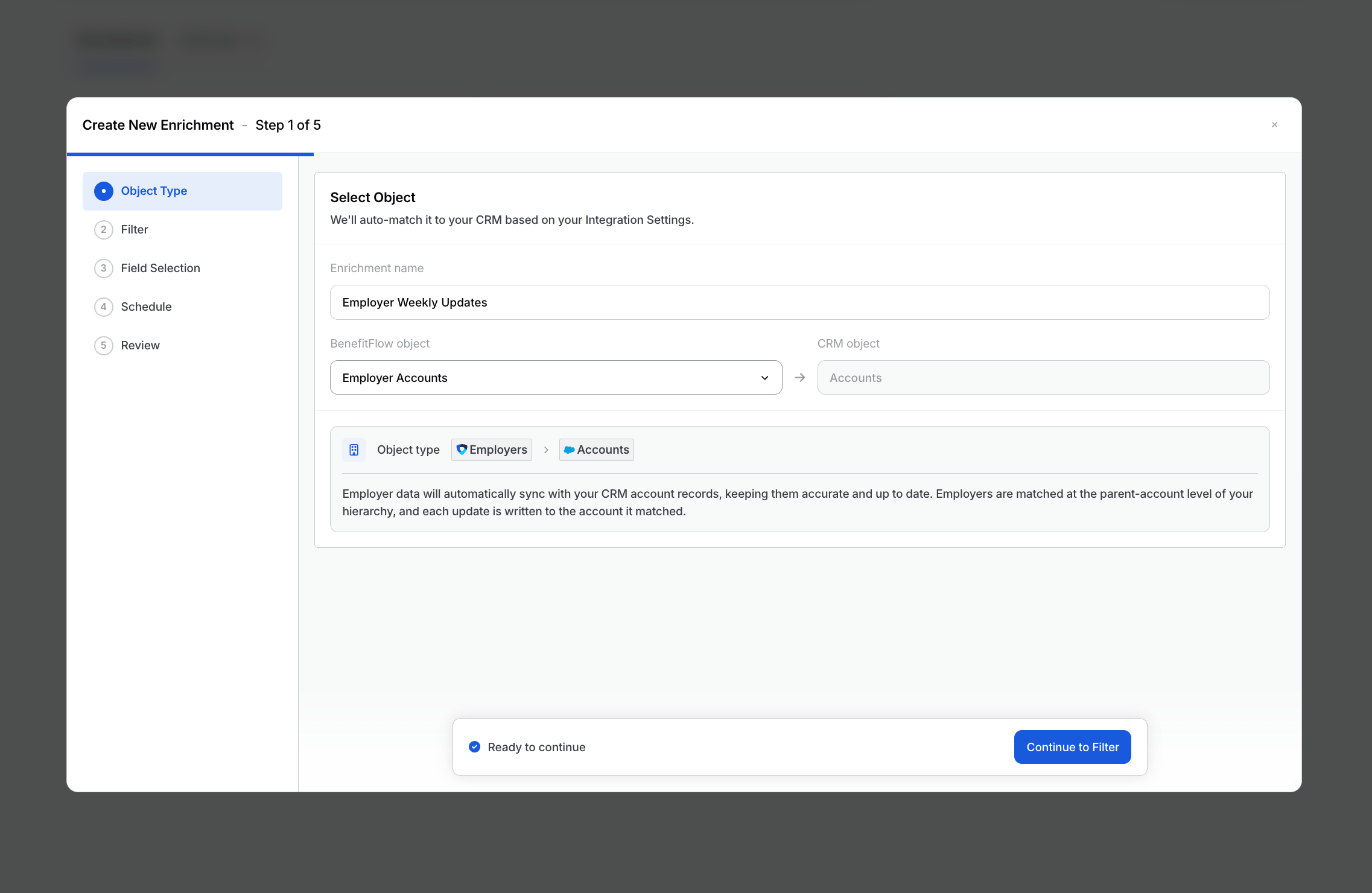
Name the enrichment and choose what to enrich: **Employer Accounts**, **Broker Contacts**, or **Employer Contacts**. The matching CRM object fills in automatically from your Integration Settings: accounts write to your Account or Company object, and contacts to your Contact object.
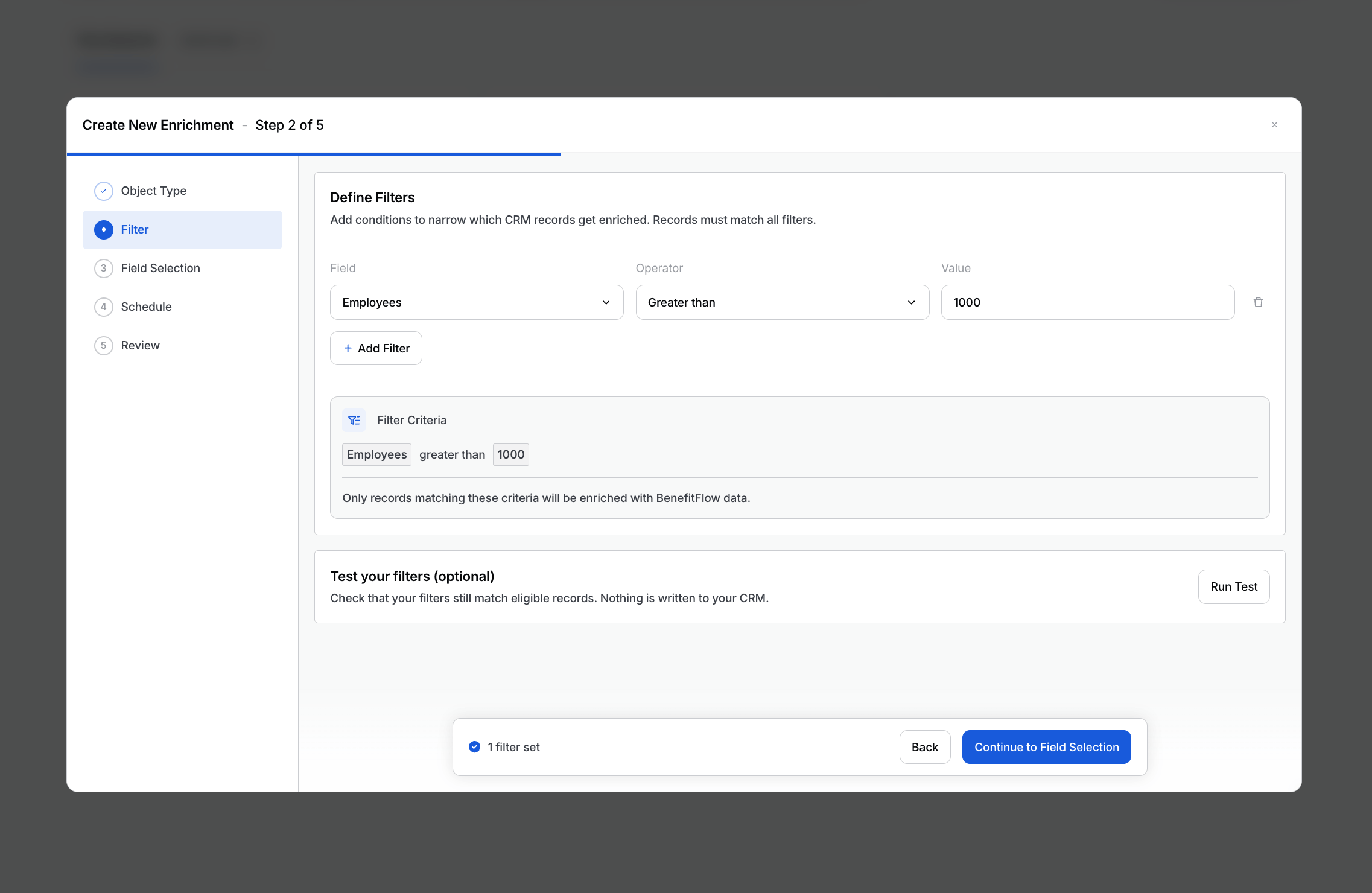
 Narrow which records get enriched using your own CRM fields, for example Employees greater than 100. Each condition is Field / Operator / Value, and the operators depend on the field: text fields offer equals, does not equal, contains, and does not contain; number and date fields offer equals, does not equal, greater than, and less than. Conditions combine with AND. Skip this step to enrich every matched record.
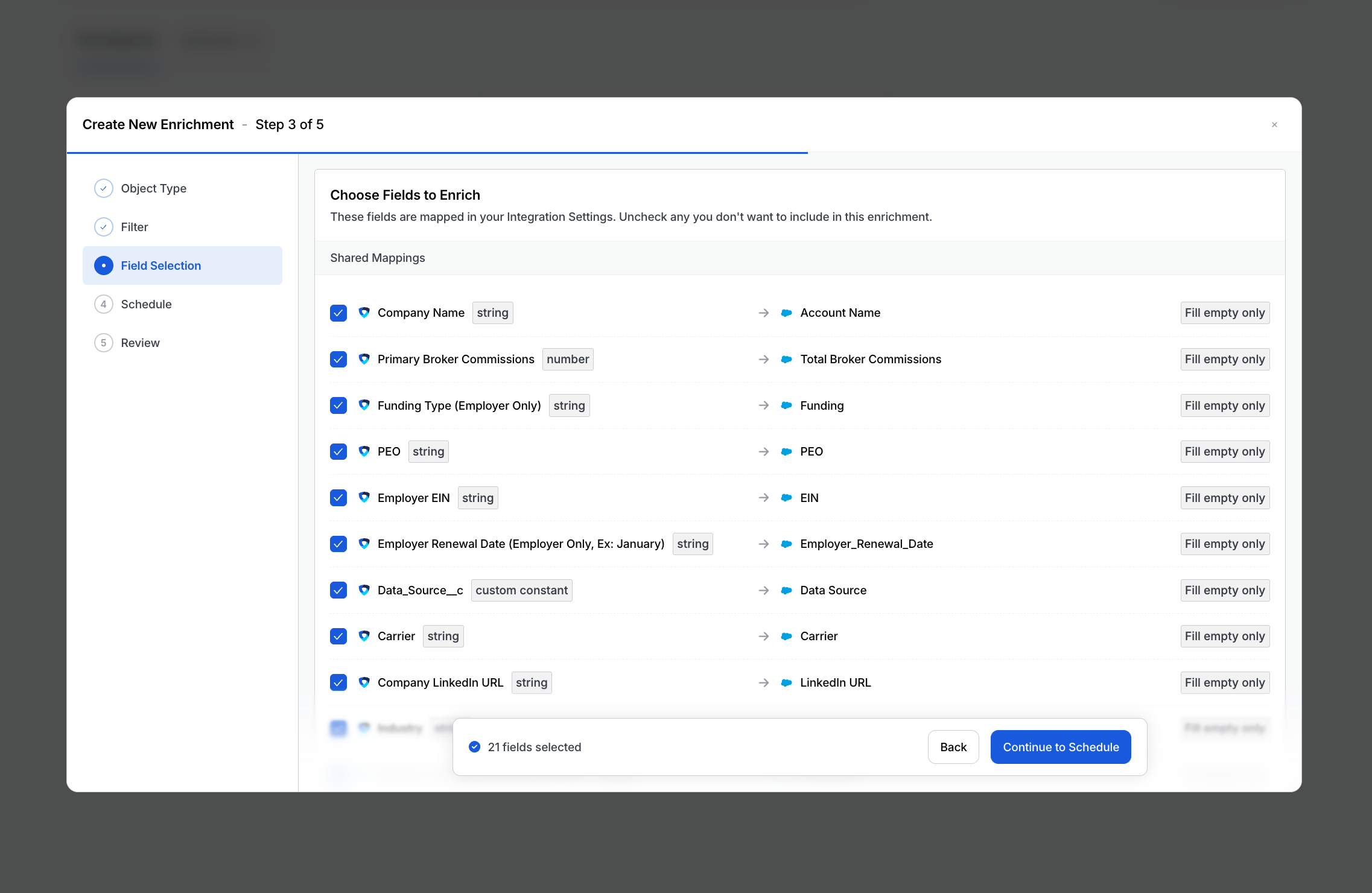
 Choose which of your mapped fields to keep fresh. Each field shows its CRM target and its overwrite behavior (fill empty only, or always overwrite). Identity fields used for matching, like email and website, are locked here and never overwritten.
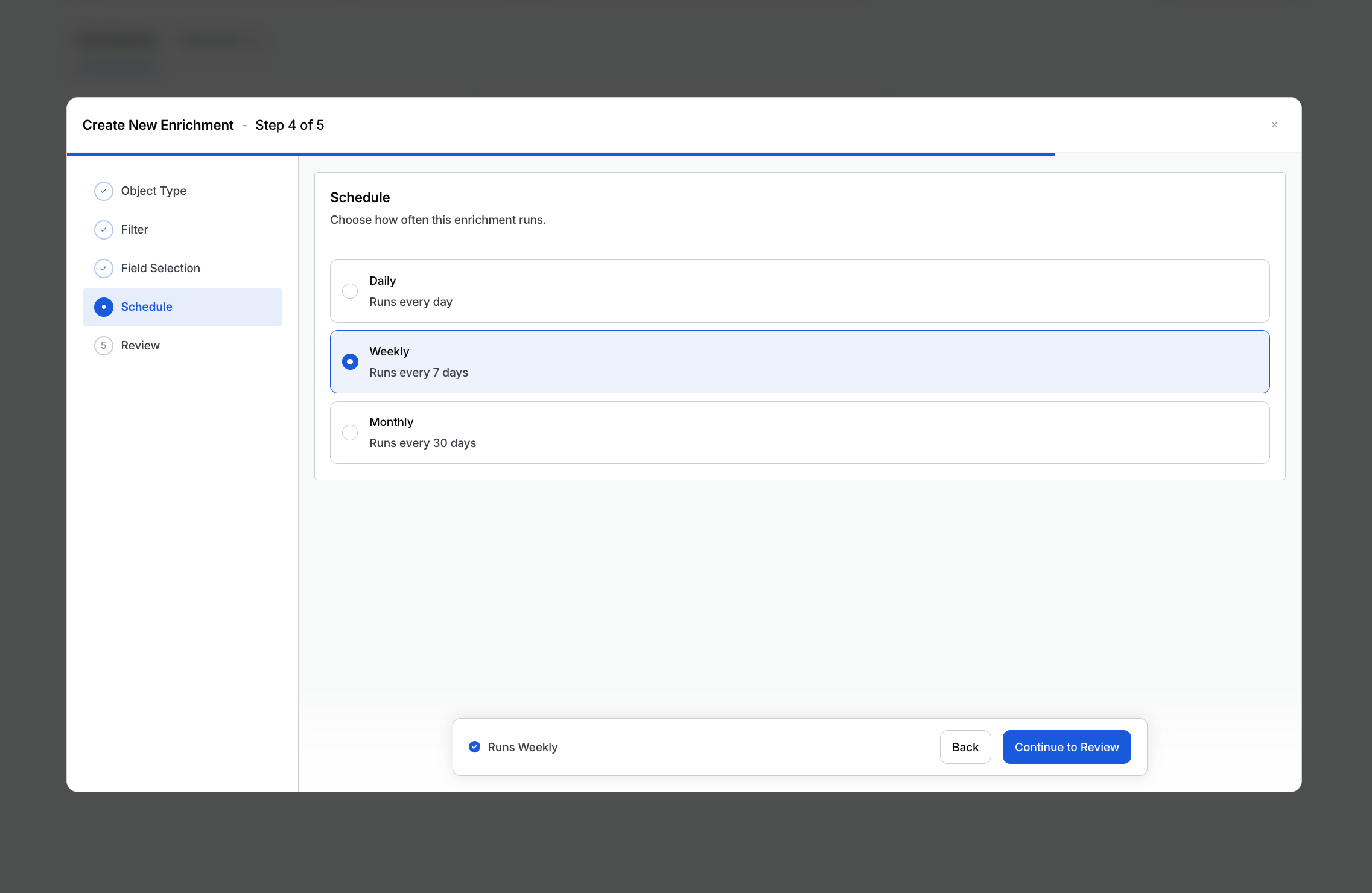
 Choose how often it runs: daily, weekly, or monthly.
 Confirm your setup. The enrichment is created **paused**, so nothing is written to your CRM until you activate it.
 ## Test before you activate
New enrichments start paused, so nothing is written until you turn them on. Check your setup before that first write:
## Test before you activate
New enrichments start paused, so nothing is written until you turn them on. Check your setup before that first write:
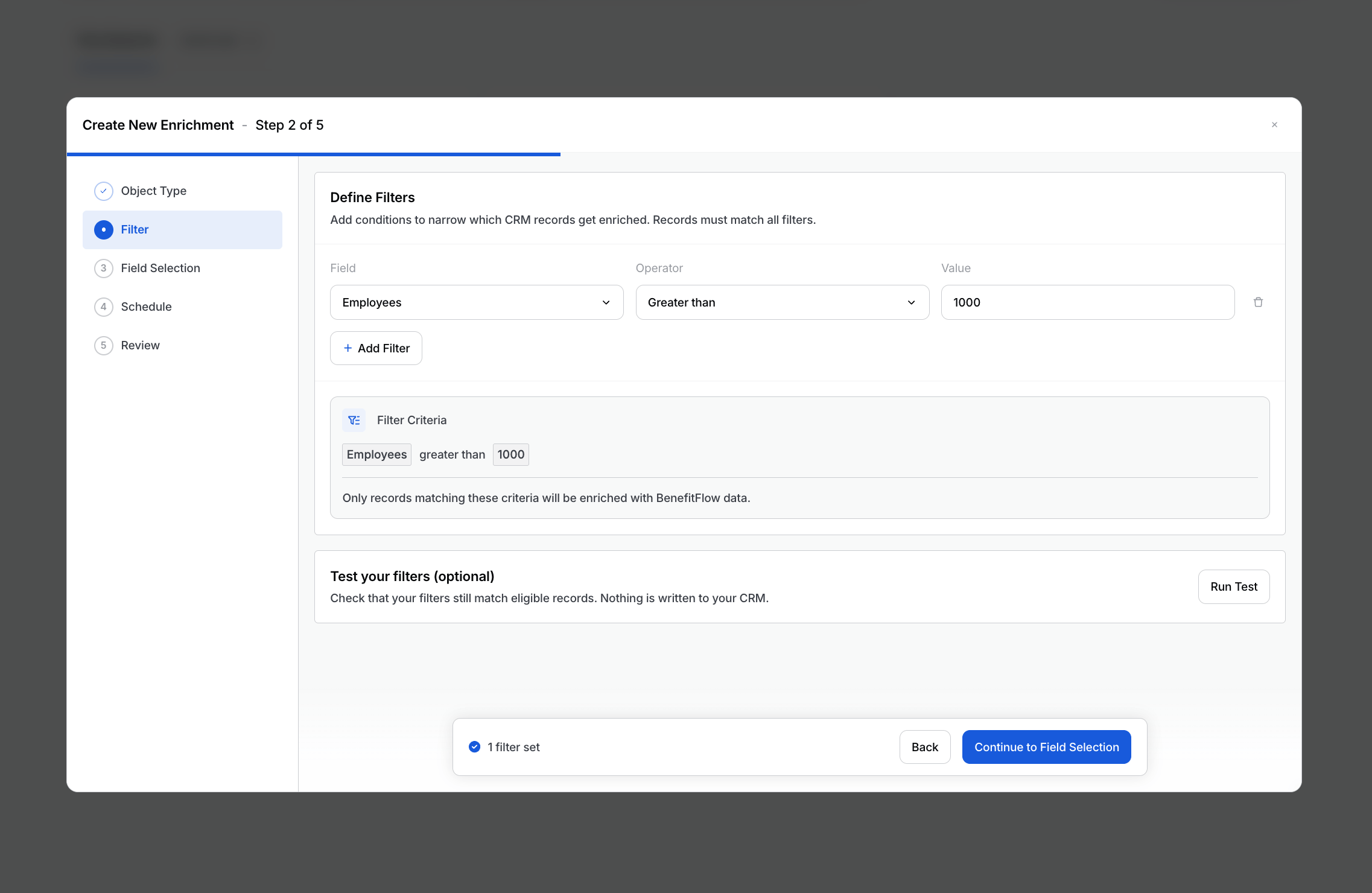 1. In **Step 2**, run the filter check. It confirms your filters match eligible records and writes nothing to your CRM.
2. Review your field selections and overwrite behavior in **Step 3**. Fields default to fill-empty-only, so existing values stay unless you set a field to always overwrite.
3. When you are ready, switch the enrichment to **Active** to start the scheduled runs, or use **Run Now** to run it once on demand.
There is no test write. The first run writes directly to your CRM and cannot be undone, so confirm your filters and field settings before you activate or run.
## How matching works
For a record to be enriched, it must be:
1. Ingested from your CRM into BenefitFlow.
2. Matched to a BenefitFlow record.
3. Due for enrichment under your schedule.
**Accounts** match on company website or domain first, then on company name and state. **Contacts** match on email address. Records that do not match are left untouched, and identity fields used for matching, like email and website, are never overwritten. For more on how matching works, see the [CRM Integrations Overview](/knowledge-base/crm-integration-overview).
## Managing your enrichments
From the **Enrich** tab you can:
1. **Pause or resume** an enrichment at any time.
2. **Edit** its filters, fields, or schedule.
3. **Archive** it.
4. Review **run history** to see when it ran and how many records were matched and updated.
## Good to know
1. **Accounts and contacts.** Enrich writes to your Account or Company records and your Contact records. Broker company enrichment is coming.
2. **Up to 3 account and 3 contact enrichments at a time.** When you reach the limit for a type, archive one to add another.
3. **Cadence** is daily, weekly, or monthly.
4. **Overwrite is per field.** "Fill empty only" updates a field only when it is blank in your CRM; "always overwrite" replaces the existing value. Both come from your Integration Settings mappings.
5. **Filters use AND logic**, so a record must match every condition.
6. **Only changed records are rewritten.** After the first run, Enrich updates a record again only when it has changed, so it won't churn through records that are already current.
## Troubleshooting & FAQ
Enrich is enabled per team. If you don't see it, reach out to your CSM or [customerteam@benefit-flow.com](mailto:customerteam@benefit-flow.com) to get it enabled for your team.
Yes. You can run up to 3 account enrichments and 3 contact enrichments at the same time. Broker Contacts and Employer Contacts both count toward your 3 contact enrichments.
Yes. Enrich focuses on benefits and insurance data (carriers, brokers, and plan details) that general enrichment providers don't offer, so it complements the firmographic data those tools give you. Keep each tool mapped to different fields and they'll work together. Enrich's "fill empty only" default means it won't change a field another tool has already populated unless you set that field to "always overwrite."
A record is only eligible once it has been ingested from your CRM, matched to a BenefitFlow record, and is due for enrichment. Right after setup, ingestion and matching may still be in progress. Also check that your filters are not too narrow.
Confirm the enrichment is Active and not paused, that the records matched a BenefitFlow record, and that the fields are not set to "fill empty only" (which leaves already-populated fields untouched).
Check that field's overwrite behavior in your Integration Settings. "Always overwrite" replaces existing values; switch it to "fill empty only" to protect existing data going forward. Note that updates already applied cannot be undone.
No. Once a run writes to your CRM, those updates can't be undone. Enrichments start paused and include a filter check for exactly this reason, so confirm your scope before you activate. To protect existing values going forward, set fields to "fill empty only."
## Need Help?
Contact [customerteam@benefit-flow.com](mailto:customerteam@benefit-flow.com) for hands-on support.
1. In **Step 2**, run the filter check. It confirms your filters match eligible records and writes nothing to your CRM.
2. Review your field selections and overwrite behavior in **Step 3**. Fields default to fill-empty-only, so existing values stay unless you set a field to always overwrite.
3. When you are ready, switch the enrichment to **Active** to start the scheduled runs, or use **Run Now** to run it once on demand.
There is no test write. The first run writes directly to your CRM and cannot be undone, so confirm your filters and field settings before you activate or run.
## How matching works
For a record to be enriched, it must be:
1. Ingested from your CRM into BenefitFlow.
2. Matched to a BenefitFlow record.
3. Due for enrichment under your schedule.
**Accounts** match on company website or domain first, then on company name and state. **Contacts** match on email address. Records that do not match are left untouched, and identity fields used for matching, like email and website, are never overwritten. For more on how matching works, see the [CRM Integrations Overview](/knowledge-base/crm-integration-overview).
## Managing your enrichments
From the **Enrich** tab you can:
1. **Pause or resume** an enrichment at any time.
2. **Edit** its filters, fields, or schedule.
3. **Archive** it.
4. Review **run history** to see when it ran and how many records were matched and updated.
## Good to know
1. **Accounts and contacts.** Enrich writes to your Account or Company records and your Contact records. Broker company enrichment is coming.
2. **Up to 3 account and 3 contact enrichments at a time.** When you reach the limit for a type, archive one to add another.
3. **Cadence** is daily, weekly, or monthly.
4. **Overwrite is per field.** "Fill empty only" updates a field only when it is blank in your CRM; "always overwrite" replaces the existing value. Both come from your Integration Settings mappings.
5. **Filters use AND logic**, so a record must match every condition.
6. **Only changed records are rewritten.** After the first run, Enrich updates a record again only when it has changed, so it won't churn through records that are already current.
## Troubleshooting & FAQ
Enrich is enabled per team. If you don't see it, reach out to your CSM or [customerteam@benefit-flow.com](mailto:customerteam@benefit-flow.com) to get it enabled for your team.
Yes. You can run up to 3 account enrichments and 3 contact enrichments at the same time. Broker Contacts and Employer Contacts both count toward your 3 contact enrichments.
Yes. Enrich focuses on benefits and insurance data (carriers, brokers, and plan details) that general enrichment providers don't offer, so it complements the firmographic data those tools give you. Keep each tool mapped to different fields and they'll work together. Enrich's "fill empty only" default means it won't change a field another tool has already populated unless you set that field to "always overwrite."
A record is only eligible once it has been ingested from your CRM, matched to a BenefitFlow record, and is due for enrichment. Right after setup, ingestion and matching may still be in progress. Also check that your filters are not too narrow.
Confirm the enrichment is Active and not paused, that the records matched a BenefitFlow record, and that the fields are not set to "fill empty only" (which leaves already-populated fields untouched).
Check that field's overwrite behavior in your Integration Settings. "Always overwrite" replaces existing values; switch it to "fill empty only" to protect existing data going forward. Note that updates already applied cannot be undone.
No. Once a run writes to your CRM, those updates can't be undone. Enrichments start paused and include a filter check for exactly this reason, so confirm your scope before you activate. To protect existing values going forward, set fields to "fill empty only."
## Need Help?
Contact [customerteam@benefit-flow.com](mailto:customerteam@benefit-flow.com) for hands-on support.