> ## Documentation Index
> Fetch the complete documentation index at: https://docs.benefitflow.com/llms.txt
> Use this file to discover all available pages before exploring further.
# CRM Filter
> See which contacts are already in your CRM and filter by CRM status directly in BenefitFlow.
CRM Filter adds CRM awareness to your prospecting workflow. When you've connected Salesforce, HubSpot, or Microsoft Dynamics, you'll see badges on contact cards showing who's already in your CRM — and you can filter to focus on contacts that are or aren't in your system. No more switching between tabs to figure out who's new.
## What You'll See
CRM Filter introduces two visual changes to BenefitFlow:
**CRM badges on contact cards** — A small badge appears on any contact card when that person already exists in your connected CRM. You can spot who's been added at a glance without opening individual records.
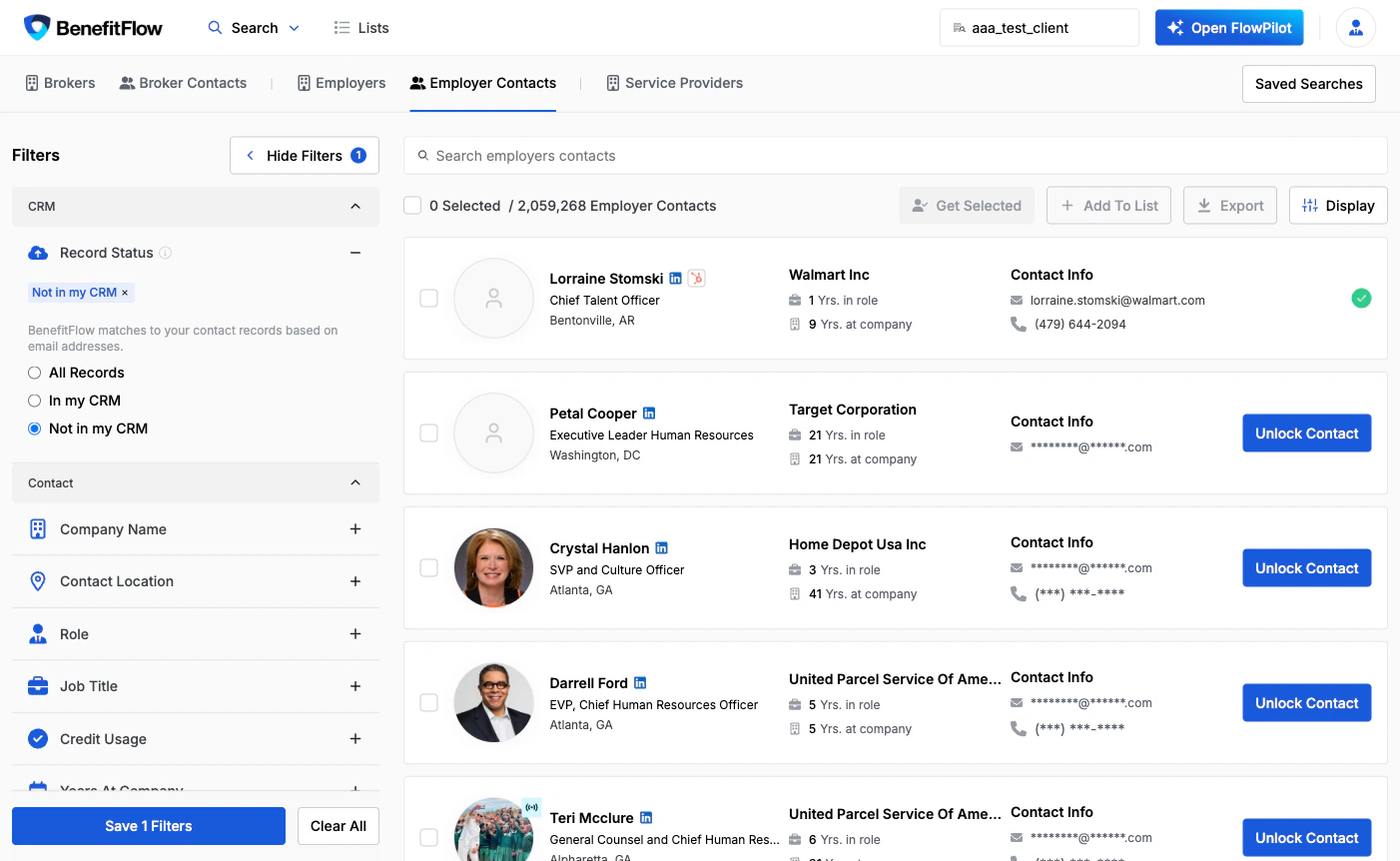 **CRM status filter** — A new filter option in the sidebar lets you toggle between All, In CRM, and Not in CRM. Use it to narrow your view based on whether contacts have already been added to your CRM.
 ## How to Use CRM Filter
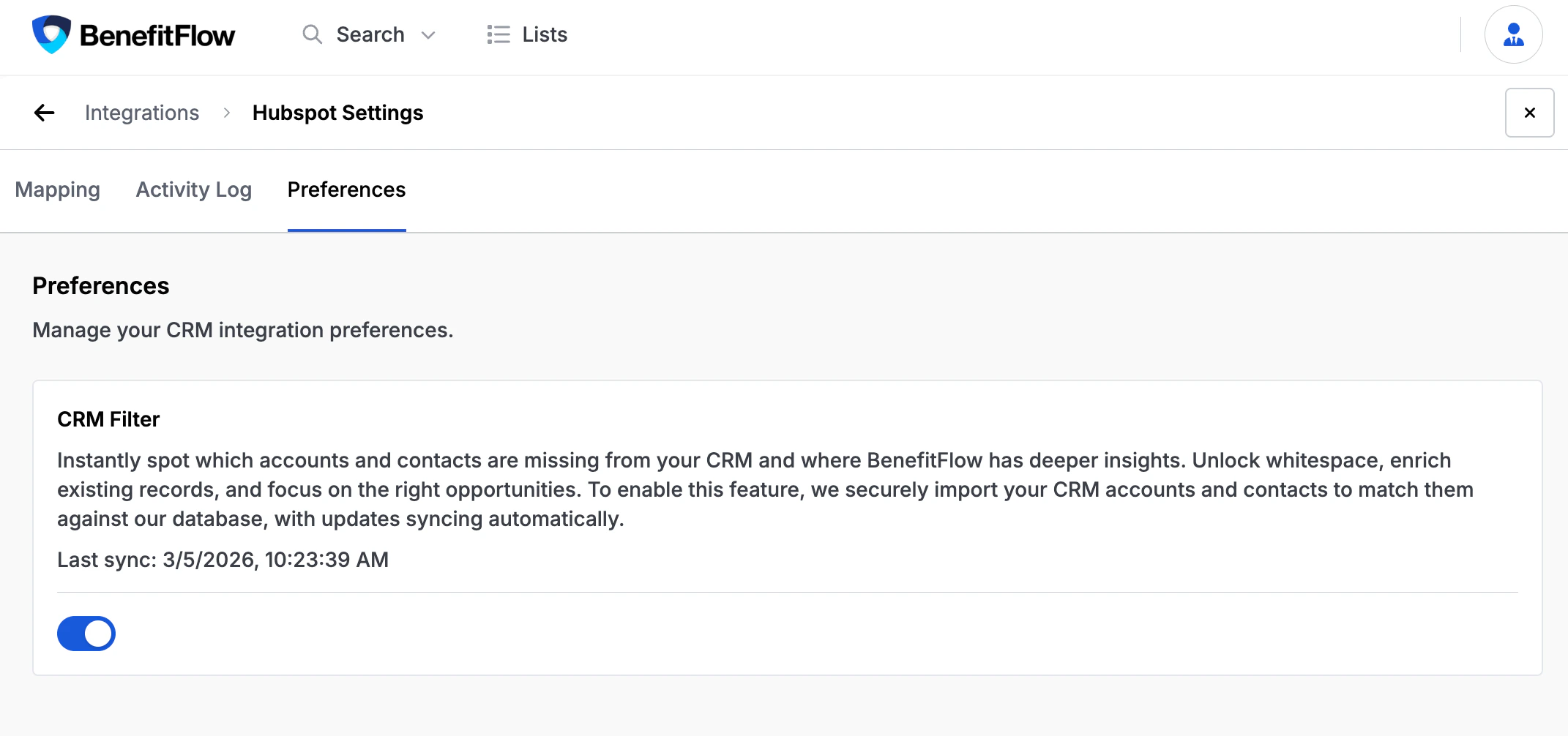
Go to **Settings > Integrations** and confirm your CRM is connected and the CRM Filter preference is enabled.
## How to Use CRM Filter
Go to **Settings > Integrations** and confirm your CRM is connected and the CRM Filter preference is enabled.
 Open the **Contacts** page from the main navigation. CRM badges appear automatically on any contact that matches a record in your CRM — no extra setup required.
In the filter sidebar, find the **CRM Status** filter. Select **In CRM** to see contacts you already have, or **Not in CRM** to find net-new prospects.
## How It Works
| Feature | Details |
| ---------------- | ----------------------------------------------------------------------------------------------------------------------- |
| Matching Logic | Contacts are matched by email address. Employers are matched by website URL. |
| Sync Frequency | Contacts synced through Lists update almost immediately. All other CRM data refreshes automatically within a few hours. |
| Supported CRMs | Salesforce, HubSpot, Microsoft Dynamics 365 |
| Where It Appears | Contacts page and employer profile contact lists |
## Use Cases
| Goal | How CRM Filter Helps |
| ------------------------- | ----------------------------------------------------------------------------------------------------------- |
| Find net-new prospects | Filter to **Not in CRM** to see contacts your team hasn't added yet — no more guessing who's new |
| Avoid duplicate outreach | Filter to **In CRM** to check which contacts are already being worked before reaching out |
| Fill gaps at key accounts | Visit an employer profile, then filter contacts to **Not in CRM** to find additional decision-makers to add |
**Don't see CRM badges or the filter?** You'll need an active CRM integration first. See [CRM Integrations: Getting Started](/knowledge-base/crm-integrations-getting-started) to connect your CRM.
## FAQ
No. Any user can see CRM badges and use the filter once an admin has connected a CRM integration and enabled CRM Filter in Settings.
It depends on how the contact was synced:
* **Contacts synced through Lists** — CRM badges appear almost immediately after syncing.
* **All other contacts** — BenefitFlow periodically checks your CRM for changes. Badges typically appear within a few hours.
Badges only appear when BenefitFlow can match a contact to a record in your CRM by email address. If the contact's email in BenefitFlow doesn't match any email in your CRM, no badge will show.
CRM badges appear on the Contacts page and on contact lists within employer profiles.
Yes. CRM Filter works with Salesforce, HubSpot, and Microsoft Dynamics 365. The experience is the same regardless of which CRM you use.
Open the **Contacts** page from the main navigation. CRM badges appear automatically on any contact that matches a record in your CRM — no extra setup required.
In the filter sidebar, find the **CRM Status** filter. Select **In CRM** to see contacts you already have, or **Not in CRM** to find net-new prospects.
## How It Works
| Feature | Details |
| ---------------- | ----------------------------------------------------------------------------------------------------------------------- |
| Matching Logic | Contacts are matched by email address. Employers are matched by website URL. |
| Sync Frequency | Contacts synced through Lists update almost immediately. All other CRM data refreshes automatically within a few hours. |
| Supported CRMs | Salesforce, HubSpot, Microsoft Dynamics 365 |
| Where It Appears | Contacts page and employer profile contact lists |
## Use Cases
| Goal | How CRM Filter Helps |
| ------------------------- | ----------------------------------------------------------------------------------------------------------- |
| Find net-new prospects | Filter to **Not in CRM** to see contacts your team hasn't added yet — no more guessing who's new |
| Avoid duplicate outreach | Filter to **In CRM** to check which contacts are already being worked before reaching out |
| Fill gaps at key accounts | Visit an employer profile, then filter contacts to **Not in CRM** to find additional decision-makers to add |
**Don't see CRM badges or the filter?** You'll need an active CRM integration first. See [CRM Integrations: Getting Started](/knowledge-base/crm-integrations-getting-started) to connect your CRM.
## FAQ
No. Any user can see CRM badges and use the filter once an admin has connected a CRM integration and enabled CRM Filter in Settings.
It depends on how the contact was synced:
* **Contacts synced through Lists** — CRM badges appear almost immediately after syncing.
* **All other contacts** — BenefitFlow periodically checks your CRM for changes. Badges typically appear within a few hours.
Badges only appear when BenefitFlow can match a contact to a record in your CRM by email address. If the contact's email in BenefitFlow doesn't match any email in your CRM, no badge will show.
CRM badges appear on the Contacts page and on contact lists within employer profiles.
Yes. CRM Filter works with Salesforce, HubSpot, and Microsoft Dynamics 365. The experience is the same regardless of which CRM you use.