> ## Documentation Index
> Fetch the complete documentation index at: https://docs.benefitflow.com/llms.txt
> Use this file to discover all available pages before exploring further.

# HubSpot Integration: Setup Instructions

## Est. Setup Time: 5 minutes

<Warning>
  **To setup the integration, you must be a BenefitFlow Admin and a HubSpot Admin with read/write privileges for all fields**
</Warning>

<Steps>
  <Step>
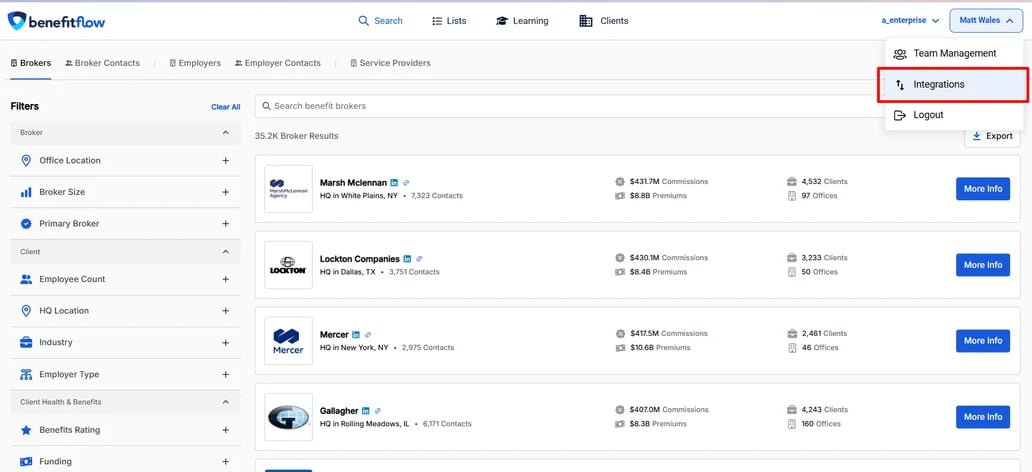
    **Login to BenefitFlow and** **navigate to the “Integrations” page**
    <Frame>
      <img src="https://mintcdn.com/benefitflow/Tcouuth1jKoeq3a0/images/image-26.png?fit=max&auto=format&n=Tcouuth1jKoeq3a0&q=85&s=8b28d99bb1545d6eed4fe7922bbf6cf4" alt="Navigate to the “Integrations” page in BenefitFlow" width="1032" height="472" data-path="images/image-26.png" />
    </Frame>
  </Step>

  <Step>
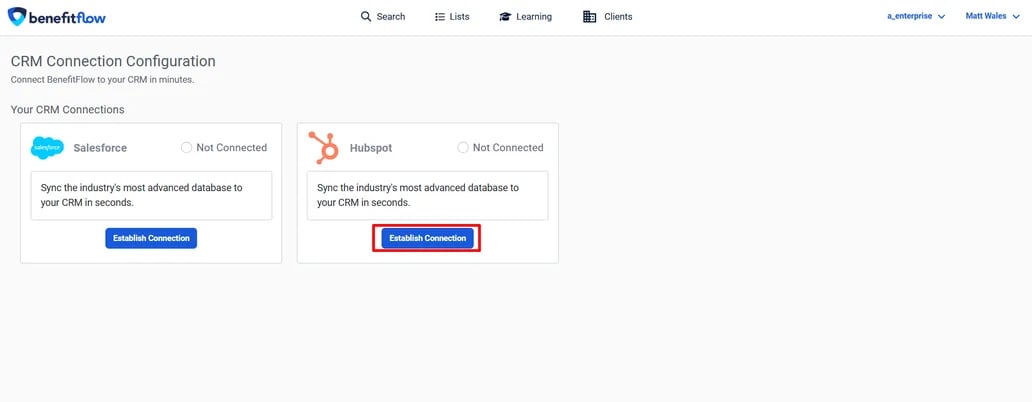
    **Click the “Establish Connection” button to connect to HubSpot**
    <Frame>
      <img src="https://mintcdn.com/benefitflow/Tcouuth1jKoeq3a0/images/image-27.png?fit=max&auto=format&n=Tcouuth1jKoeq3a0&q=85&s=791a5d6df002a00a632729172f2943f9" alt="Click the “Establish Connection” button to connect to HubSpot" width="1032" height="402" data-path="images/image-27.png" />
    </Frame>
  </Step>

  <Step>
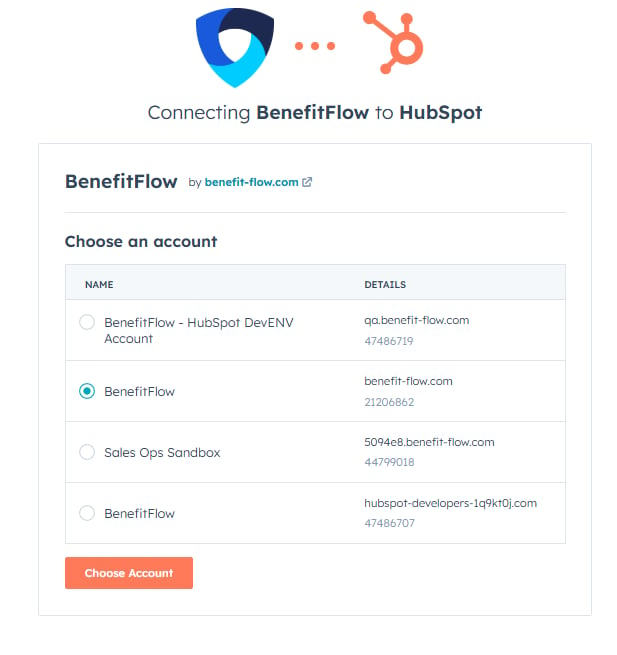
    **Click the “Connect” button to connect to HubSpot**
    <Frame>
      <img src="https://mintcdn.com/benefitflow/Tcouuth1jKoeq3a0/images/image-28.png?fit=max&auto=format&n=Tcouuth1jKoeq3a0&q=85&s=2a2145ef9a10eeb413dee73beb7b766e" alt="Click the “Connect” button to connect to HubSpot" width="617" height="655" data-path="images/image-28.png" />
    </Frame>

    <Tip>
      You can connect to either a sandbox or your main production account.
    </Tip>
  </Step>

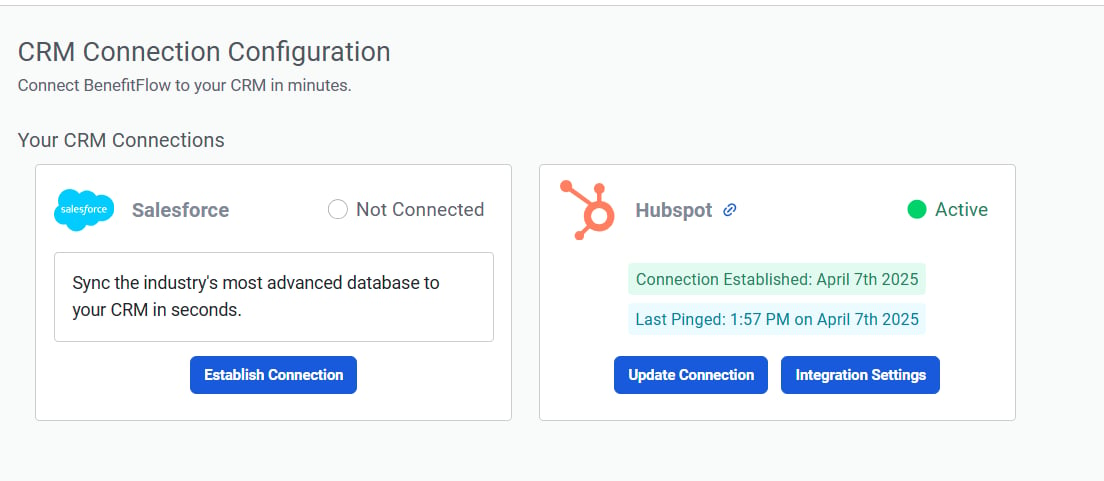
  <Step>
    **Success!**

    <Frame>
      <img src="https://mintcdn.com/benefitflow/Tcouuth1jKoeq3a0/images/image-29.png?fit=max&auto=format&n=Tcouuth1jKoeq3a0&q=85&s=c395c78962e91d15ecf7a9dfe3844424" alt="Success!" width="1104" height="481" data-path="images/image-29.png" />
    </Frame>
  </Step>

  <Step>
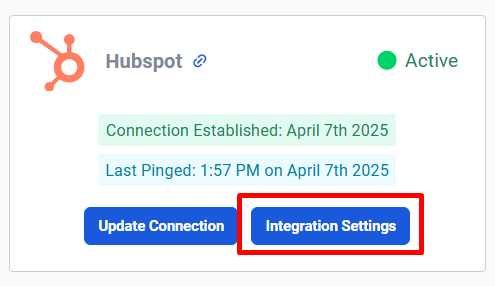
    **To configure your mapping settings, click "Integration Settings"**
    <Frame>
      <img src="https://mintcdn.com/benefitflow/Tcouuth1jKoeq3a0/images/image-30.png?fit=max&auto=format&n=Tcouuth1jKoeq3a0&q=85&s=e5631154e9be7b02aa7604514ac662d4" alt="To configure your mapping settings, click Integration Settings" width="495" height="286" data-path="images/image-30.png" />
    </Frame>
  </Step>

  <Step>
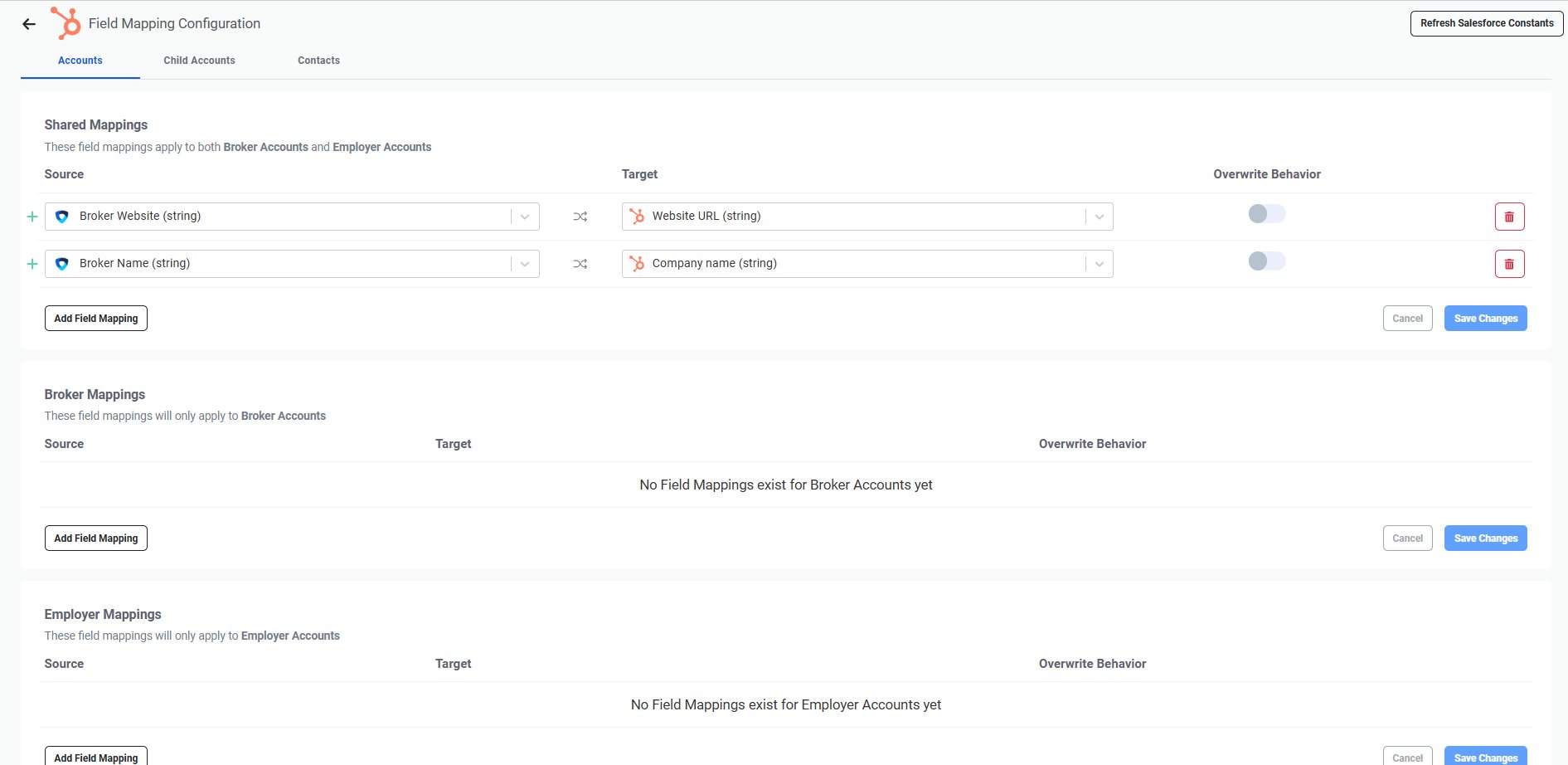
    **Specify how fields across BenefitFlow's employer and broker objects are mapped to your HubSpot fields** 
    <Frame>
      <img src="https://mintcdn.com/benefitflow/Tcouuth1jKoeq3a0/images/image-31.png?fit=max&auto=format&n=Tcouuth1jKoeq3a0&q=85&s=915296e1d845ed161fc488b28b46abe6" alt="Mapping fields between BenefitFlow and HubSpot" width="1891" height="922" data-path="images/image-31.png" />
    </Frame>
  </Step>

  <Step>
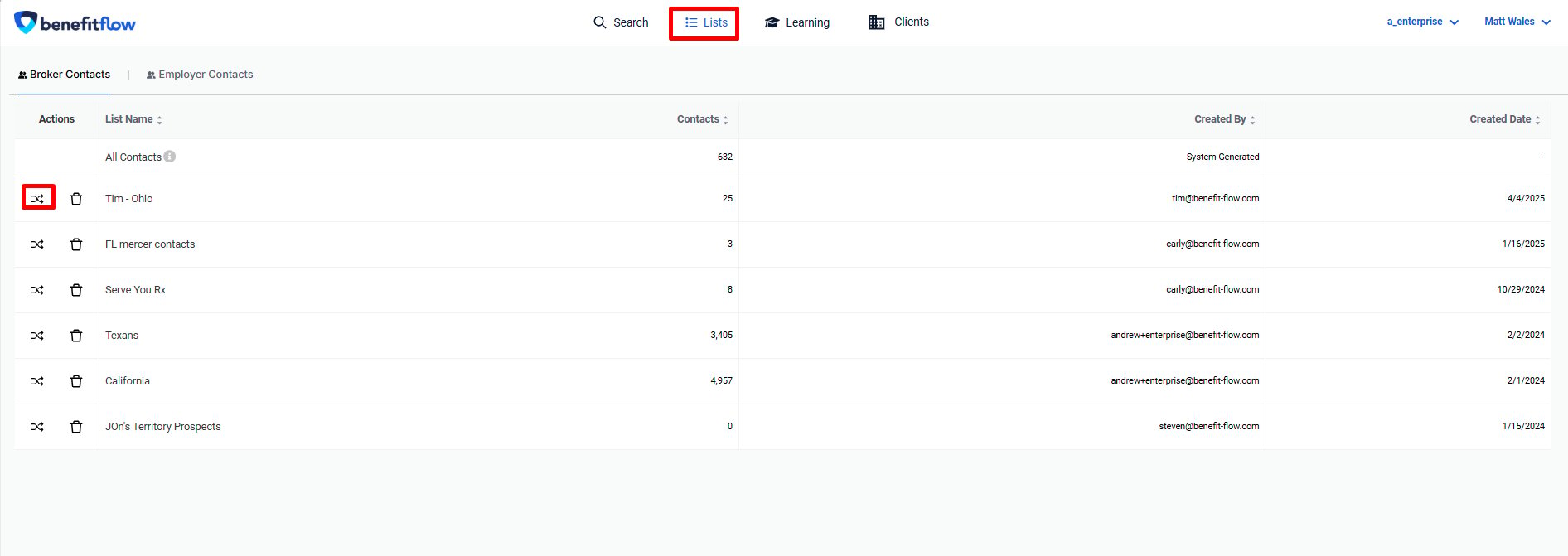
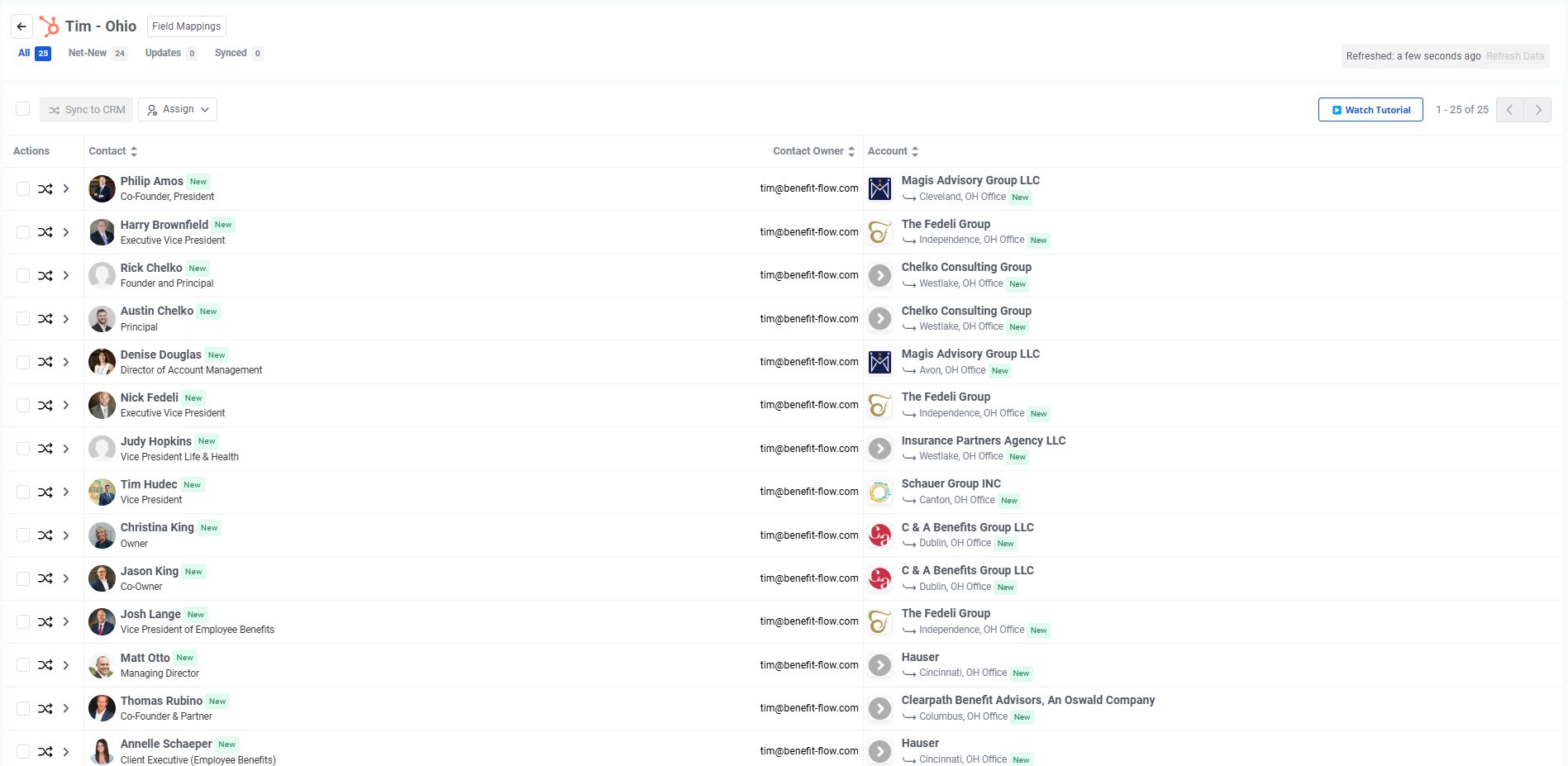
    **Once you're ready to begin syncing data, navigate to your lists, click the sync button on the desired list and begin syncing!**
    <Frame>
      <img src="https://mintcdn.com/benefitflow/Tcouuth1jKoeq3a0/images/image-32.png?fit=max&auto=format&n=Tcouuth1jKoeq3a0&q=85&s=4e2ed602080171b240c039f69354389f" alt="Lists page showing a selected list with the Sync button highlighted" width="1892" height="671" data-path="images/image-32.png" />
    </Frame>

    <Frame>
      <img src="https://mintcdn.com/benefitflow/Tcouuth1jKoeq3a0/images/image-33.png?fit=max&auto=format&n=Tcouuth1jKoeq3a0&q=85&s=33fb7e6b7120858c64647fc41fd8dcdd" alt="Confirmation message after clicking the Sync button" width="1897" height="927" data-path="images/image-33.png" />
    </Frame>
  </Step>
</Steps>