> ## Documentation Index
> Fetch the complete documentation index at: https://docs.benefitflow.com/llms.txt
> Use this file to discover all available pages before exploring further.
# Lists
> Build, share, and export prospect lists in BenefitFlow
Lists let you collect specific broker offices, broker contacts, employers, or employer contacts into named groups for tracking, exporting, or pushing to your CRM.
## Creating a List
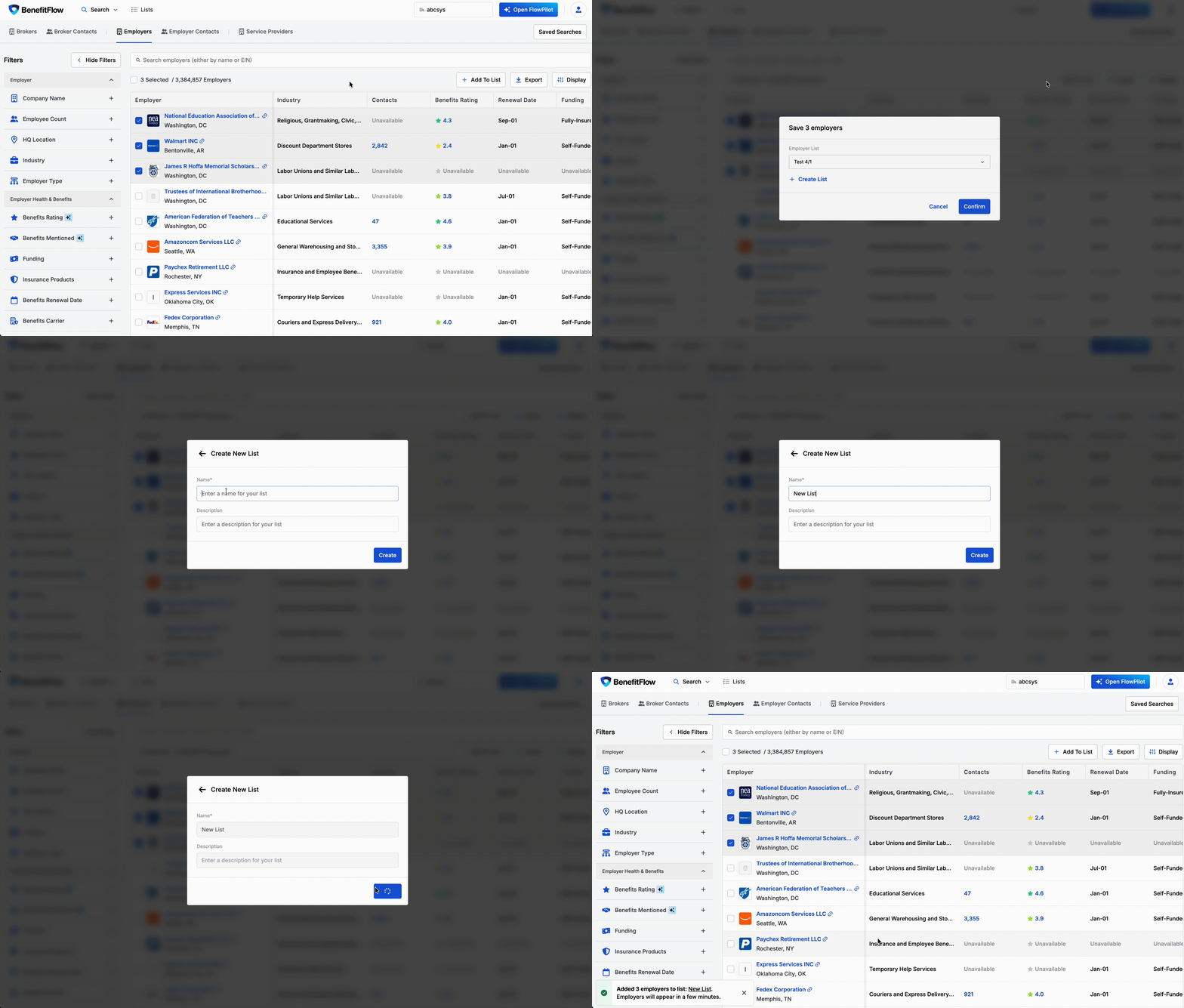
1. Run a search on any tab and apply your filters
2. Select the records you want (checkbox on each row, or "Select All")
3. Click **Add to List**
4. Choose an existing list or create a new one
 ## What You Can Do with Lists
* **Export to CSV** — download your list for offline use or sharing
* **Push to CRM** — sync list records directly to Salesforce, HubSpot, or Dynamics
* **Track accounts** — use lists as working pipelines or territory trackers
* **Add over time** — grow lists incrementally as you find new prospects across sessions
## View Contacts from Employer Lists
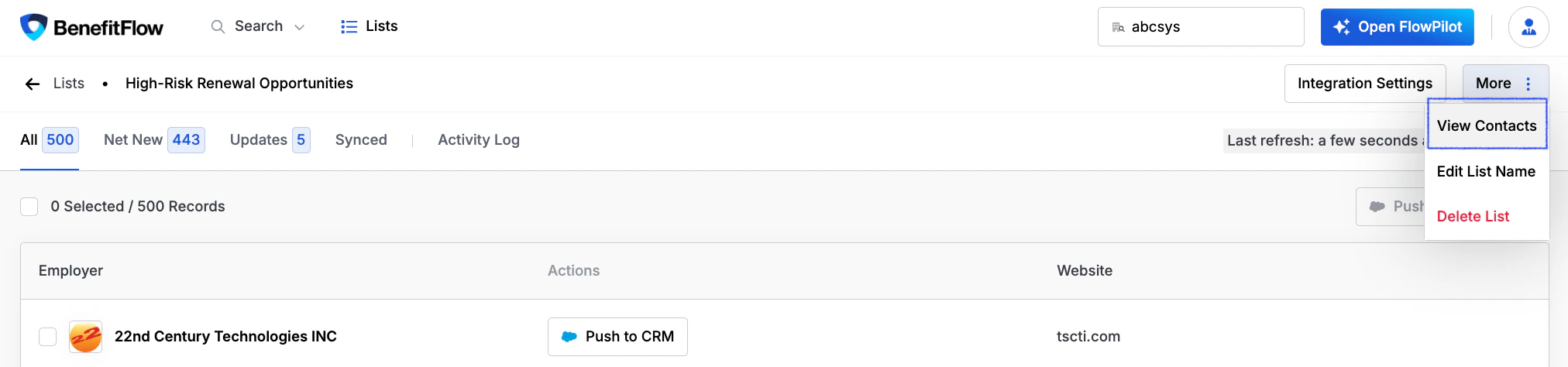
You can access contacts directly from an employer list without leaving the list view.
1. Open any employer list
2. Click **More** in the top right
3. Select **View Contacts** to see associated HR decision-makers, executives, and Form 5500 signatories
This lets you move from a target account list to outreach-ready contacts in one step, without navigating back to the main search.
## What You Can Do with Lists
* **Export to CSV** — download your list for offline use or sharing
* **Push to CRM** — sync list records directly to Salesforce, HubSpot, or Dynamics
* **Track accounts** — use lists as working pipelines or territory trackers
* **Add over time** — grow lists incrementally as you find new prospects across sessions
## View Contacts from Employer Lists
You can access contacts directly from an employer list without leaving the list view.
1. Open any employer list
2. Click **More** in the top right
3. Select **View Contacts** to see associated HR decision-makers, executives, and Form 5500 signatories
This lets you move from a target account list to outreach-ready contacts in one step, without navigating back to the main search.
 ## Private Lists & Saved Searches
List visibility is controlled by the same admin toggle as saved searches.
**Setting:** "Private Lists & Saved Searches"
**Location:** [Team Management → Settings](https://benefit-flow.com/Team?tab=settings)
When **toggled on:**
* Users will only see lists **they created**
* Admins always see everything regardless of this setting
When **toggled off:**
* All lists are visible to all users on the account
For more details on this setting, see [Saved Searches → Private Lists & Saved Searches](/knowledge-base/saved-searches#private-lists--saved-searches).
## Private Lists & Saved Searches
List visibility is controlled by the same admin toggle as saved searches.
**Setting:** "Private Lists & Saved Searches"
**Location:** [Team Management → Settings](https://benefit-flow.com/Team?tab=settings)
When **toggled on:**
* Users will only see lists **they created**
* Admins always see everything regardless of this setting
When **toggled off:**
* All lists are visible to all users on the account
For more details on this setting, see [Saved Searches → Private Lists & Saved Searches](/knowledge-base/saved-searches#private-lists--saved-searches).