> ## Documentation Index
> Fetch the complete documentation index at: https://docs.benefitflow.com/llms.txt
> Use this file to discover all available pages before exploring further.
# How to Manage Users (Admin Guide)
> Admins can manage users in BenefitFlow from the admin dashboard: adding and removing users, viewing contact credit usage, and managing roles and licenses.
## ➕ How to Add Users
Log into your BenefitFlow admin account.
Navigate to your name in the upper right corner **> Team Management**.
Click “**Add User**” and enter the new user’s:
* Full name
* Work email
* Role (User or Admin)
Click “**Send Invite**” – they’ll get an email to sign in. Their account is active right away, and they sign in with a one-time code (no password needed).
**Note:**
Each user added will count toward your license tier.
## ❌ How to Delete Users
Go to **Settings > Team Management**.
Find the user you want to remove.
Click the “•••” menu next to their name.
Select **“Remove from Account.”**
This action immediately revokes access and cannot be undone.
### 📊 View Contact Credit Usage
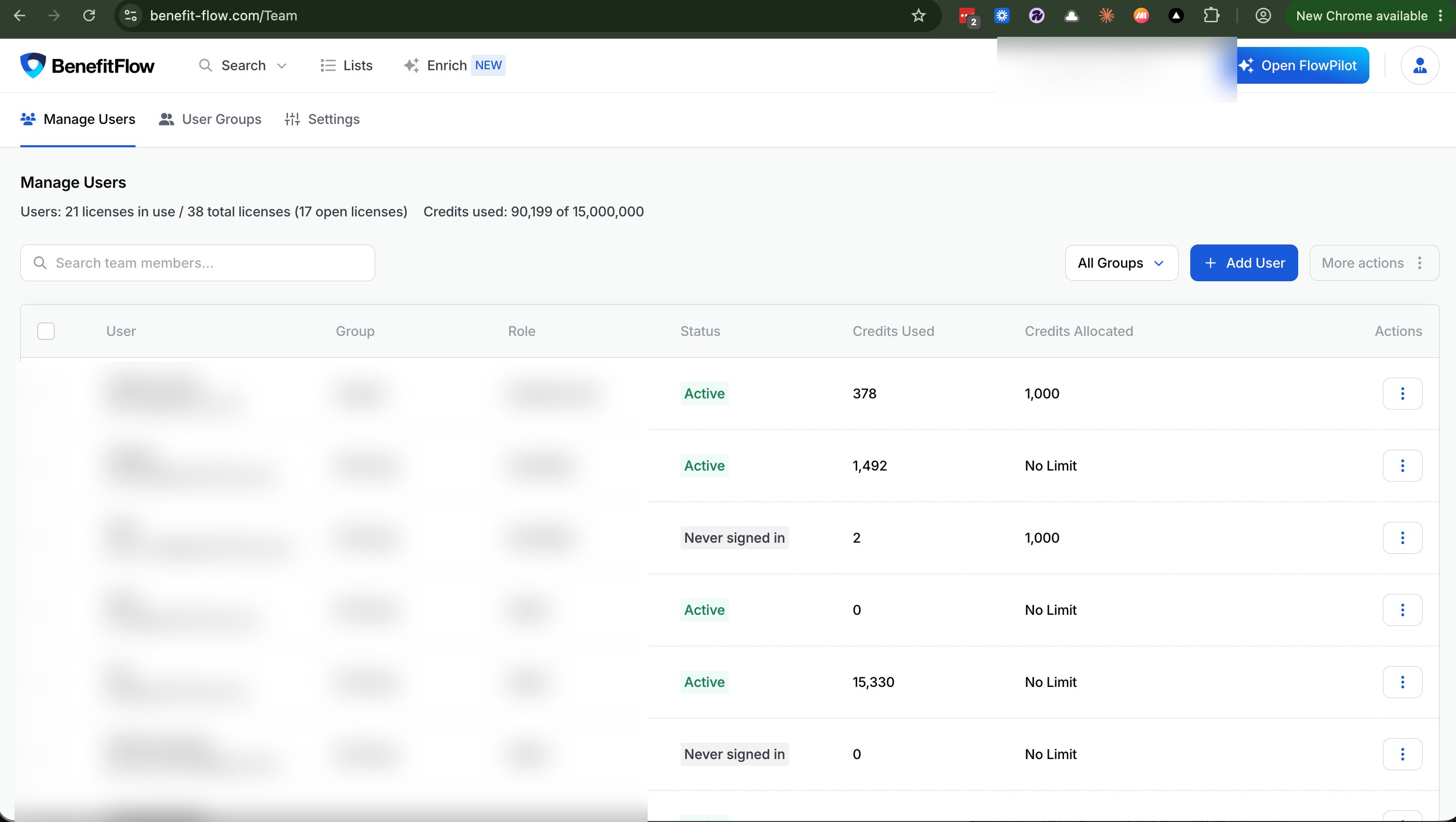
Navigate to **Team Management > Manage Users**.
View lifetime contact credit usage per user.
**Reminder:**
Each time a user clicks "Get Contact," it uses 1 credit.
### 👤 View Sign-In Status
The **Status** column on Manage Users shows whether each user is **Active** or has **Never signed in**, so you can quickly spot teammates who still need to get started.
 ### 🔁 Password Resets
There are no password resets to manage. Users sign in with a one-time code emailed to them, so there's nothing for an admin to reset. If a user can't get in, they sign in again with a fresh code at [www.benefitflow.com/login](https://www.benefitflow.com/login). See [Signing in](/knowledge-base/signing-in) for the full flow.
### 🔁 Password Resets
There are no password resets to manage. Users sign in with a one-time code emailed to them, so there's nothing for an admin to reset. If a user can't get in, they sign in again with a fresh code at [www.benefitflow.com/login](https://www.benefitflow.com/login). See [Signing in](/knowledge-base/signing-in) for the full flow.