> ## Documentation Index
> Fetch the complete documentation index at: https://docs.benefitflow.com/llms.txt
> Use this file to discover all available pages before exploring further.

# Salesforce Integration: Manual/Advanced Setup Instructions

<Note>
  Most customers should use **1-click authentication** from the [Integrations page](/knowledge-base/crm-integrations-getting-started). The instructions below are for manual or advanced setups only.
</Note>

## Est. Setup Time: 10 minutes

<Warning>
  **To setup the integration, you must be a BenefitFlow Admin and a Salesforce Admin with read/write privileges for all fields**
</Warning>

<Steps>
  <Step>
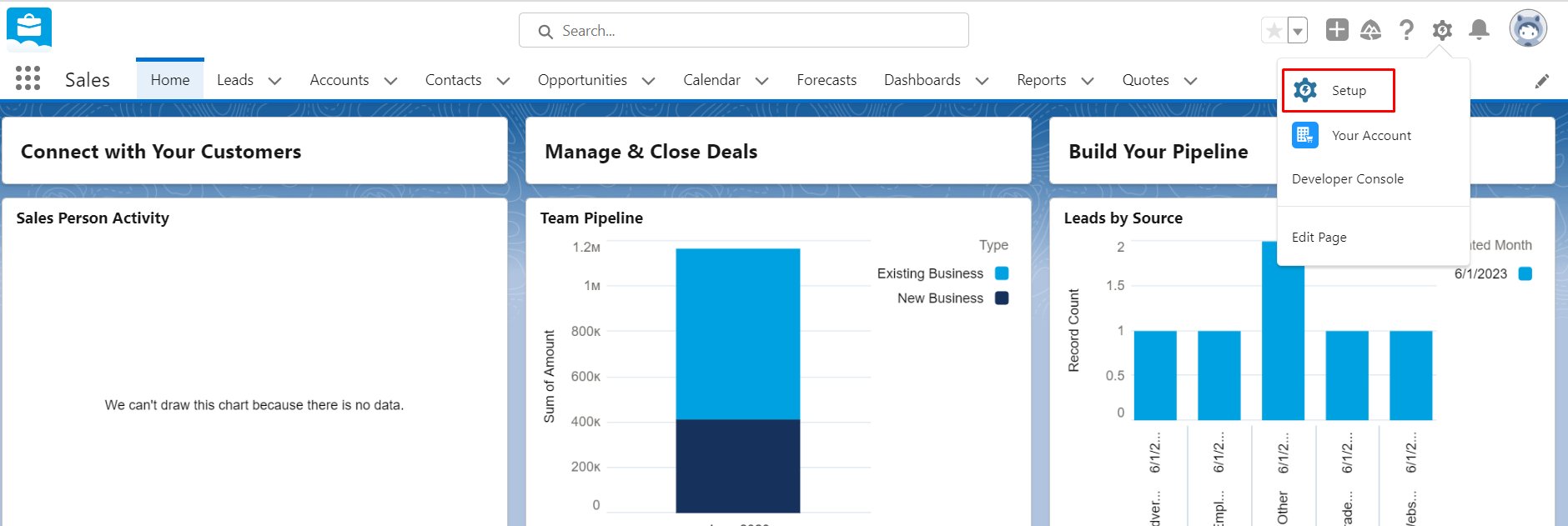
    **Login to Salesforce and click the “Setup” button in the top right of your screen**
    <Frame>
      <img src="https://mintcdn.com/benefitflow/Tcouuth1jKoeq3a0/images/image-15.png?fit=max&auto=format&n=Tcouuth1jKoeq3a0&q=85&s=41e15c396b19ba7f51acae6ffbb298d4" alt="Login to Salesforce and click the “Setup” button in the top right of your screen" width="1880" height="631" data-path="images/image-15.png" />
    </Frame>
  </Step>

  <Step>
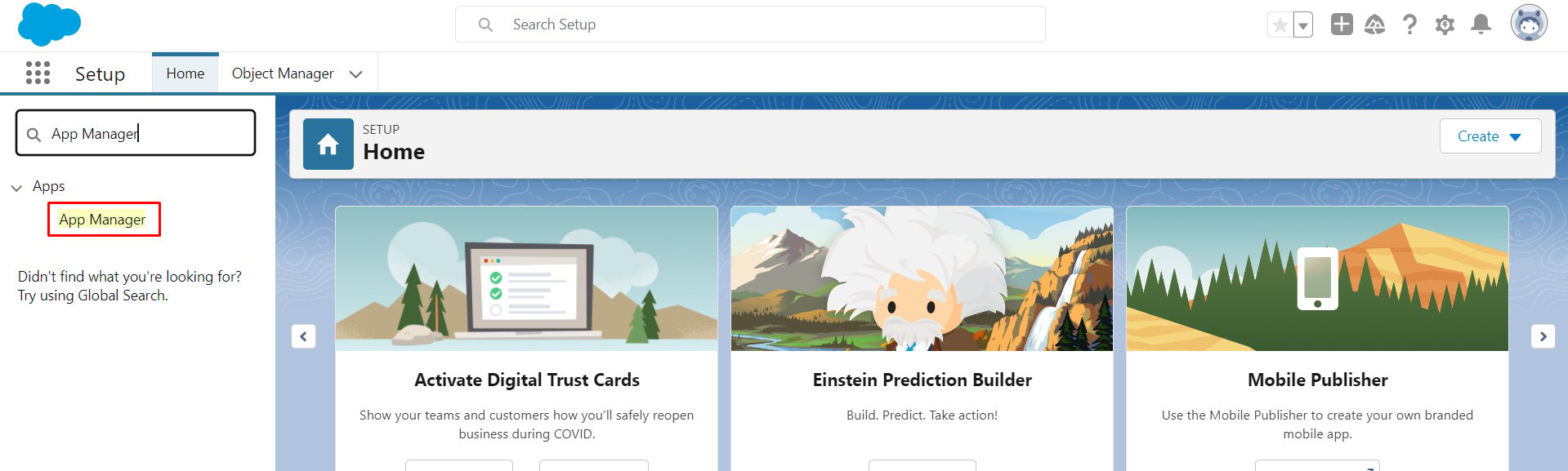
    **Search for “App Manager” on the left side of the screen**
    <Frame>
      <img src="https://mintcdn.com/benefitflow/Tcouuth1jKoeq3a0/images/image-16.png?fit=max&auto=format&n=Tcouuth1jKoeq3a0&q=85&s=c401eec5342610ae8f7c2761473778bf" alt="Search for “App Manager” on the left side of the screen" width="1919" height="577" data-path="images/image-16.png" />
    </Frame>
  </Step>

  <Step>
    **Create a new connected app by clicking the “New Connected App” button on the top right of the screen**

    <Frame>
      <img src="https://mintcdn.com/benefitflow/Tcouuth1jKoeq3a0/images/image-17.png?fit=max&auto=format&n=Tcouuth1jKoeq3a0&q=85&s=94d1a03c7299cba5895fd2c6ec6e193e" alt="Create a new connected app by clicking the “New Connected App” button on the top right of the screen" width="1572" height="266" data-path="images/image-17.png" />
    </Frame>
  </Step>

  <Step>
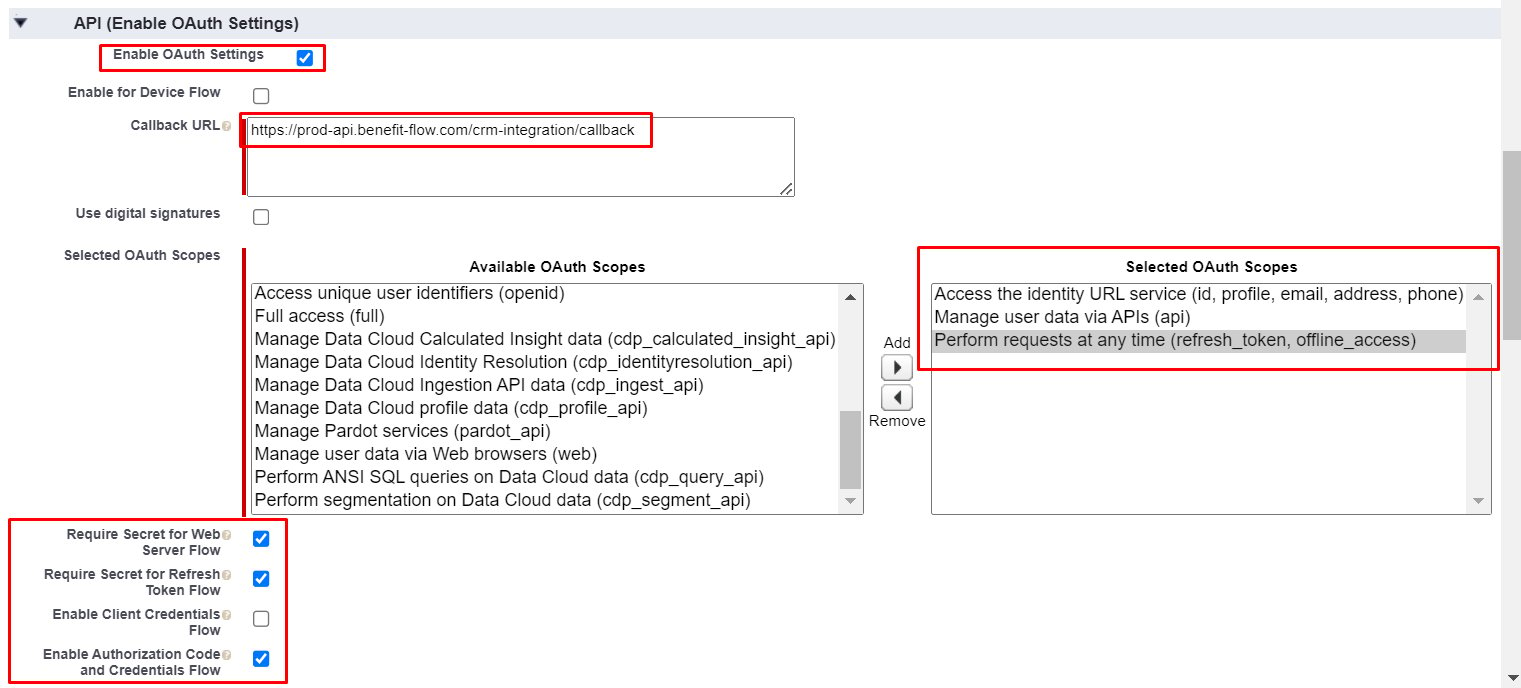
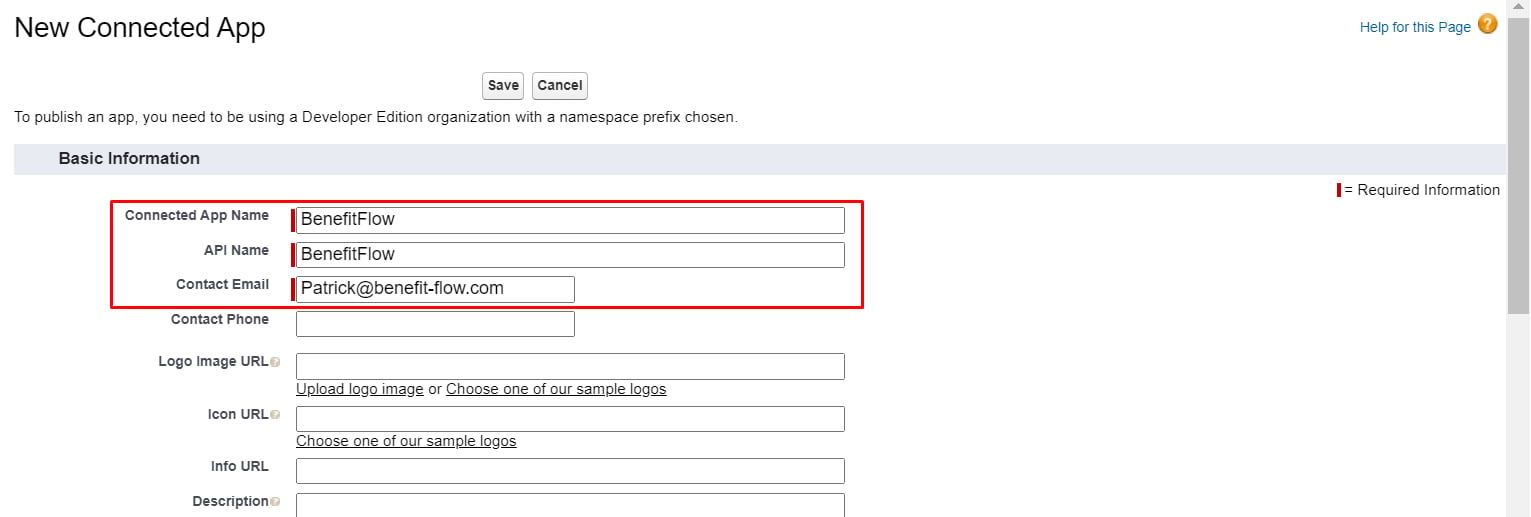
    **Enter in the values exactly as they are below and click save at the bottom of the screen**

    <Note>
      **Callback URL:** [https://prod-api.benefit-flow.com/crm-integration/callback](https://prod-api.benefit-flow.com/crm-integration/callback)
    </Note>

    <Frame>
      <img src="https://mintcdn.com/benefitflow/Tcouuth1jKoeq3a0/images/image-18.png?fit=max&auto=format&n=Tcouuth1jKoeq3a0&q=85&s=76124c121be6ebbb7d002d02d653eac4" alt="Enter in the values exactly as they are below and click save at the bottom of the screen" width="1531" height="517" data-path="images/image-18.png" />
    </Frame>

    <Frame>
      <img src="https://mintcdn.com/benefitflow/Tcouuth1jKoeq3a0/images/image-19.png?fit=max&auto=format&n=Tcouuth1jKoeq3a0&q=85&s=986ff926235949799bef8fb7237059fe" alt="Enter in the values exactly as they are below and click save at the bottom of the screen" width="1521" height="688" data-path="images/image-19.png" />
    </Frame>

    <Note>
      **Note: \*\* Ensure that PKCE is Disabled\*\***
    </Note>
  </Step>

  <Step>
    **Scroll to the bottom and click "Save"**

    <Note>
      **Note:** It may take \~10 minutes for the new App to save in Salesforce.
    </Note>
  </Step>

  <Step>
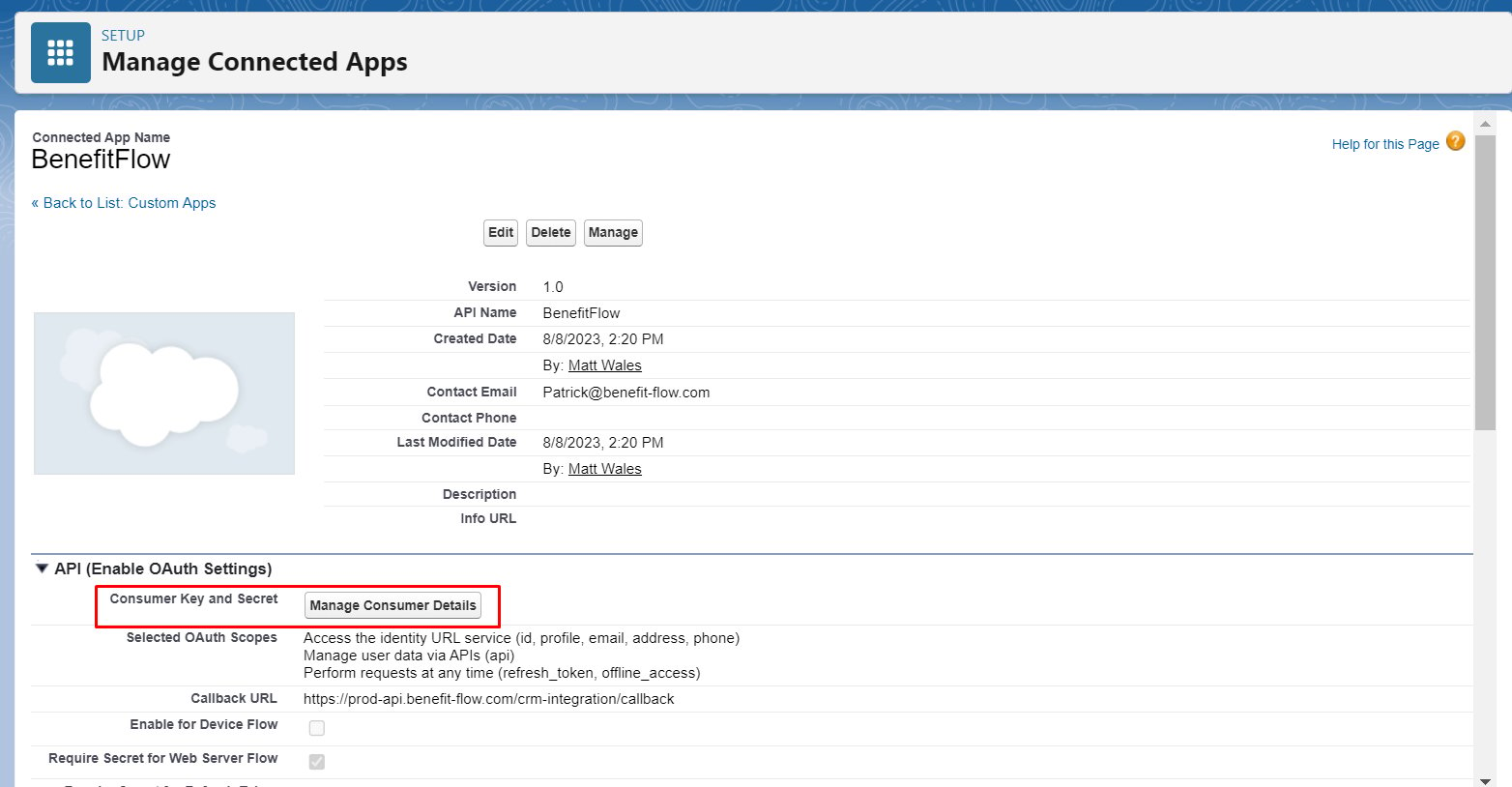
    **Get the login credentials by clicking the “Manage Consumer Details” button below**
    <Frame>
      <img src="https://mintcdn.com/benefitflow/Tcouuth1jKoeq3a0/images/image-20.png?fit=max&auto=format&n=Tcouuth1jKoeq3a0&q=85&s=a52bc15d27803bcb2ea3dc58abed5721" alt="Get the login credentials by clicking the “Manage Consumer Details” button below" width="1564" height="814" data-path="images/image-20.png" />
    </Frame>
  </Step>

  <Step>
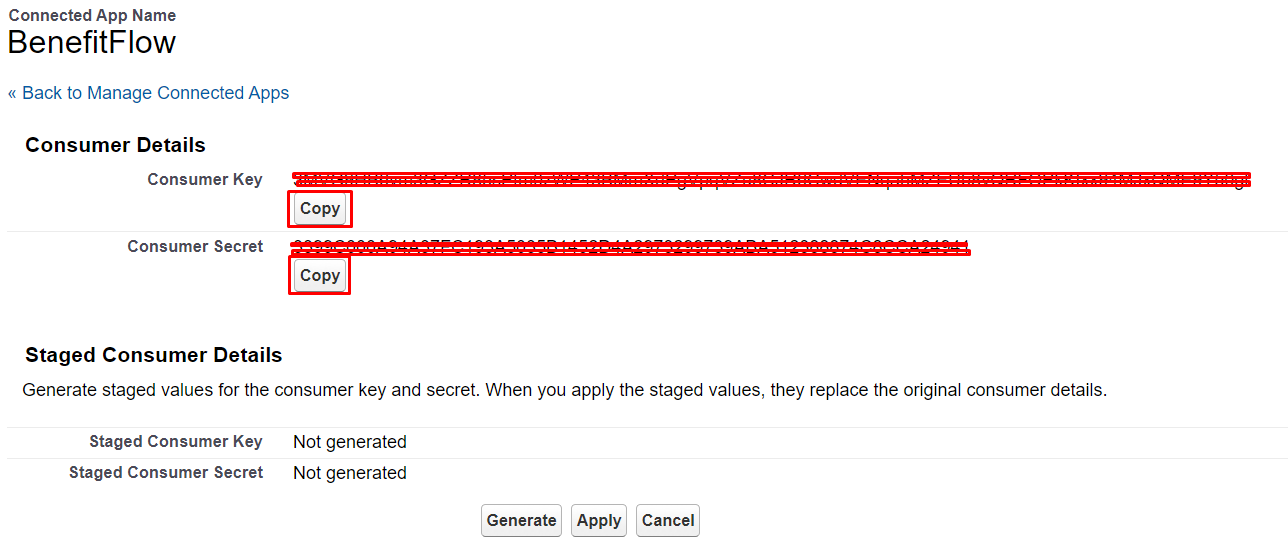
    **Copy the consumer key and secret**

    <Frame>
      <img src="https://mintcdn.com/benefitflow/Tcouuth1jKoeq3a0/images/image-21.png?fit=max&auto=format&n=Tcouuth1jKoeq3a0&q=85&s=7126e61b304e06d54561c575dfa824b4" alt="Copy the consumer key and secret" width="1288" height="556" data-path="images/image-21.png" />
    </Frame>
  </Step>

  <Step>
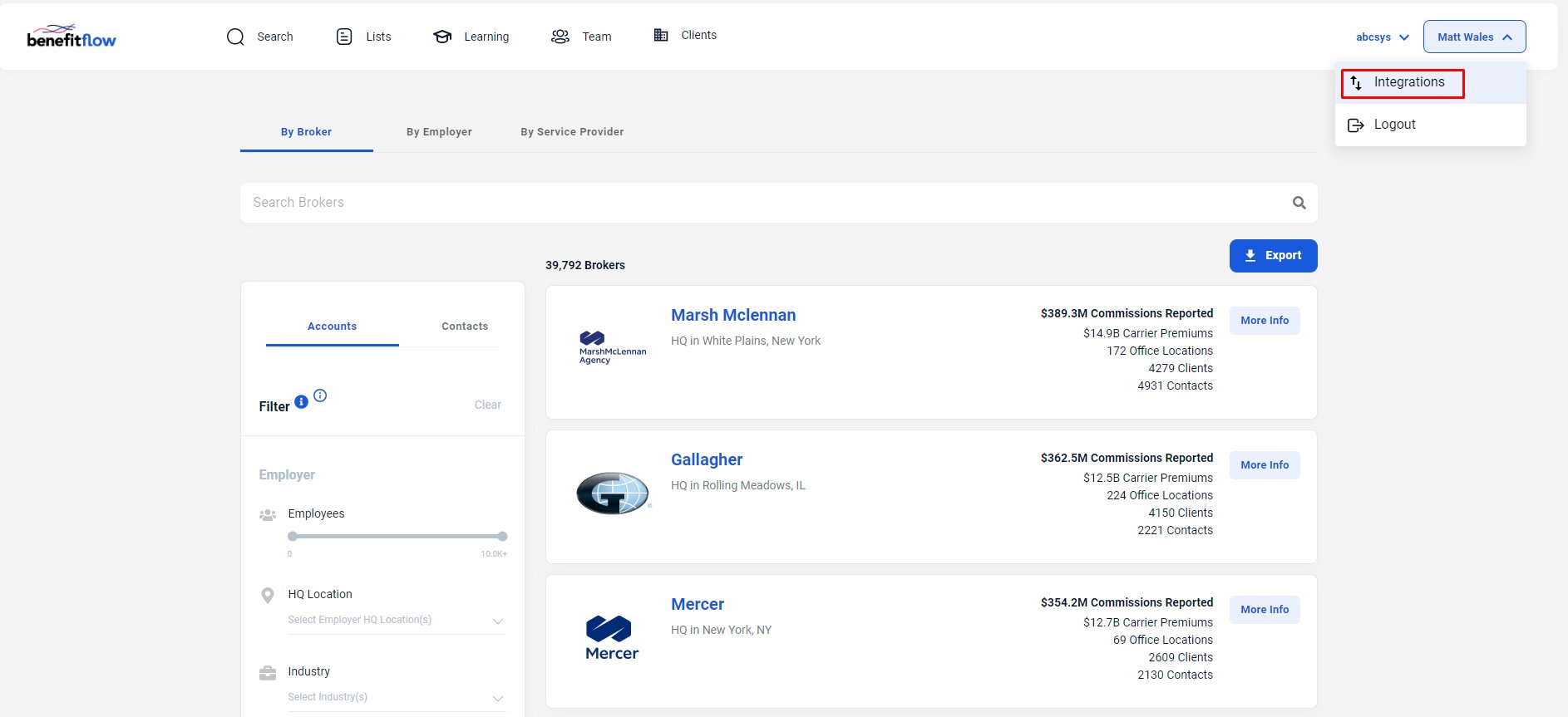
    **Navigate to the “Integrations” page in BenefitFlow**
    <Frame>
      <img src="https://mintcdn.com/benefitflow/Tcouuth1jKoeq3a0/images/image-22.png?fit=max&auto=format&n=Tcouuth1jKoeq3a0&q=85&s=93c30d045c424a3b55c6428419693540" alt="Navigate to the “Integrations” page in BenefitFlow" width="1886" height="863" data-path="images/image-22.png" />
    </Frame>
  </Step>

  <Step>
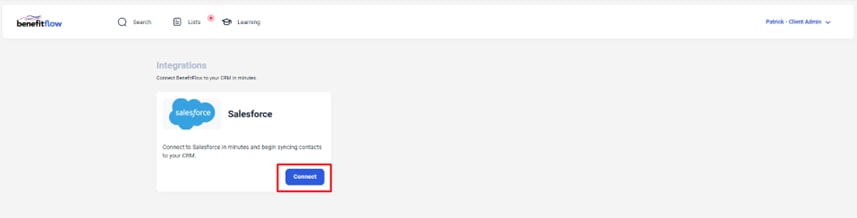
    **Click the “Connect” button to connect to Salesforce**
    <Frame>
      <img src="https://mintcdn.com/benefitflow/Tcouuth1jKoeq3a0/images/image-23.png?fit=max&auto=format&n=Tcouuth1jKoeq3a0&q=85&s=a78b42b98045f021fcb983c41a835b5e" alt="Click the “Connect” button to connect to Salesforce" width="857" height="218" data-path="images/image-23.png" />
    </Frame>
  </Step>

  <Step>
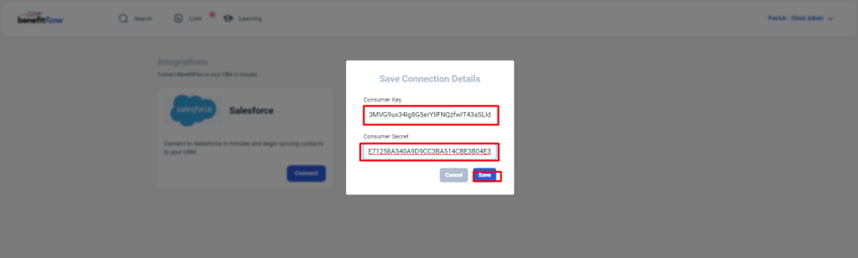
    **Enter in the “Consumer Key” and “Consumer Secret” from Salesforce then click “Save”**
    <Frame>
      <img src="https://mintcdn.com/benefitflow/Tcouuth1jKoeq3a0/images/image-24.png?fit=max&auto=format&n=Tcouuth1jKoeq3a0&q=85&s=1f59a89b5ffa9c4ec0f961ef7b118c2d" alt="Enter in the “Consumer Key” and “Consumer Secret” from Salesforce then click “Save”" width="858" height="258" data-path="images/image-24.png" />
    </Frame>
  </Step>

  <Step>
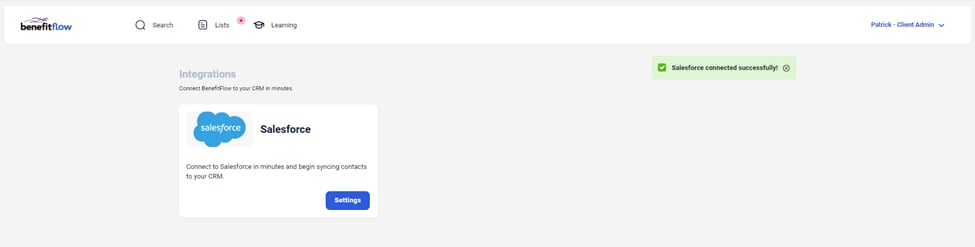
    **Success!**

    <Frame>
      <img src="https://mintcdn.com/benefitflow/Tcouuth1jKoeq3a0/images/image-25.png?fit=max&auto=format&n=Tcouuth1jKoeq3a0&q=85&s=bcd191cf41df50c7259745c4b0947801" alt="Success!" width="975" height="247" data-path="images/image-25.png" />
    </Frame>
  </Step>
</Steps>