Just need to push records into an already-connected CRM? See How to Sync BenefitFlow Data to Your CRM. This page covers the one-time admin setup.
Connect BenefitFlow to your CRM
Integration Setup Steps
- Accessing Integration Settings
- Log in to your BenefitFlow account.
- In the upper-right corner, click your name and select Integrations.
- On the Integrations page, choose Salesforce, HubSpot, or Microsoft Dynamics to begin connection.
- Connecting to Salesforce
- Use 1-click authentication for quick setup (recommended for most customers), or
- Use Manual Credentials Entry for advanced/custom setups (refer to the Manual Setup Guide for details).
- Sandbox support is available if you’d like to test before syncing to production.
- Connecting to HubSpot
- Use our 1-click authentication to connect instantly.
- Sandbox environments are also supported for safe testing.
- Connecting to Microsoft Dynamics
- Requires creating an Azure App Registration and Power Platform Application User.
- Refer to the Dynamics Setup Guide for detailed instructions.
Mapping Fields Between BenefitFlow and Your CRM
Once connected, configure your integration by mapping key fields between platforms:- Click Integration Settings
- Use Add Field Mapping to:
- Select a BenefitFlow field
- Choose a corresponding CRM field, or use a constant/custom value
- Define whether the field can overwrite existing values or update only if empty
- Click Save Changes to finalize
- Employer vs. Broker data
- Accounts vs. Child Accounts vs. Contacts
Configuring Sync Permissions (Optional)
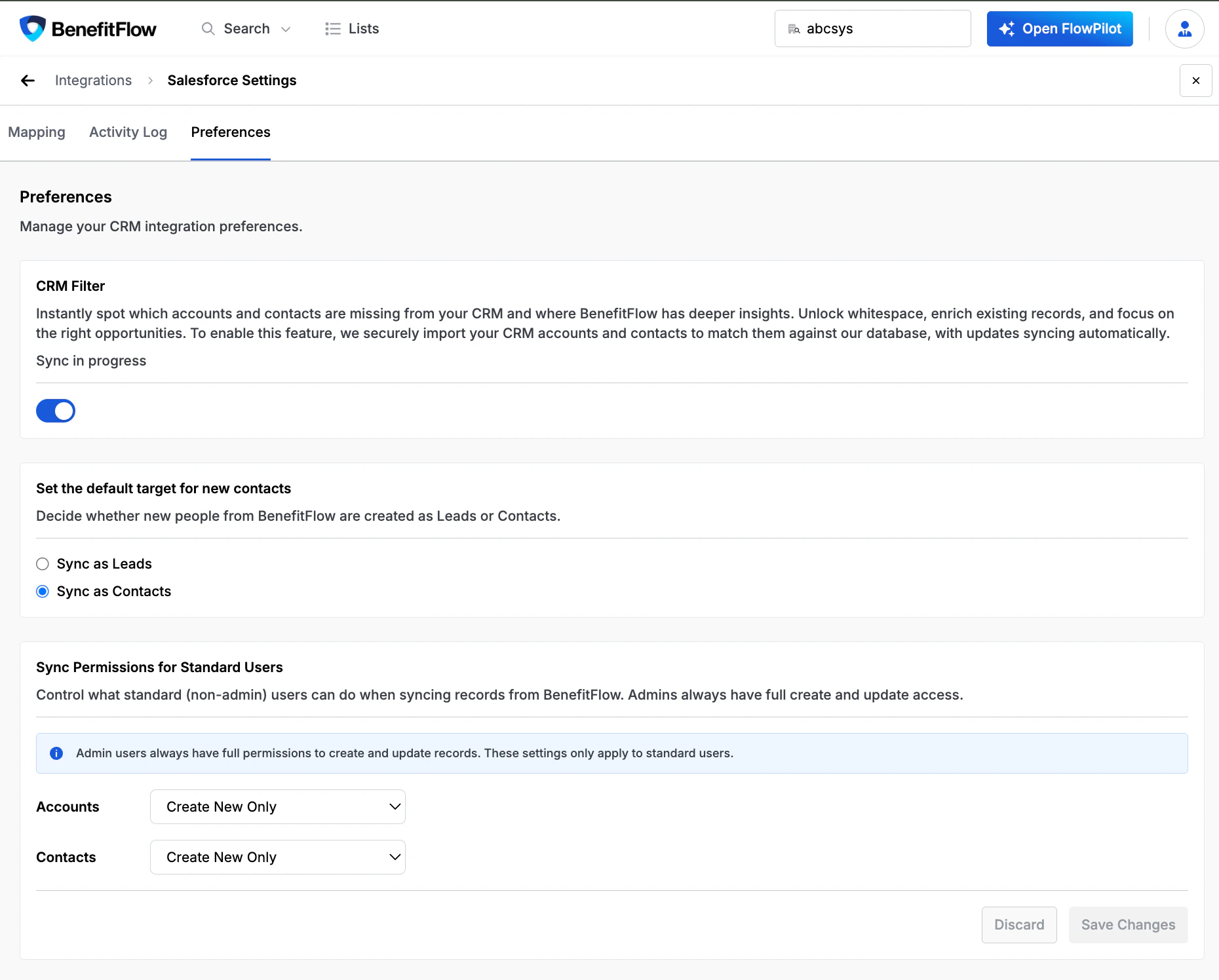
After setting up your field mappings, you can optionally configure what sync operations standard users are allowed to perform:- Click Integration Settings, then select the Preferences tab
- Under Sync Permissions for Standard Users, choose a permission level for Accounts and Contacts:
- Create new and update existing
- Create new only (default)
- Update existing only