Lists let you collect specific broker offices, broker contacts, employers, or employer contacts into named groups for tracking, exporting, or pushing to your CRM.
Creating a List
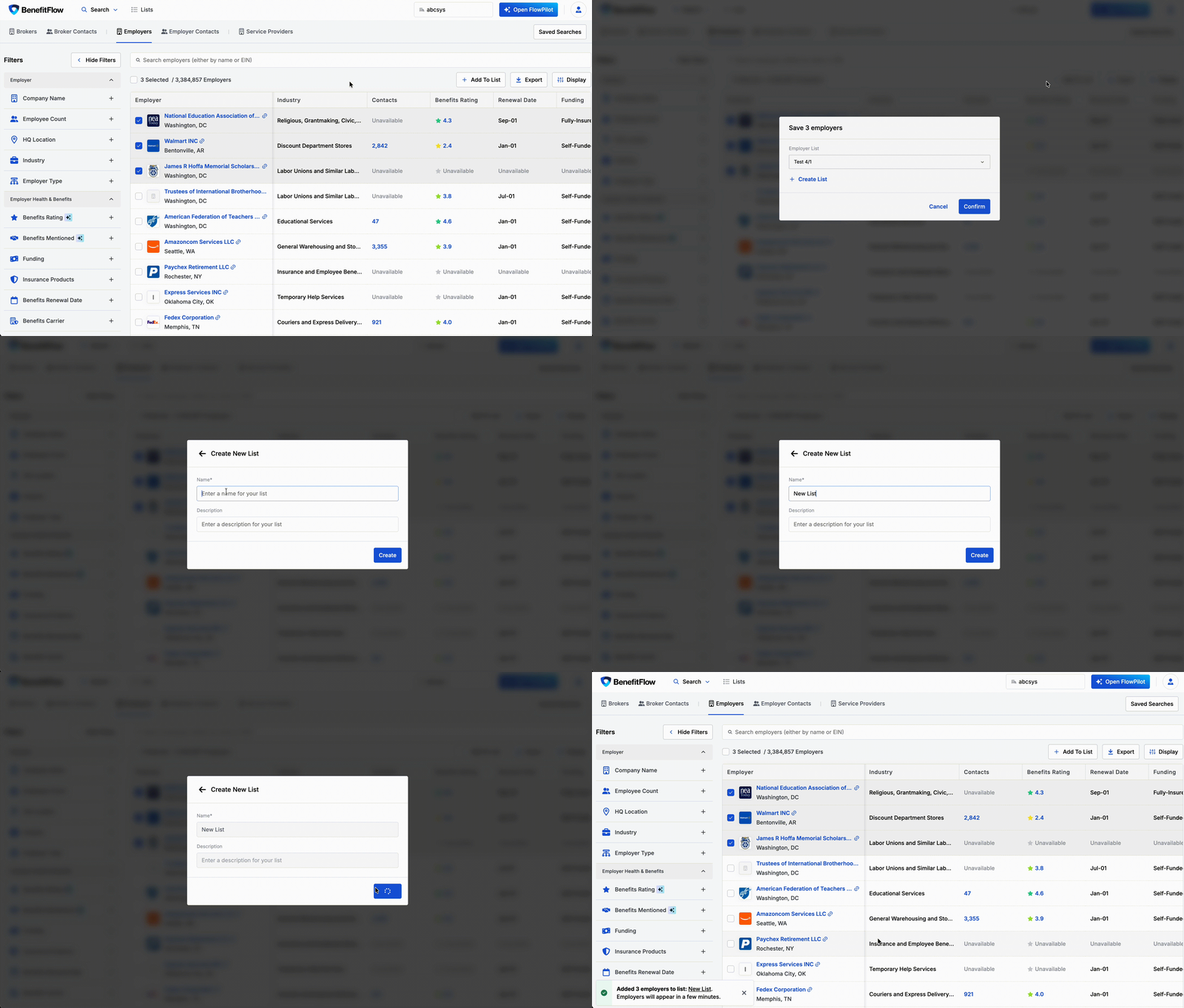
- Run a search on any tab and apply your filters
- Select the records you want (checkbox on each row, or “Select All”)
- Click Add to List
- Choose an existing list or create a new one
What You Can Do with Lists
- Export to CSV — download your list for offline use or sharing
- Push to CRM — sync list records directly to Salesforce, HubSpot, or Dynamics
- Track accounts — use lists as working pipelines or territory trackers
- Add over time — grow lists incrementally as you find new prospects across sessions
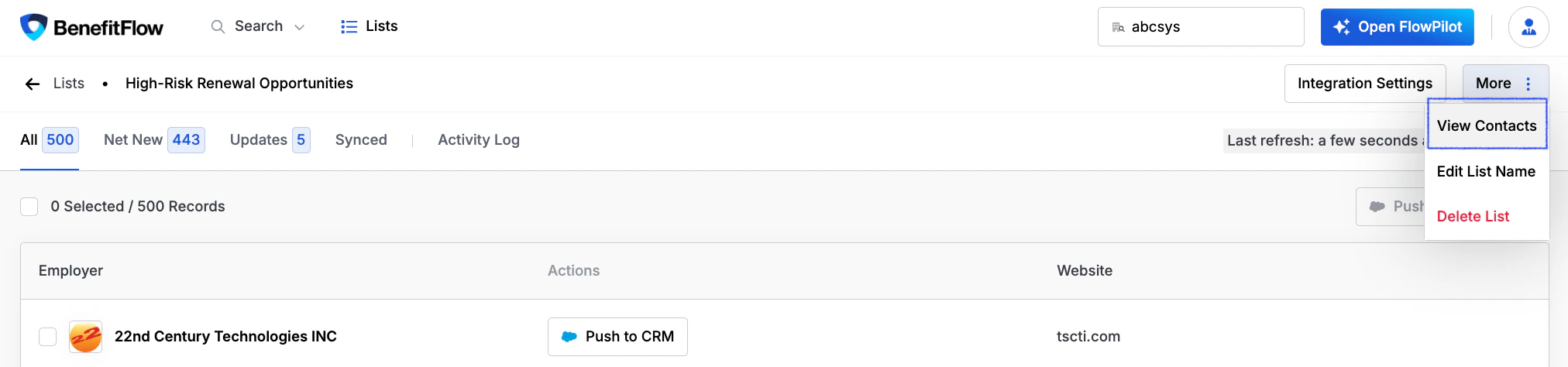
You can access contacts directly from an employer list without leaving the list view.
- Open any employer list
- Click More in the top right
- Select View Contacts to see associated HR decision-makers, executives, and Form 5500 signatories
This lets you move from a target account list to outreach-ready contacts in one step, without navigating back to the main search.
Private Lists & Saved Searches
List visibility is controlled by the same admin toggle as saved searches.
Setting: “Private Lists & Saved Searches”
Location: Team Management → Settings
When toggled on:
- Users will only see lists they created
- Admins always see everything regardless of this setting
When toggled off:
- All lists are visible to all users on the account
For more details on this setting, see Saved Searches → Private Lists & Saved Searches. Last modified on April 20, 2026