

What Is Signals?
Signals shows you the timely events happening on every employer and broker in BenefitFlow — things like upcoming renewals, broker or carrier switches, compliance flags, and key contact changes. Instead of manually checking each profile, you see the relevant moments grouped by category, right where you’re already working.Where to Find Signals
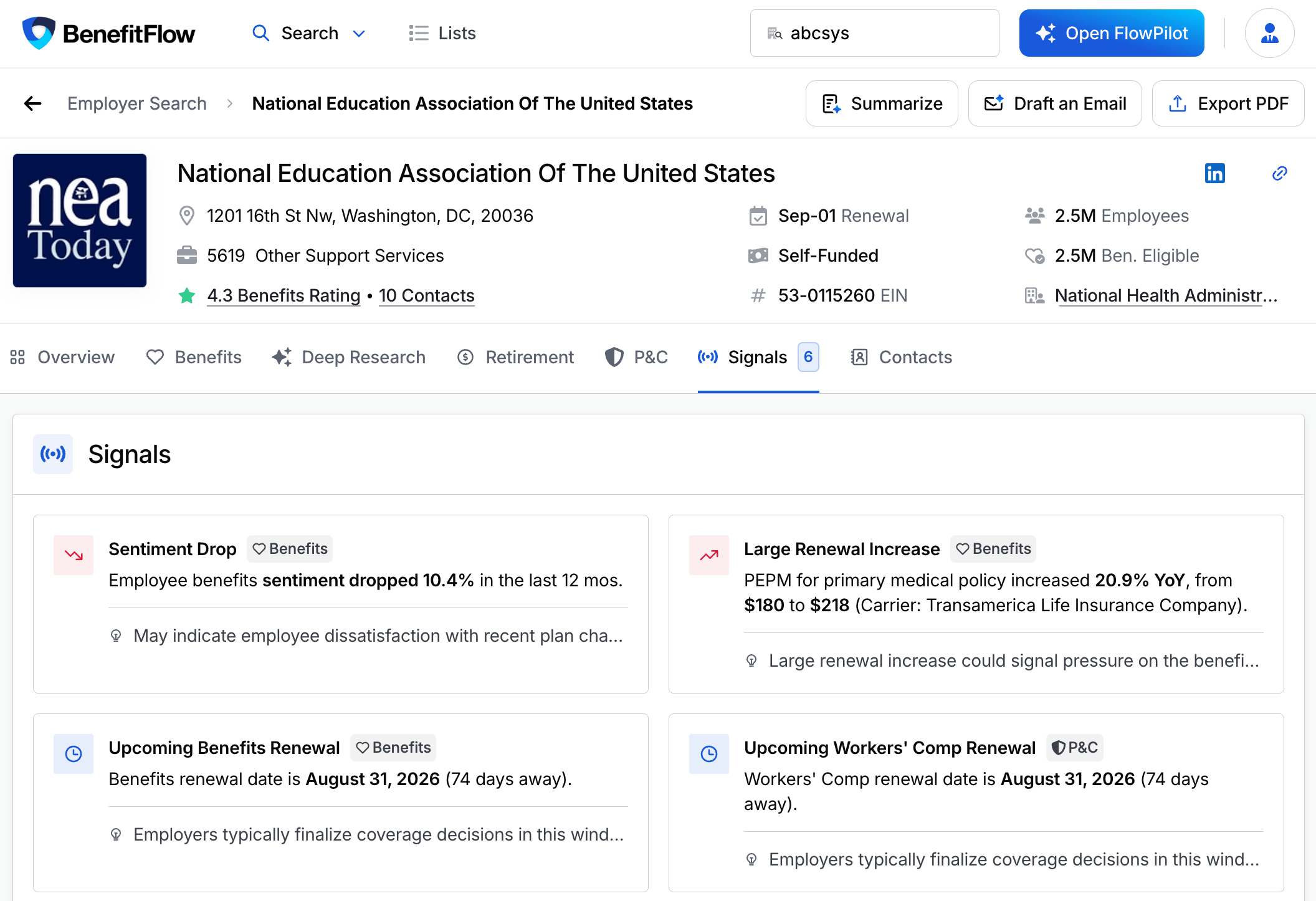
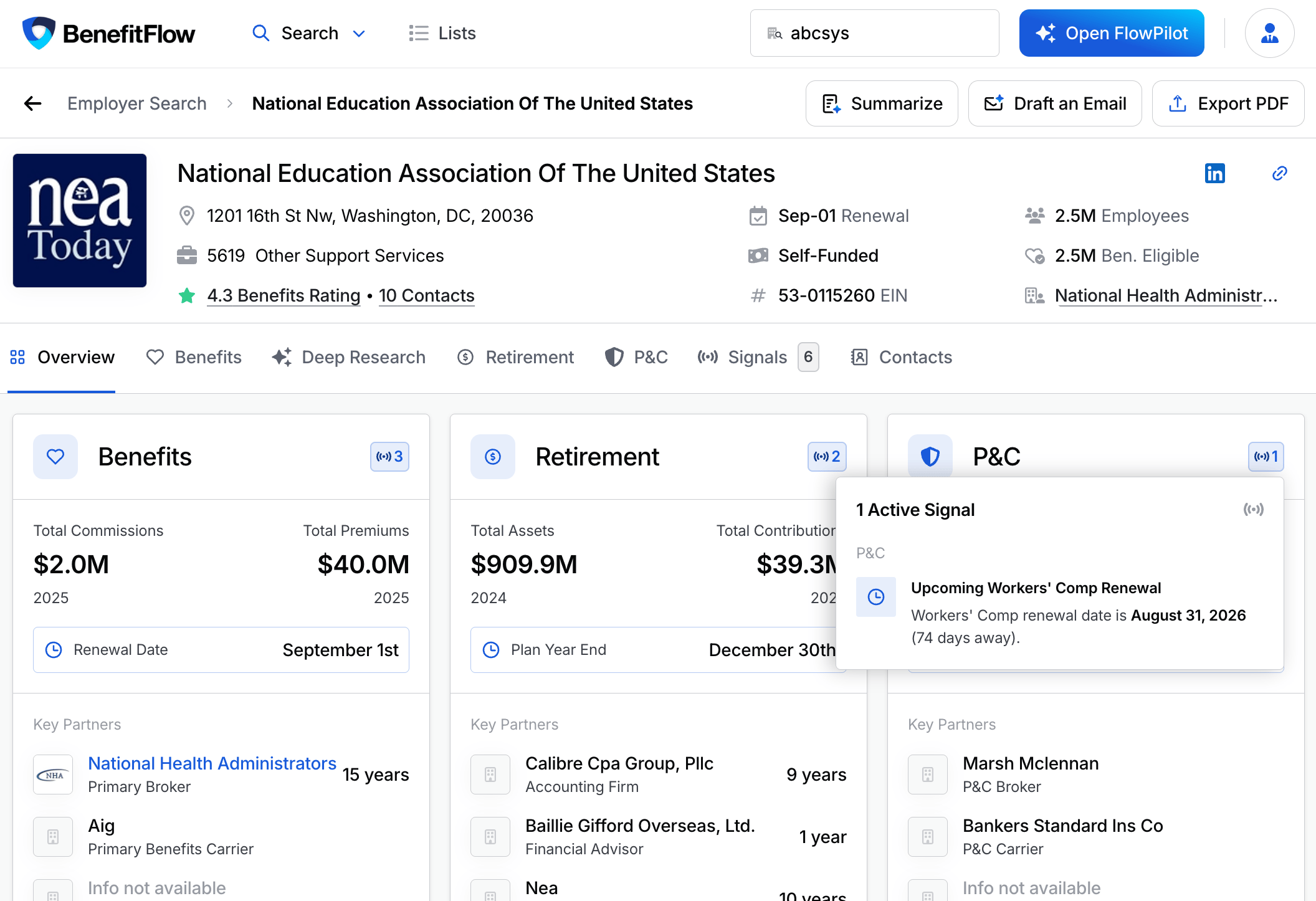
Signals appear in three places across BenefitFlow:- Employer profiles. Open any employer to see all active signals on the Signals tab, or hover the domain cards on the Overview for a quick count by category.
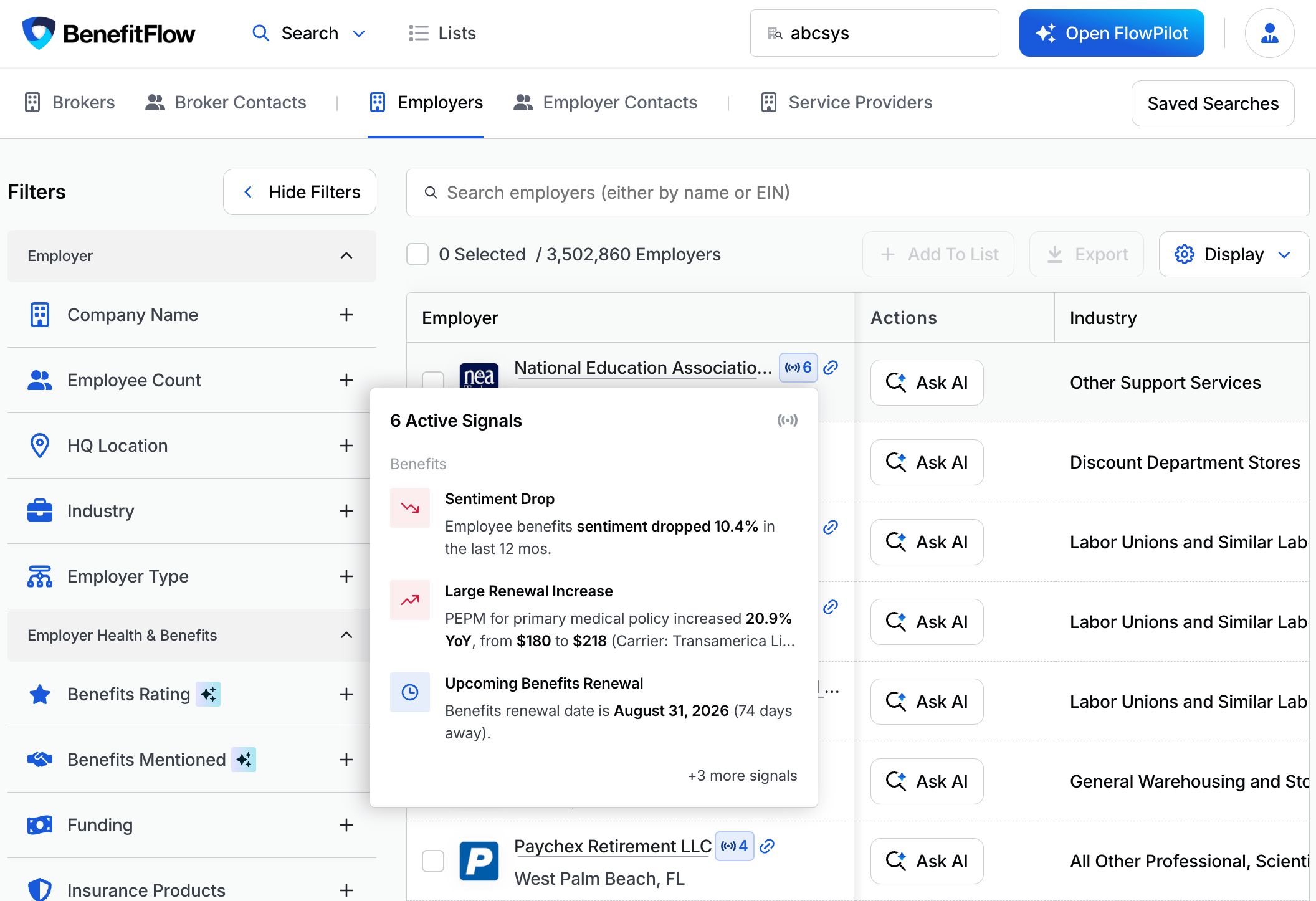
- Search results. A signal badge appears on every result card — hover to preview what’s active before clicking in. Works on Employer Search and any broker’s or office’s Clients list.
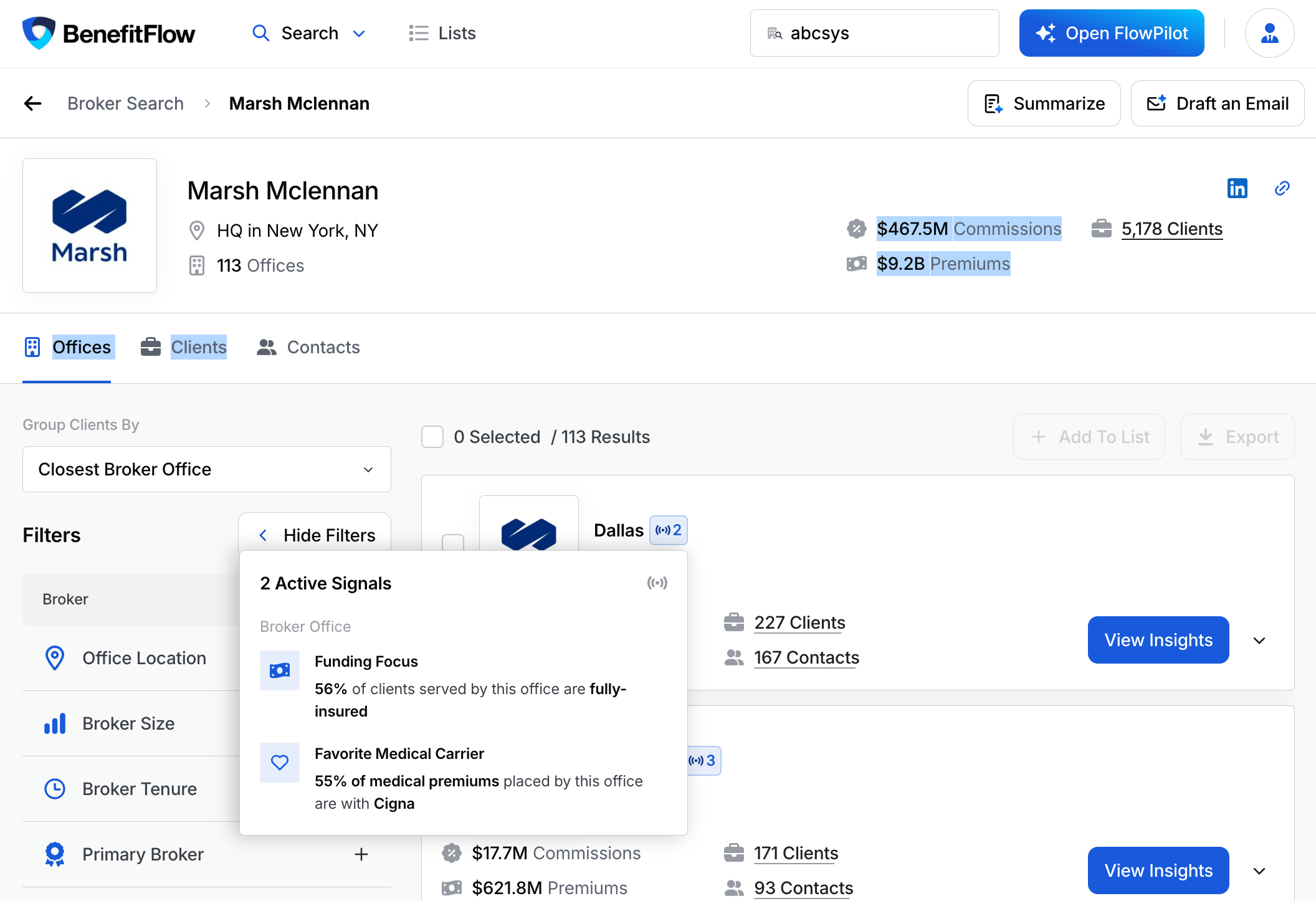
- Broker office pages. Signals on an office reflect that office’s own book — client composition, carrier concentration, and growth. There’s no rolled-up parent broker view.
Filtering Your Search by Signal
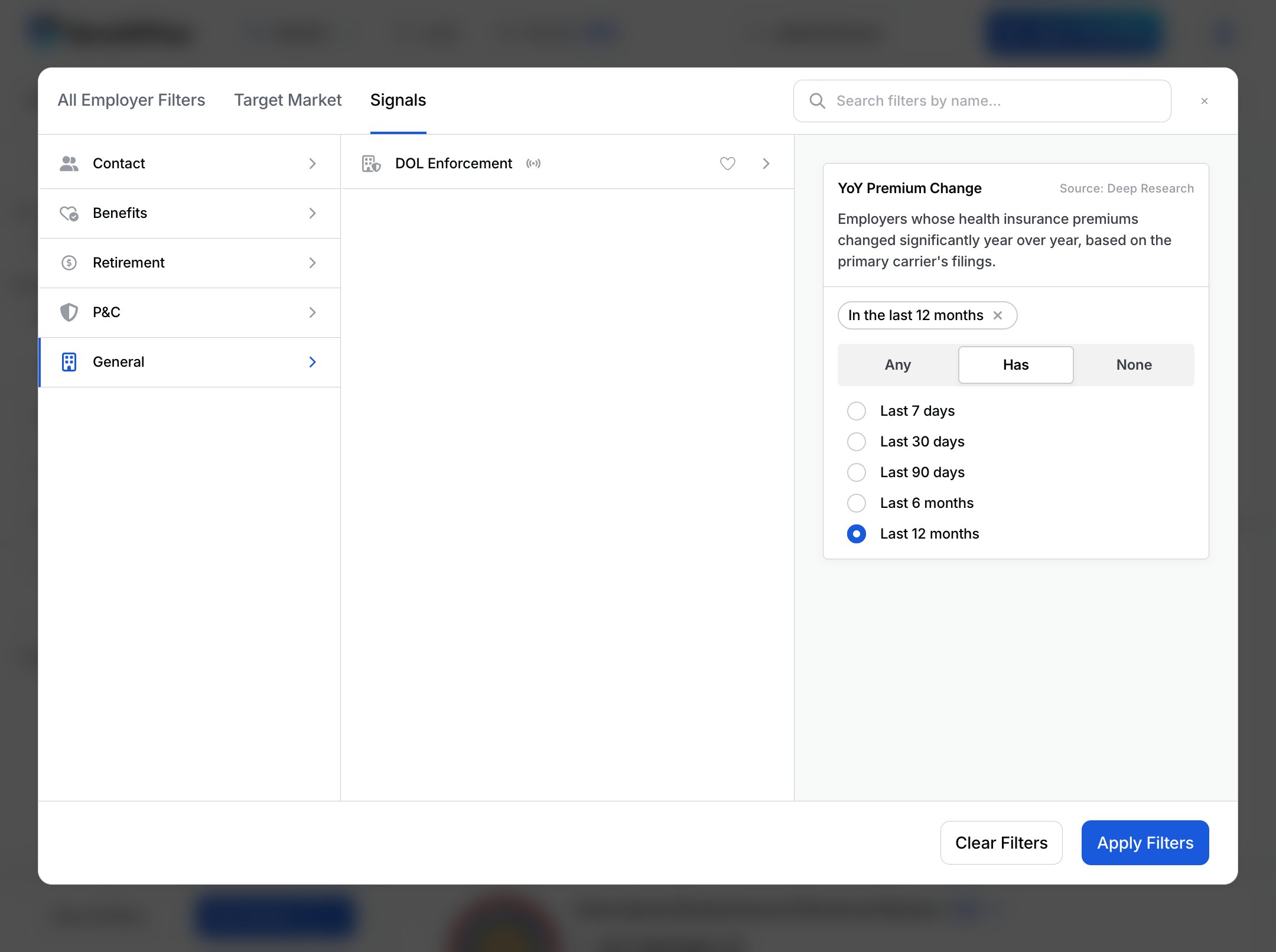
You can narrow a search to only the accounts carrying a signal you care about — every employer with an upcoming renewal, say, or every account whose carrier recently changed. On Employer Search (or Broker Search), open Browse all filters and choose the Signals tab. Pick a signal and set it to:- Has — only accounts with that signal
- None — exclude accounts with that signal
- Any — don’t filter on it
Signal Categories
Signals are grouped into seven categories: Benefits, P&C, Retirement, Contacts, Workforce, Broker Office, and Compliance Events. Within each category, the most recent signal appears first. Each signal card is color-coded by tone:- Red — a negative change (premium up, sentiment down, X-Mod increase)
- Green — a positive change (client growth, sentiment spike, rising contributions)
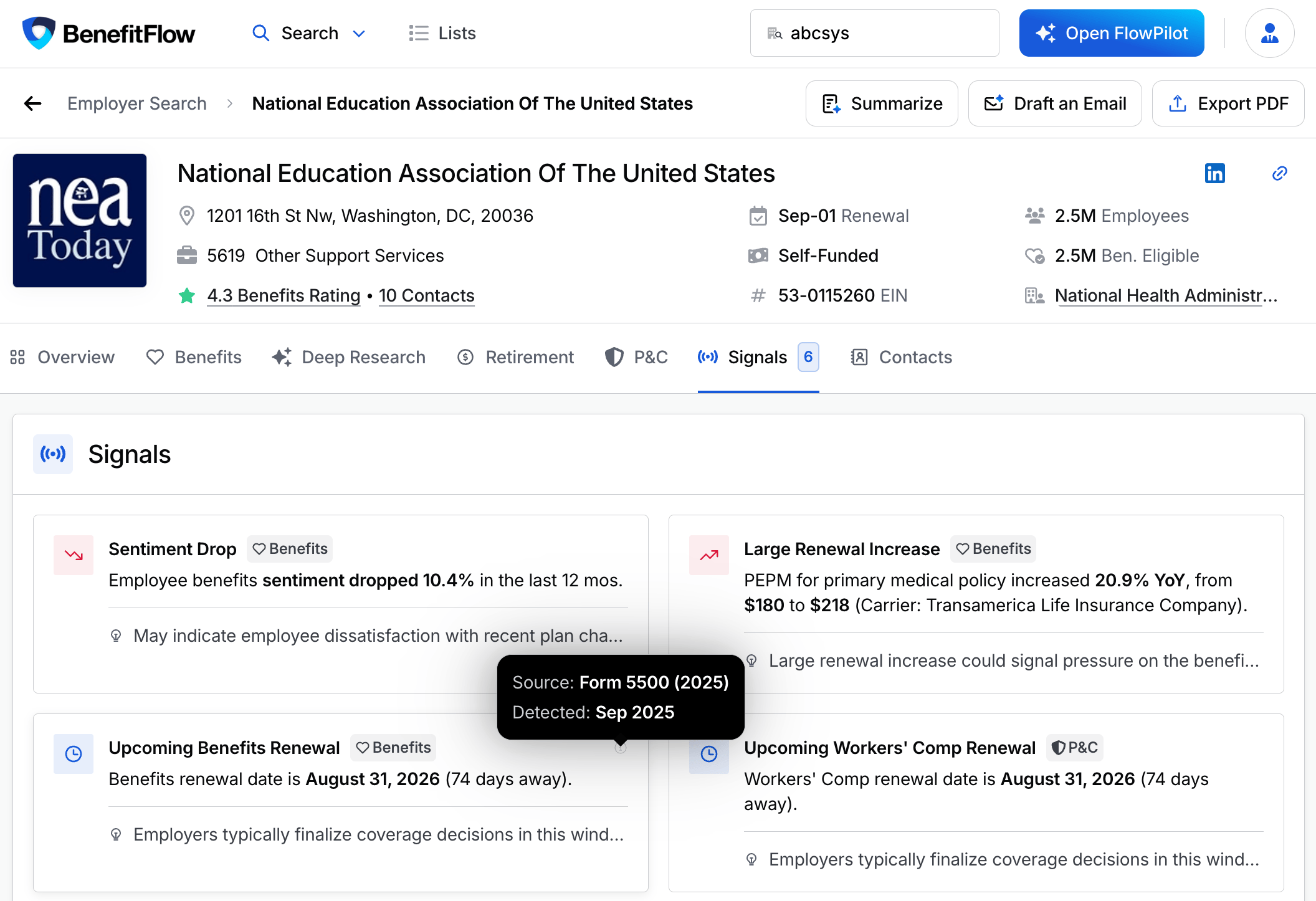
- Amber — a risk or compliance flag (OSHA, late filing, DOL action, high X-Mod)
- Blue / Neutral — a factual event or upcoming date (carrier or broker switch, renewal coming)
Benefits
P&C
Retirement
Contacts
Workforce
These signals also appear on the employer’s Workforce tab. Recency windows don’t apply to them.Broker Office
These signals appear on broker office pages and reflect that office’s book of business.Compliance Events
These span both Benefits and Retirement.How to Read a Signal Card
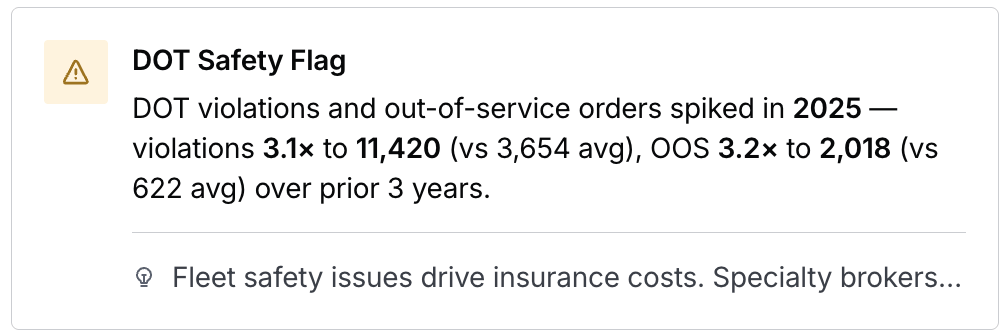
- An icon, color-coded by tone. Red, green, amber, or neutral. The icon shape echoes the event — an arrow for a trend, a clock for a renewal, a warning for a risk.
- A headline and detail. The event in plain language, with real names and numbers (e.g., “PEPM for primary medical policy increased 20.9% YoY, from $180 to $218 — Carrier: Transamerica”).
- A category tag. Benefits, P&C, Retirement, Contacts, Broker Office, or Compliance Events.
- A brief note on what the signal means for this account.
- A source, on hover. The underlying record and when BenefitFlow detected it — for example, “Source: Form 5500 (2025) · Detected: Sep 2025.”
Common Ways to Use Signals
Act on upcoming renewals. When you see a renewal signal, that employer’s benefits renewal is within 90 days — the typical decision window. It’s the right time to reach out before coverage decisions are finalized. Follow relationship changes. A broker or carrier switch signals recent change — the employer may still be evaluating options. Engage new decision-makers early. A contact change signal flags when a key decision-maker is new to the role — typically a good window to introduce yourself. Lead with something specific. Risk signals — a high X-Mod, a compliance flag, a sentiment drop — give you a concrete starting point for the conversation. Size up a broker office before you engage. Broker office signals show the book’s industry mix, funding preferences, and carrier relationships — so you know what you’re walking into.Where the Data Comes From
Every signal traces back to a real record — no predictions or AI scores. Hover any signal card to see the source and detection date. Sources include:- Form 5500 filings (benefits and retirement signals)
- State workers’ comp data (X-Mod and WC renewals)
- OSHA and DOT records (safety violations and loss events)
- DOL enforcement records (compliance and filing events)
- Employee review platforms (benefits sentiment)
- Contact data (job changes and new decision-makers)
FAQs
An employer shows no signals — is something wrong?
An employer shows no signals — is something wrong?
Not necessarily. Smaller or private employers file less data, so they have fewer signals. An account can also go quiet between events. No signals means there’s nothing timely to surface right now, not that data is missing.
What else is coming to Signals?
What else is coming to Signals?
Signals integration with FlowPilot is on the way — soon you’ll be able to ask FlowPilot about an account’s signals directly. Filtering your search by signal is already available today (see Filtering Your Search by Signal).
Do I need to turn Signals on?
Do I need to turn Signals on?
No. Signals is on for all BenefitFlow accounts automatically. There’s no toggle, and nothing for a customer admin to enable.
What if a signal looks wrong or outdated?
What if a signal looks wrong or outdated?
Signals reflect the underlying source record, and public data can lag. A renewal date or carrier pulled from an older filing isn’t necessarily wrong — it’s the most recent data available. If a signal seems repeatedly or clearly incorrect, reach out to your Customer Success Manager or email customerteam@benefit-flow.com.