

Saving a Search
- Apply your desired filters on any search tab
- Click Save Search in the filter bar
- Choose New Search and give it a descriptive name (e.g., “Brokers in Kansas”), or choose Overwrite Existing to update a previously saved search
- Click Confirm
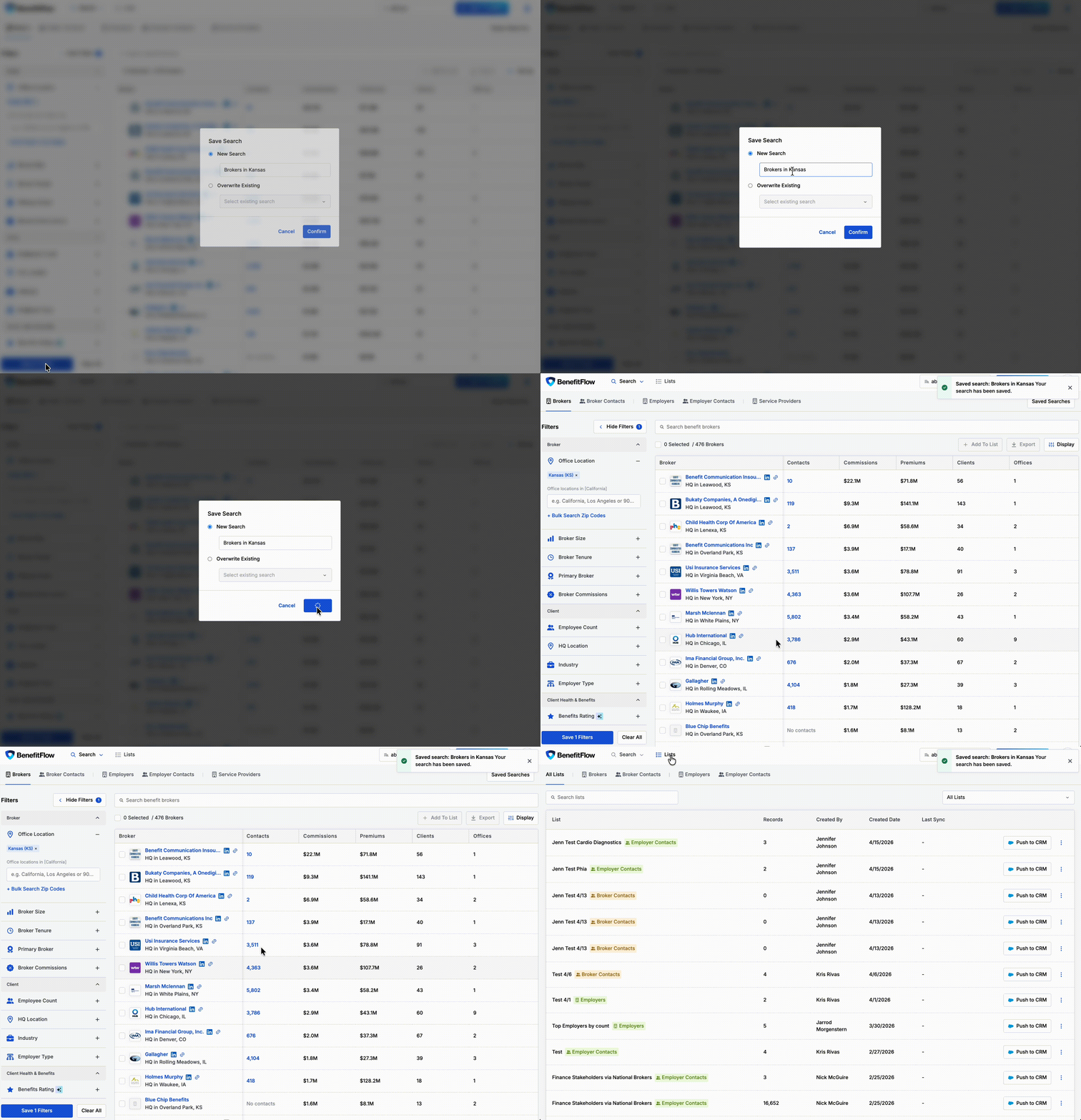
Managing Saved Searches
- Load — select any saved search from the dropdown to instantly apply those filters
- Overwrite — update an existing saved search with your current filters using the “Overwrite Existing” option
- Delete — remove saved searches you no longer need
- Filters persist when navigating between sections, so you can explore profiles without losing your search state
Private Lists & Saved Searches
Admins can toggle a single setting that controls visibility for both lists and saved searches across the account. Setting: “Private Lists & Saved Searches” Location: Team Management → Settings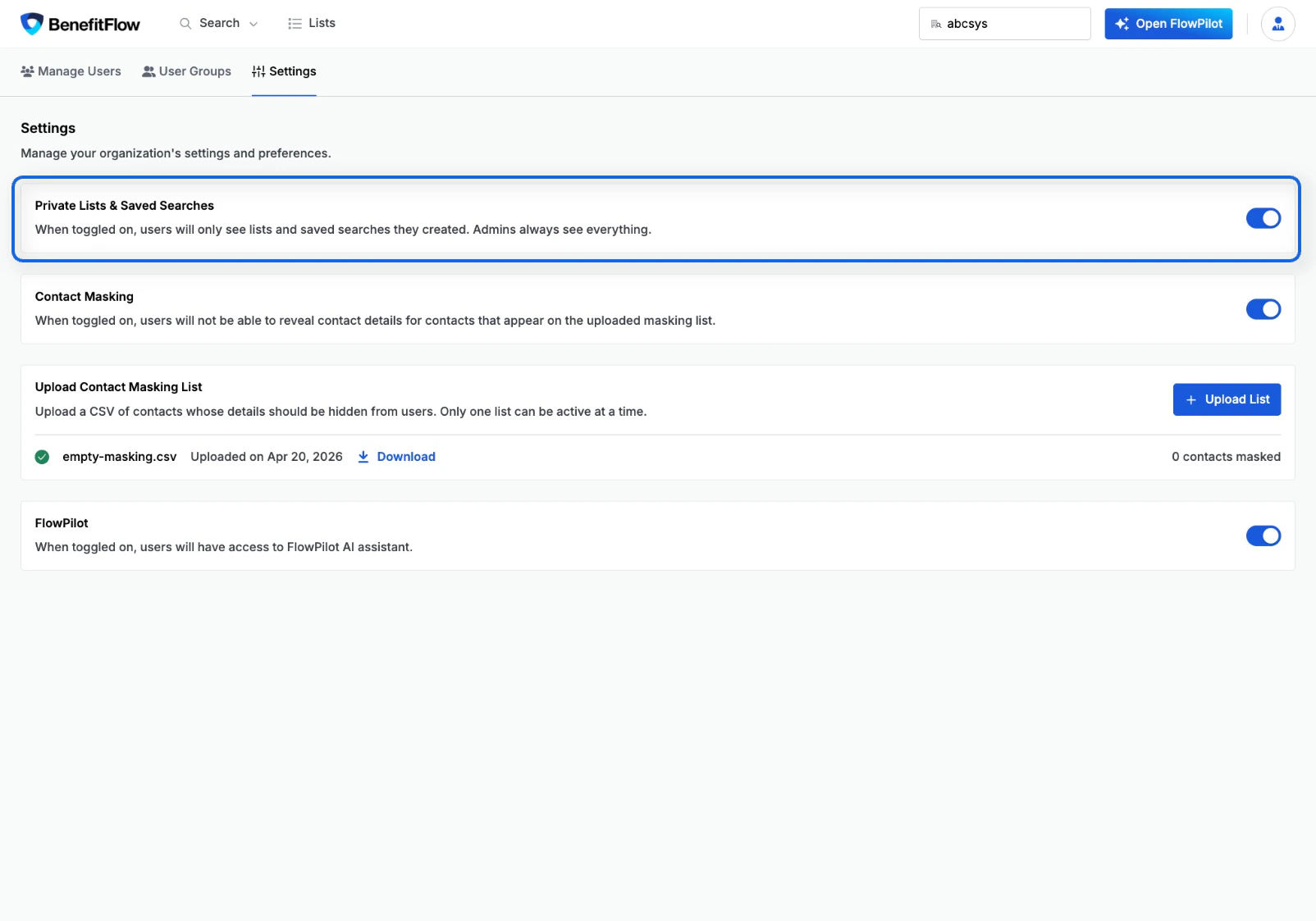
- Users will only see lists and saved searches they created
- Admins always see everything regardless of this setting
- All lists and saved searches are visible to all users on the account
This is a single toggle that controls both lists and saved searches together — there is no separate setting for each.