

What Is FlowPilot?
FlowPilot is BenefitFlow’s AI sales assistant for benefits and insurance professionals. You describe the outcome; FlowPilot does the legwork — turning plain-language requests into structured searches, account research, and ready-to-send outreach. No filters to configure, no menus to navigate. FlowPilot is included for all BenefitFlow users at no extra cost. Built for Benefits & Insurance: FlowPilot runs on BenefitFlow’s proprietary dataset across Benefits, P&C, and retirement — so it answers with real plan data, broker relationships, and renewal timing, not internet guesses.What You Can Do with FlowPilot
FlowPilot works across three core jobs:Build target lists, conversationally
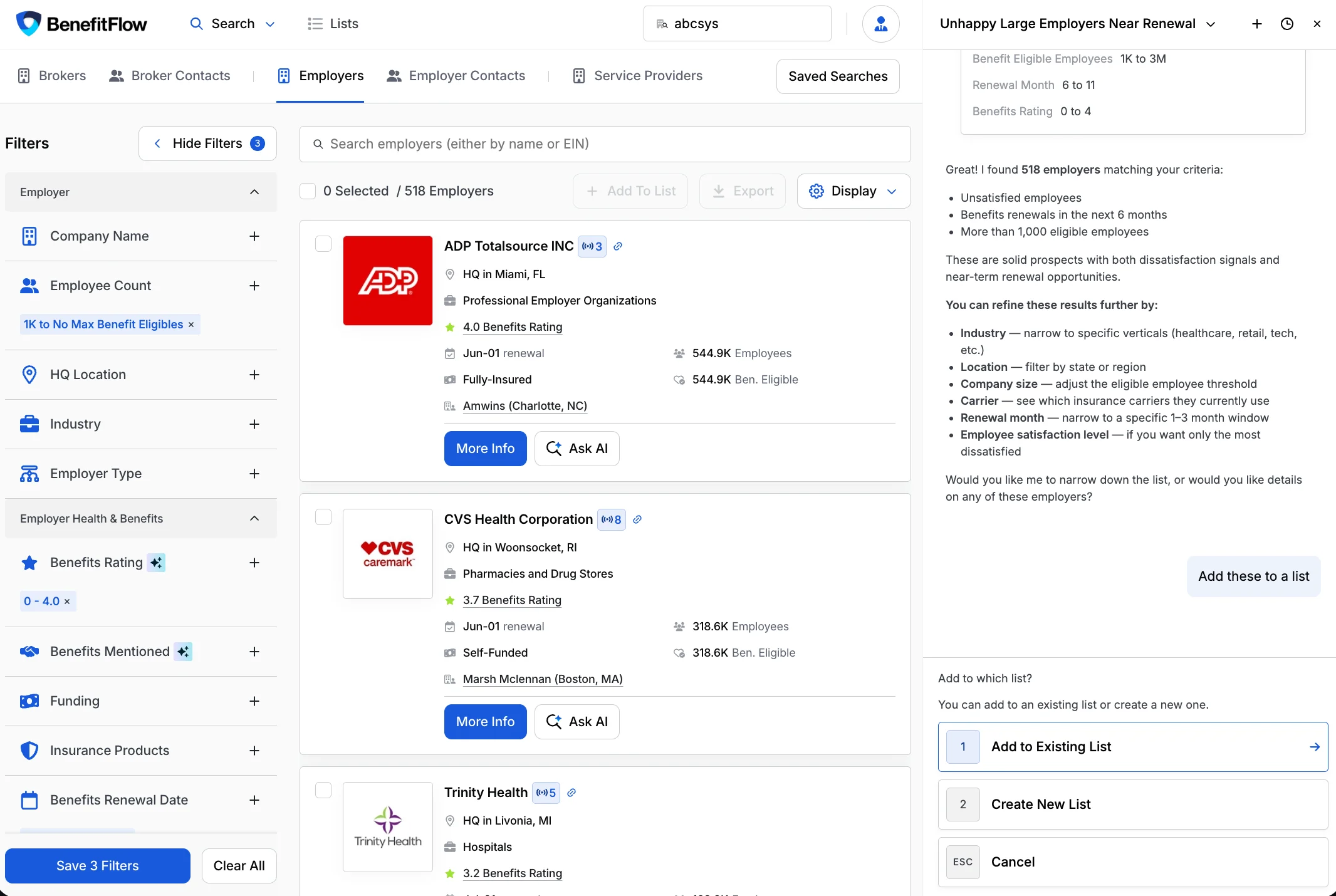
Describe the accounts that fit your ideal customer in plain language and FlowPilot builds the list — ready to research deeper, or save to a list and sync it to your CRM. It searches across 100+ filters for employers, brokers, and contacts.“Show me all self-funded employers in Michigan, 500–1,000 employees, in Retail” · “Add these results to my list”
Instantly surface account intelligence
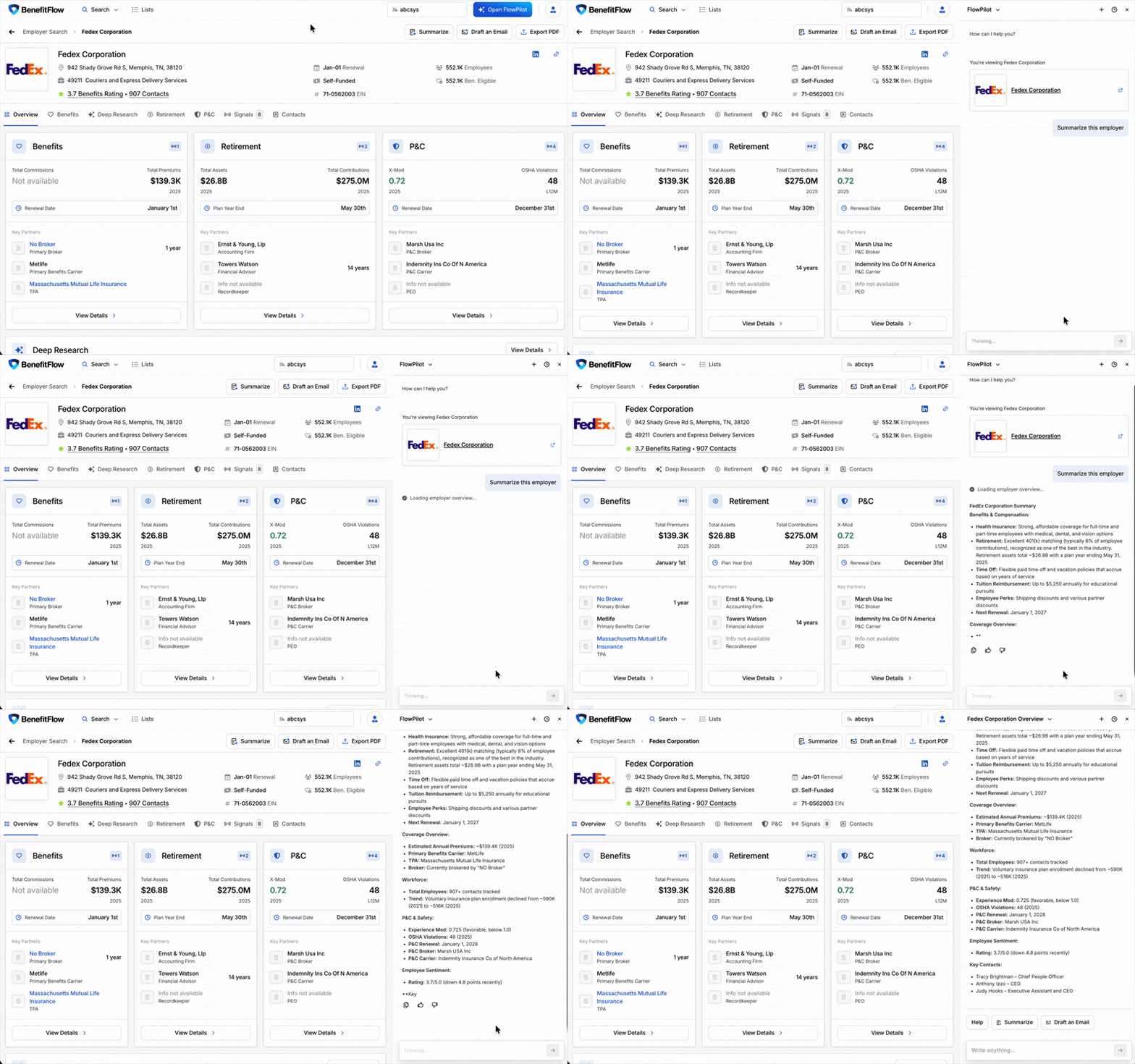
Ask about any company and get a research brief right in the chat — benefits plan history, carrier and broker relationships, renewal timing, and key contacts. On a profile, page-specific prompts surface the right questions automatically.“Summarize this employer’s benefits profile” · “Give me talking points for my meeting with Acme Corp”
Draft outreach that leads to outcomes
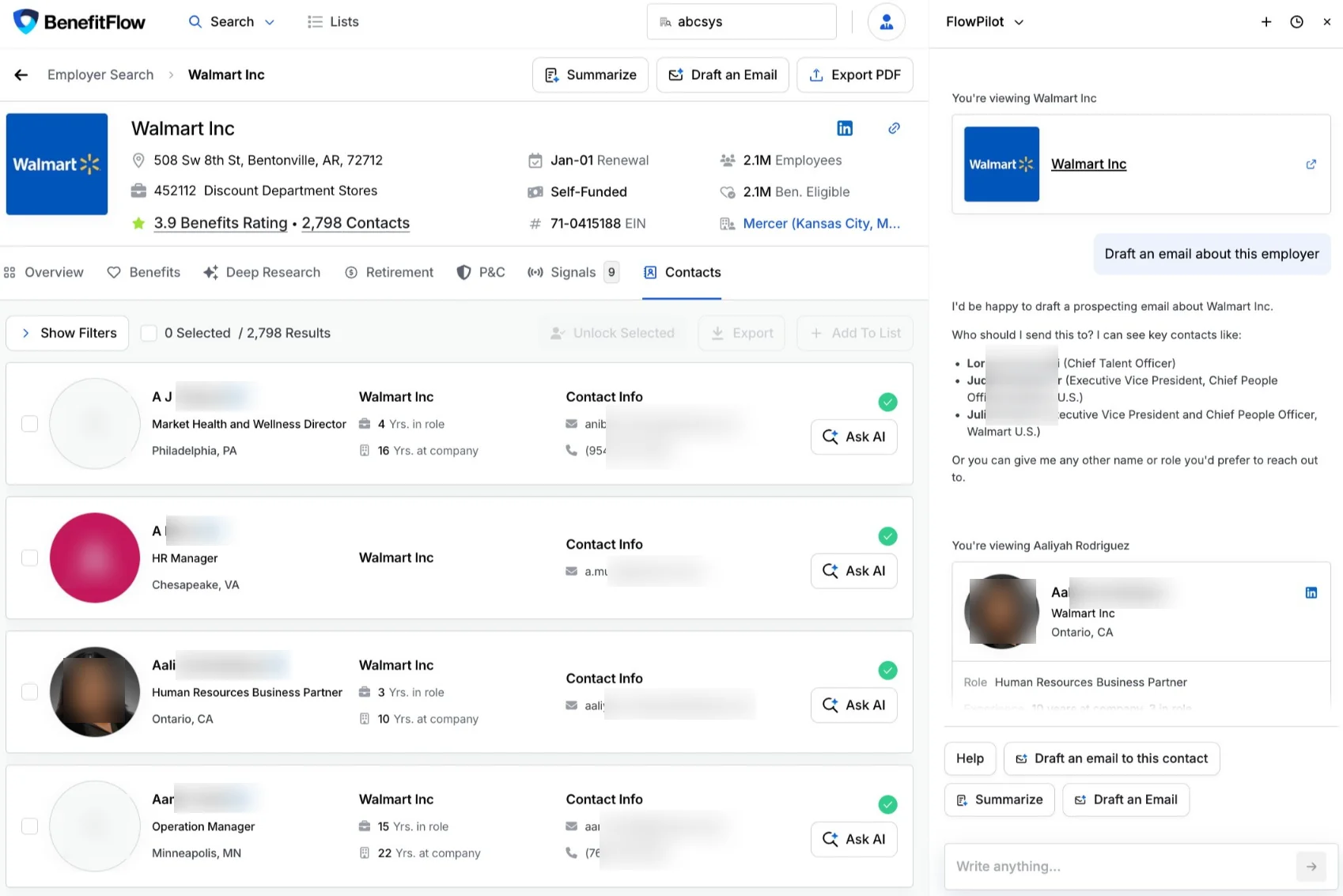
Identify the right decision-maker and generate personalized, ready-to-send outreach — no blank page.“Find the top HR decision-maker and draft a first-touch email”
The payoff: GTM in minutes, not hours. Ask a question, get an answer, take action.
Where to Find FlowPilot
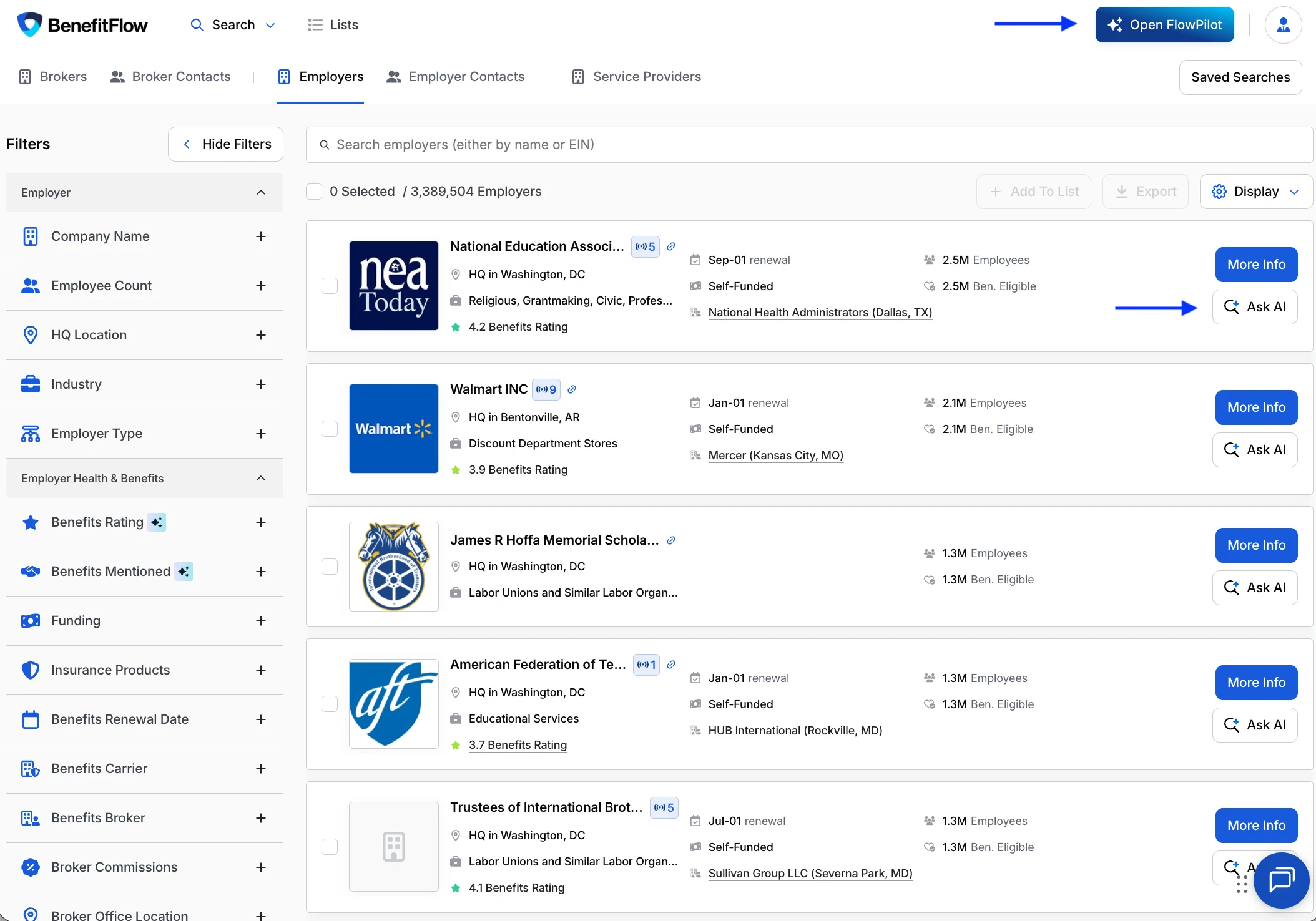
FlowPilot is available across the entire BenefitFlow app. You can open it two ways:- Open FlowPilot from the top nav — Click Open FlowPilot (top right) from anywhere to open the assistant.
- Ask AI on any result — On a search result, employer, broker, or contact, click Ask AI to start FlowPilot with that record already in context.
Try These First
Copy and paste any of these into FlowPilot to see it in action. Replace the bracketed details with your own targets. Build a target listShow me self-funded employers in Michigan with 500–1,000 employees in RetailFind employers in Texas with 500+ employees renewing in the next 90 daysShow me employers in [city or state] that aren't working with [broker name]
Show me employers with a broker change in the last 90 daysWhich of [competitor]'s clients have a benefits rating of 3 stars or below?Find employers with an upcoming renewal in the next 90 days and a recent decision-maker changeShow me employers with a year-over-year premium increase in the last 12 months
What can you tell me about [employer name]?Give me talking points for my meeting with [employer name]
Find the top HR decision-maker at [employer name] and draft a first-touch emailDraft a shorter, more casual version of that email
Tips for Best Results
- Be specific. Include the entity type, location, size, and any other criteria that matter.
- Have the website but not the name? Paste the company’s URL into your prompt and FlowPilot finds the account.
- One entity type per query. Stick to employers, brokers, or contacts in a single request.
- Rephrase rather than follow up. If a result isn’t quite right, start a fresh query with different wording.
- Use page-specific prompts. When you’re already on a profile, the suggested prompts are tuned to that entity.
Share Your Feedback
Your feedback directly shapes what gets built next.- Rate responses — Use the thumbs up / thumbs down buttons on any FlowPilot response.
- Tell your Customer Success Manager — If something feels off, or FlowPilot surprises you in a good way, reach out to your BenefitFlow point of contact or email customerteam@benefit-flow.com.
FAQs
Does FlowPilot cost extra?
Does FlowPilot cost extra?
No. FlowPilot is included for all BenefitFlow users across all plans at no additional cost.
How do I turn FlowPilot on or off?
How do I turn FlowPilot on or off?
FlowPilot is controlled by a per-team admin toggle in your account settings. Admins can enable or disable it for the team at any time. Some accounts ship with FlowPilot off by default — if you don’t see it, an admin can switch it on in Team Settings.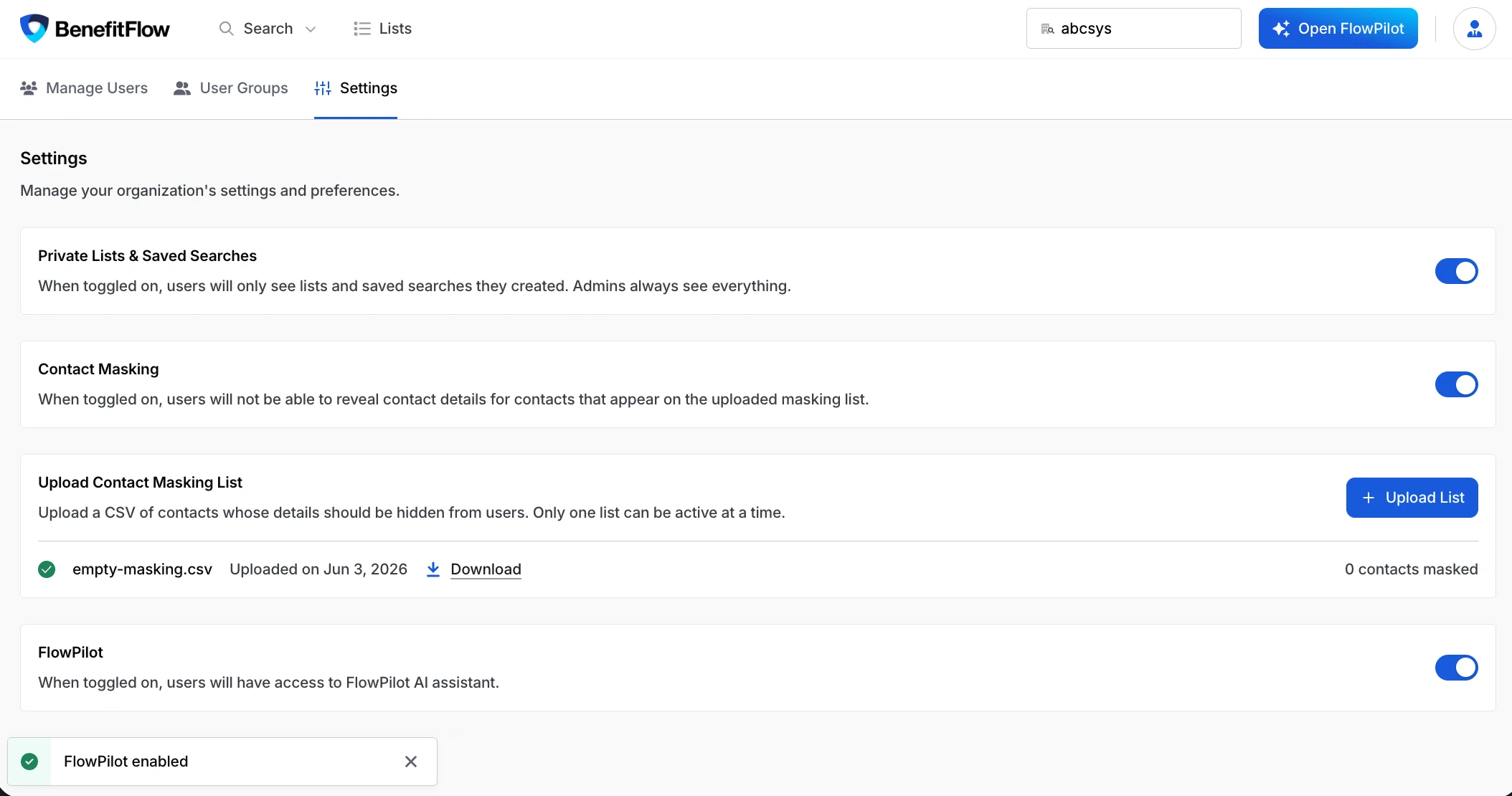
Can FlowPilot save results to a list?
Can FlowPilot save results to a list?
Yes. Just ask in plain language — for example, “Add these search results to my list” or “Create a new list called Q4 Texas Prospects and add these.” FlowPilot adds the results to an existing list or creates a new one, right from the chat. You can manage the list anytime from your Lists page.
Can FlowPilot unlock contacts?
Can FlowPilot unlock contacts?
Yes. Ask FlowPilot to unlock a contact’s details and it will — but because unlocking uses contact credits, FlowPilot asks you to confirm every time. Nothing is unlocked or charged until you approve.
What can FlowPilot not do?
What can FlowPilot not do?
A few things to set expectations:
- Export to CSV directly — to export, either add results to a list or use the Export button in the search UI.
- Send emails for you — FlowPilot drafts outreach; you review and send.
- Update your CRM automatically — all CRM changes stay user-initiated.
- Reach outside BenefitFlow — answers come from BenefitFlow’s data, not the open internet or other tools.
Why did FlowPilot give me unexpected results?
Why did FlowPilot give me unexpected results?
Try being more specific — include the entity type (employer, broker, or contact), a location, and key criteria. If follow-up queries aren’t working well, start a fresh query instead.
Questions about data, AI, and security? See FlowPilot Security & Data Handling for how FlowPilot handles your data, what it can access, and the controls available to your team.