

Okta
Create a SAML app in the Okta Admin Console.
Microsoft Entra ID
Create an enterprise application in the Entra admin center.
How it works
Your identity provider sends us one attribute,email, when each person signs in. Their name and
everything else come from the BenefitFlow account they were invited under. Each provider guide
shows exactly where to set up email.
What happens next
Once you’ve sent us your metadata URL and email domains, the rest runs in this order:- We connect your identity provider and switch single sign-on on for your organization.
- We set up your administrator account and test the sign-in ourselves. If anything about the configuration is wrong, this is where it surfaces, and we’ll come back to you.
- We confirm single sign-on is live and hand over to your administrator.
- Your administrator adds the rest of your team. Each new person is assigned in your identity provider and invited in BenefitFlow (see below).
benefit-flow.com and enter their work email. We recognize the
domain, send them to your company sign-in, and bring them back into BenefitFlow once they’re signed
in.
Adding and removing people
Single sign-on doesn’t create BenefitFlow accounts on its own, and the two systems don’t sync to each other. Adding someone is a manual step in each one.- Assign them to the BenefitFlow application in your identity provider.
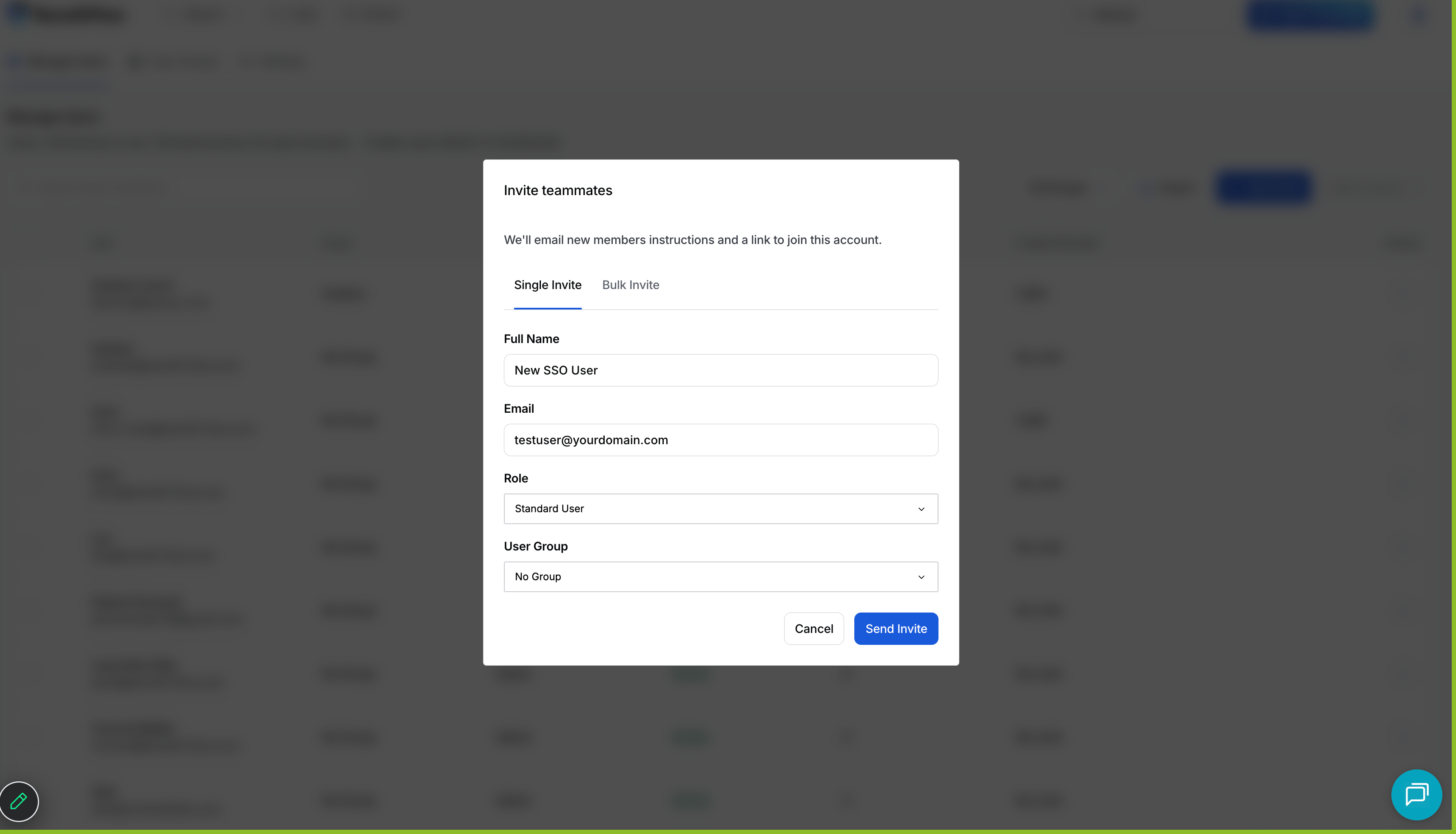
- Invite them in BenefitFlow, from Team Management, using the same work email.
If sign-in doesn’t work
Someone signs in at their company login, then BenefitFlow says they have no account
Someone signs in at their company login, then BenefitFlow says they have no account
This is the common one, and it’s almost never what it looks like. The sign-in worked. The email
address your identity provider sent didn’t match any BenefitFlow account. Two things to check:
- Is the
emailattribute set up? Without it, we receive no address at all. - Does the address match the invite? Someone invited as
jane@yourcompany.comwhose identity provider sendsjane.smith@yourcompany.comwon’t match.
The person hasn't been invited to BenefitFlow yet
The person hasn't been invited to BenefitFlow yet
Your BenefitFlow administrator can invite them from Team Management. Assigning someone in your
identity provider isn’t enough by itself.
Something else
Something else
Contact us with the time of the attempt and the user’s email address, and we’ll trace it from
our side.
Common questions
Do our users still need a separate BenefitFlow login?
Do our users still need a separate BenefitFlow login?
No. Once single sign-on is live, their company login is the only credential they use for
BenefitFlow.
What happens when someone leaves?
What happens when someone leaves?
Deactivate them in your identity provider, or unassign them from the BenefitFlow application,
and they can no longer sign in. Tell us as well if you want their BenefitFlow account fully
deactivated.
Is anything we exchange secret?
Is anything we exchange secret?
No. Single sign-on metadata is made up of public endpoints and a public certificate, so email
is a fine way to exchange all of it.