

Before you begin
We’ll have sent you two values to paste into Okta in Step 3:
Neither value is secret, and nothing you send back to us is secret either.
Set up the application in Okta
1
Create the application
In the Okta Admin Console, go to Applications and Resources, then Applications, and
click Create App Integration.Choose SAML 2.0 and click Next. BenefitFlow connects over SAML, not OIDC.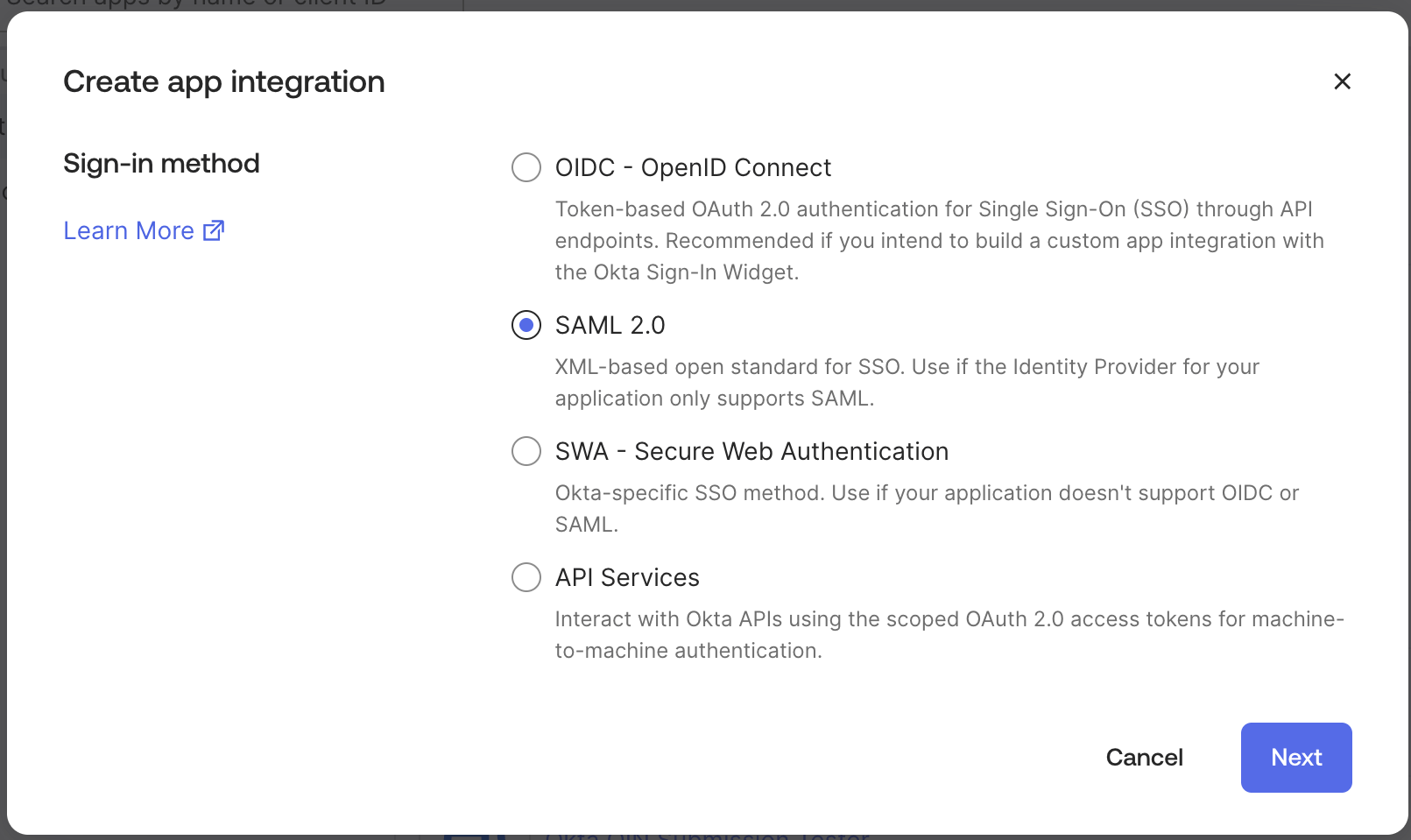
2
Name it
On the General Settings page, set App name to 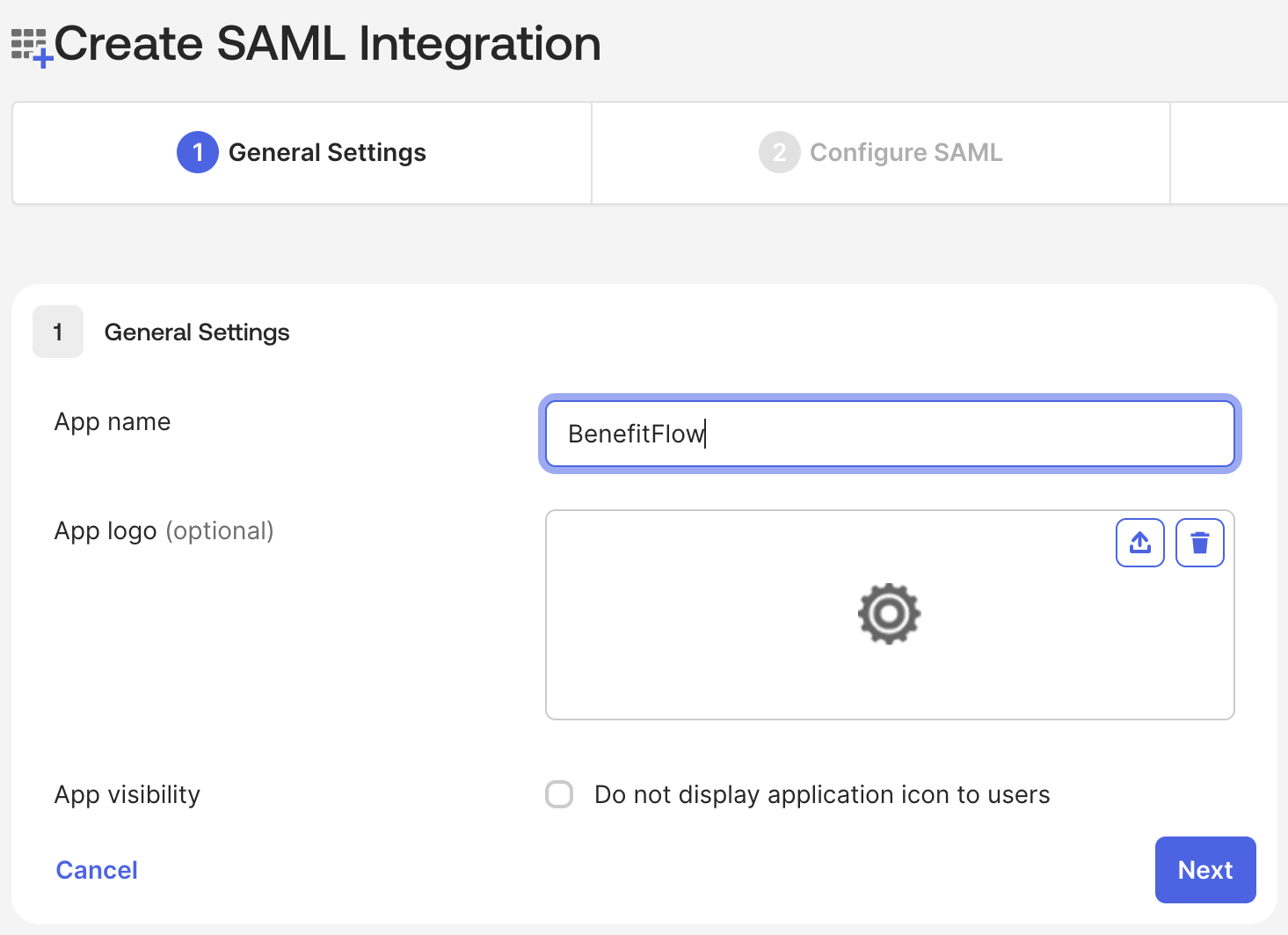
BenefitFlow and click Next.3
Enter the two connection values
On the Configure SAML page, fill in: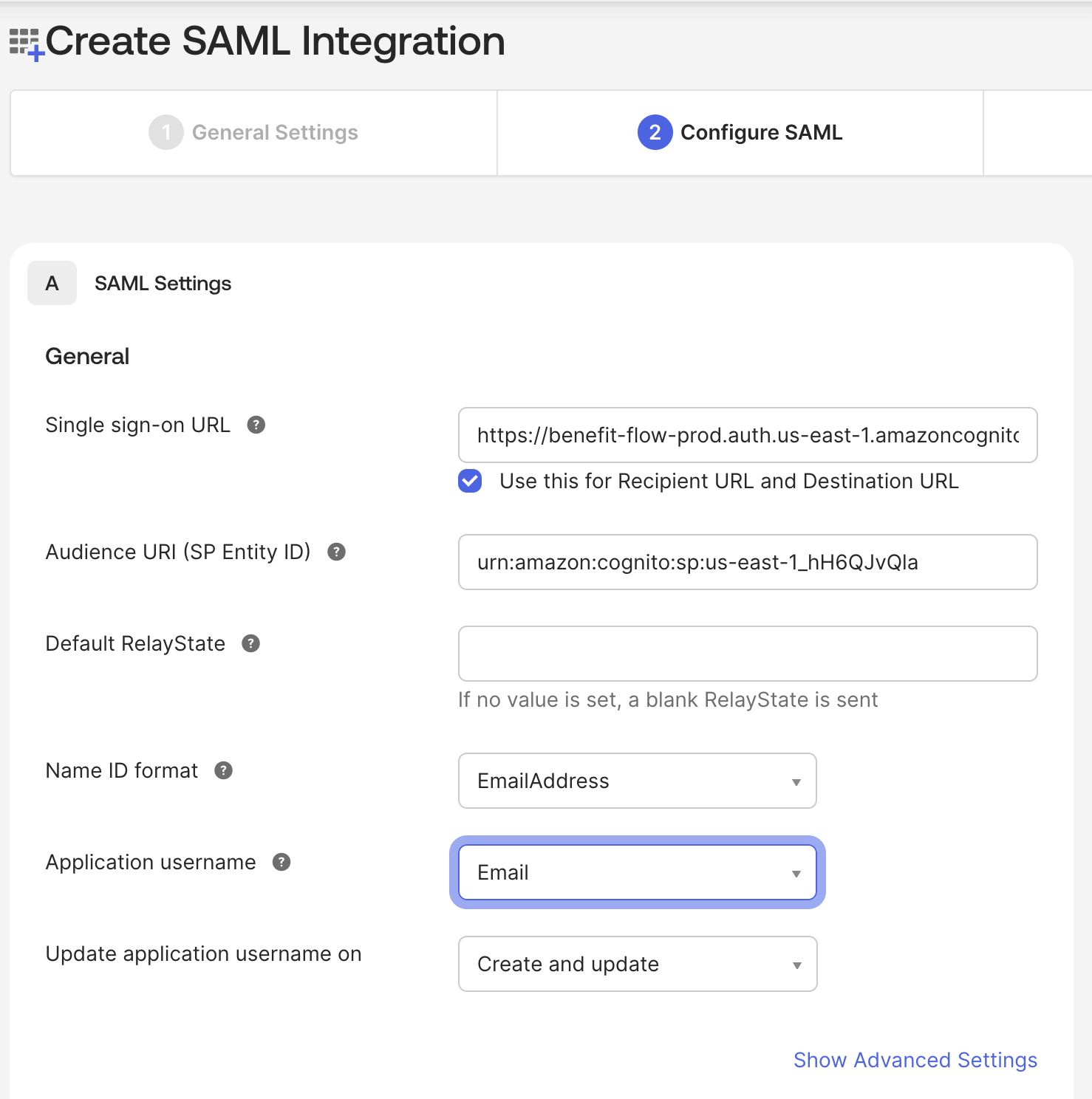
- Single sign-on URL:
https://benefit-flow-prod.auth.us-east-1.amazoncognito.com/saml2/idpresponse. Leave Use this for Recipient URL and Destination URL checked. - Audience URI (SP Entity ID):
urn:amazon:cognito:sp:us-east-1_hH6QJvQla - Default RelayState: leave blank.
- Name ID format:
EmailAddress - Application username:
Email - Update application username on: leave as is.
4
Add the email attribute
This is the step that matters most. BenefitFlow matches each sign-in to an account by email
address, so Okta has to send us that address under an attribute named exactly 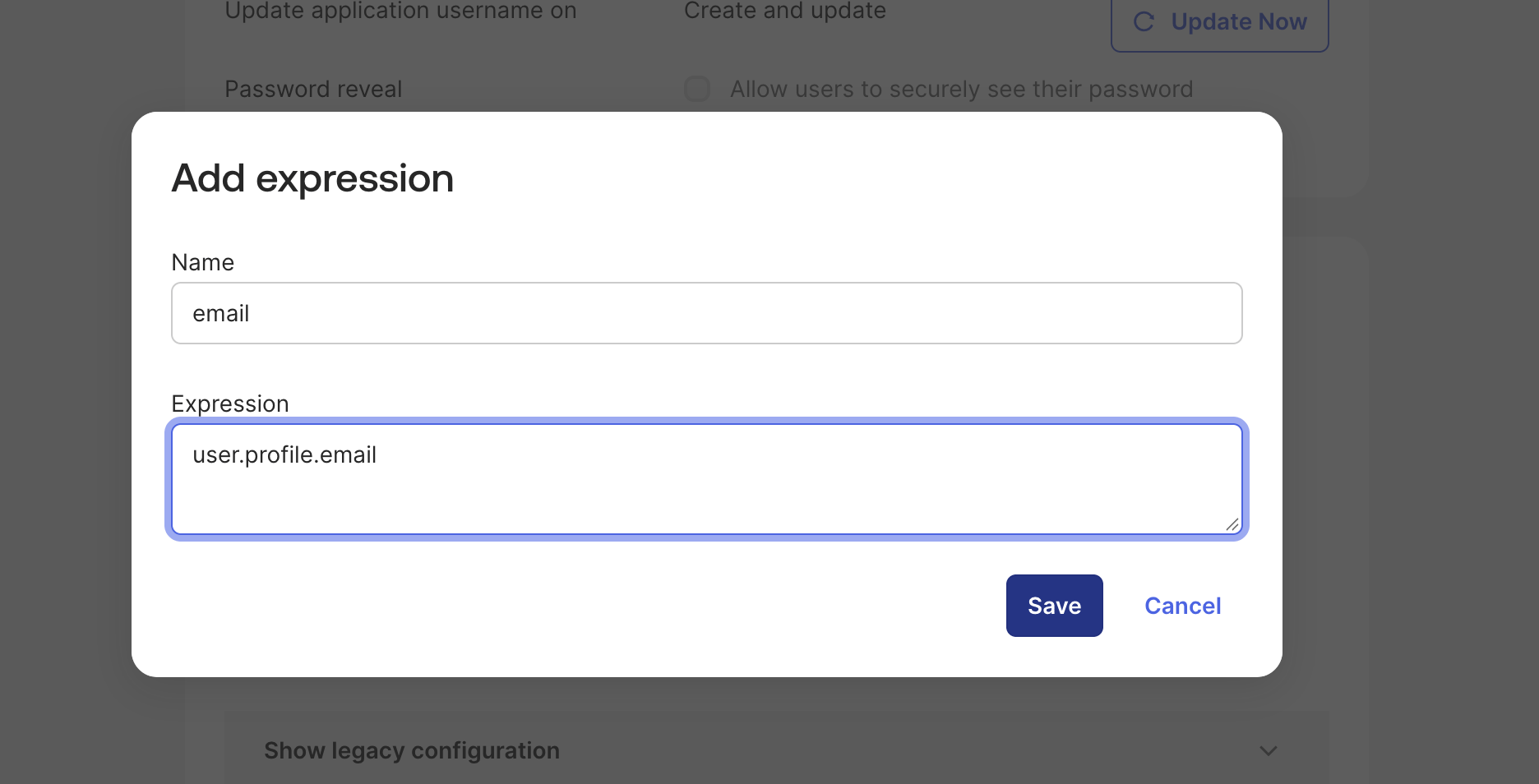
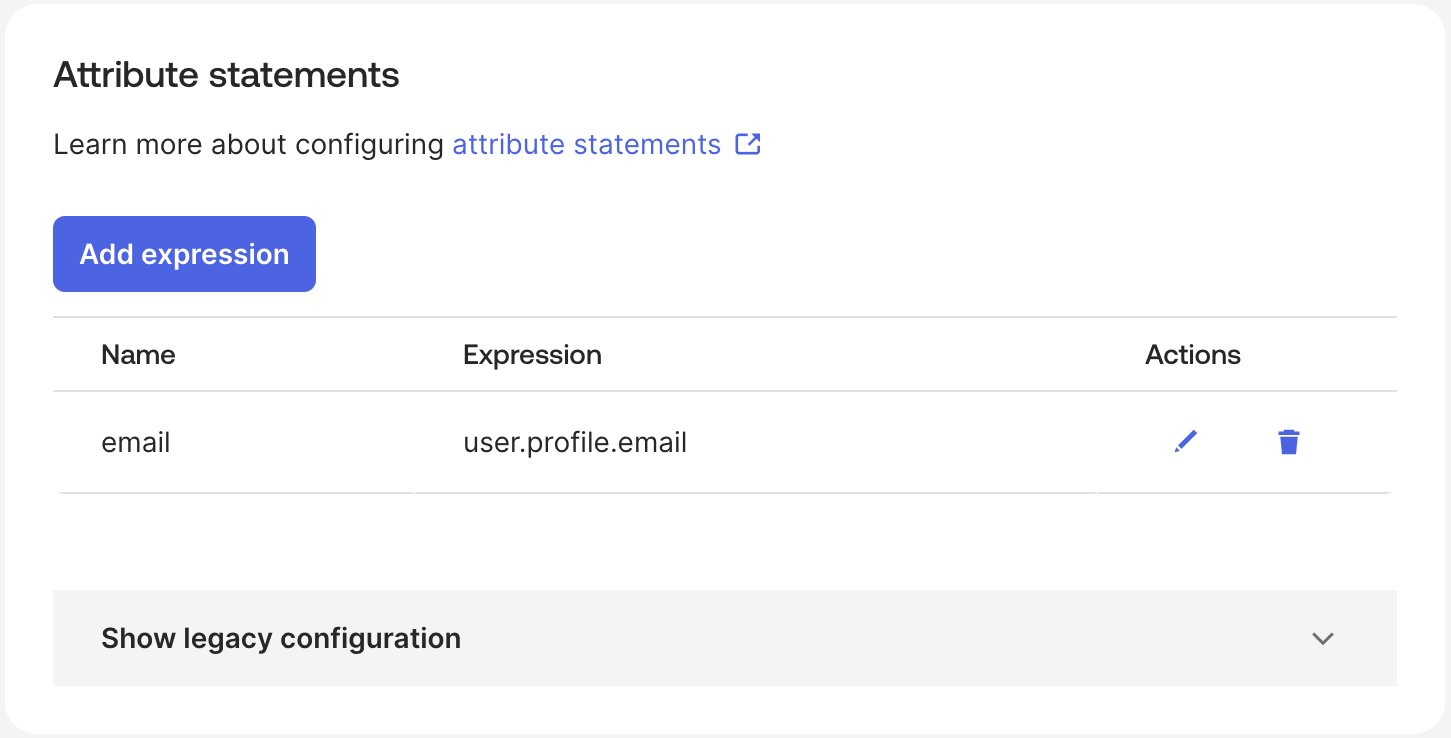
email.Open the new application’s Sign On tab, scroll to Attribute statements, and click
Add expression:- Name:
email - Expression:
user.profile.email
email row.Why the email expression is user.profile.email
Why the email expression is user.profile.email
user.profile.email is the primary email on each person’s Okta profile. Okta requires it, so
it’s never blank. In most organizations it’s the same address people use to sign in to Okta.If that’s not true in your org (people’s primary email in Okta differs from the address
they use day to day), use whichever profile attribute holds the real work email instead. If
you’re unsure, send us a sample and we’ll confirm it works before you roll it out.5
Assign your users
Open the application’s Assignments tab and assign the people who should have BenefitFlow
access. You can assign individuals or groups. Only assigned users can sign in through this
application.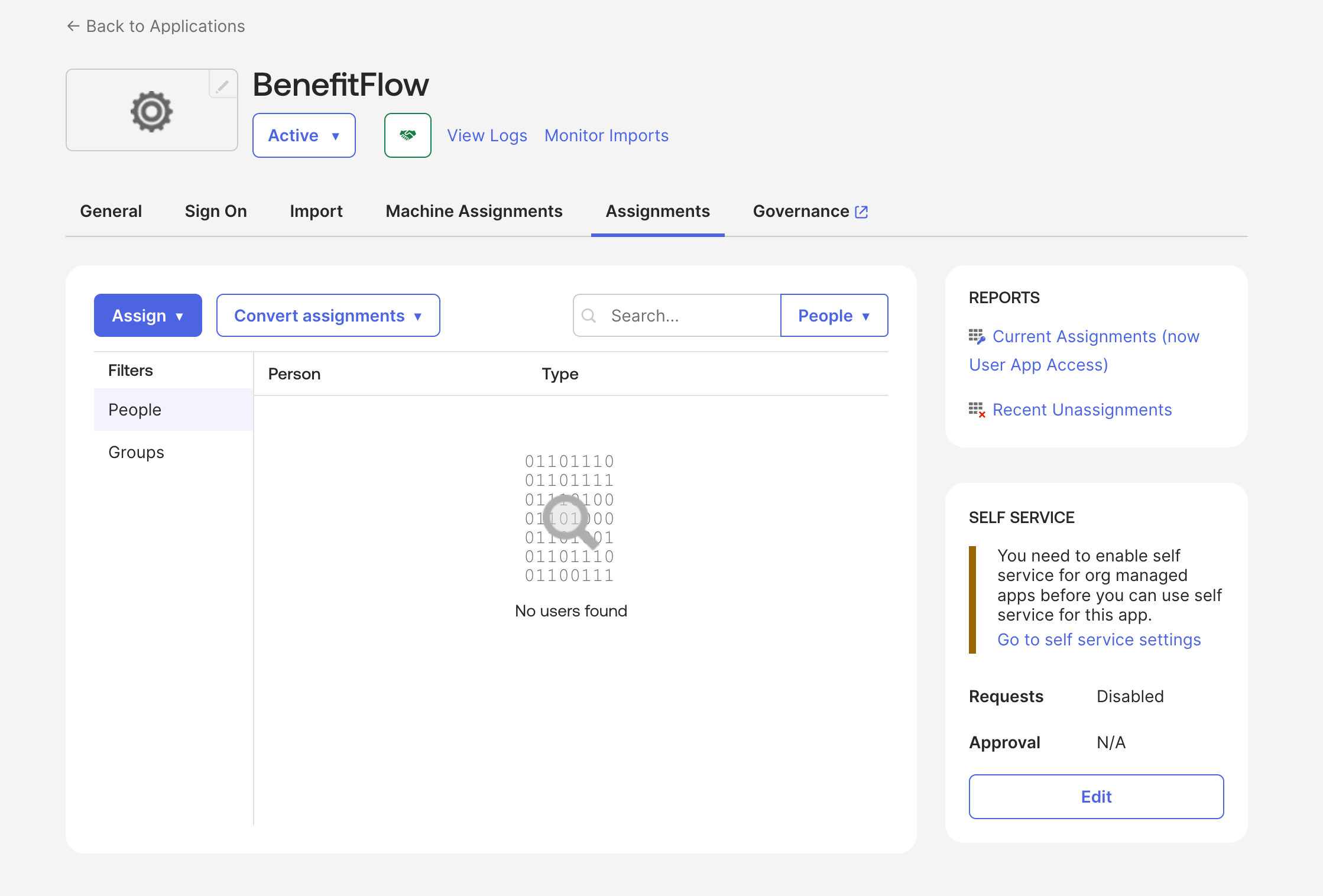
6
Copy the metadata URL
Go back to the Sign On tab. Under Metadata details, copy the Metadata URL. It looks
like 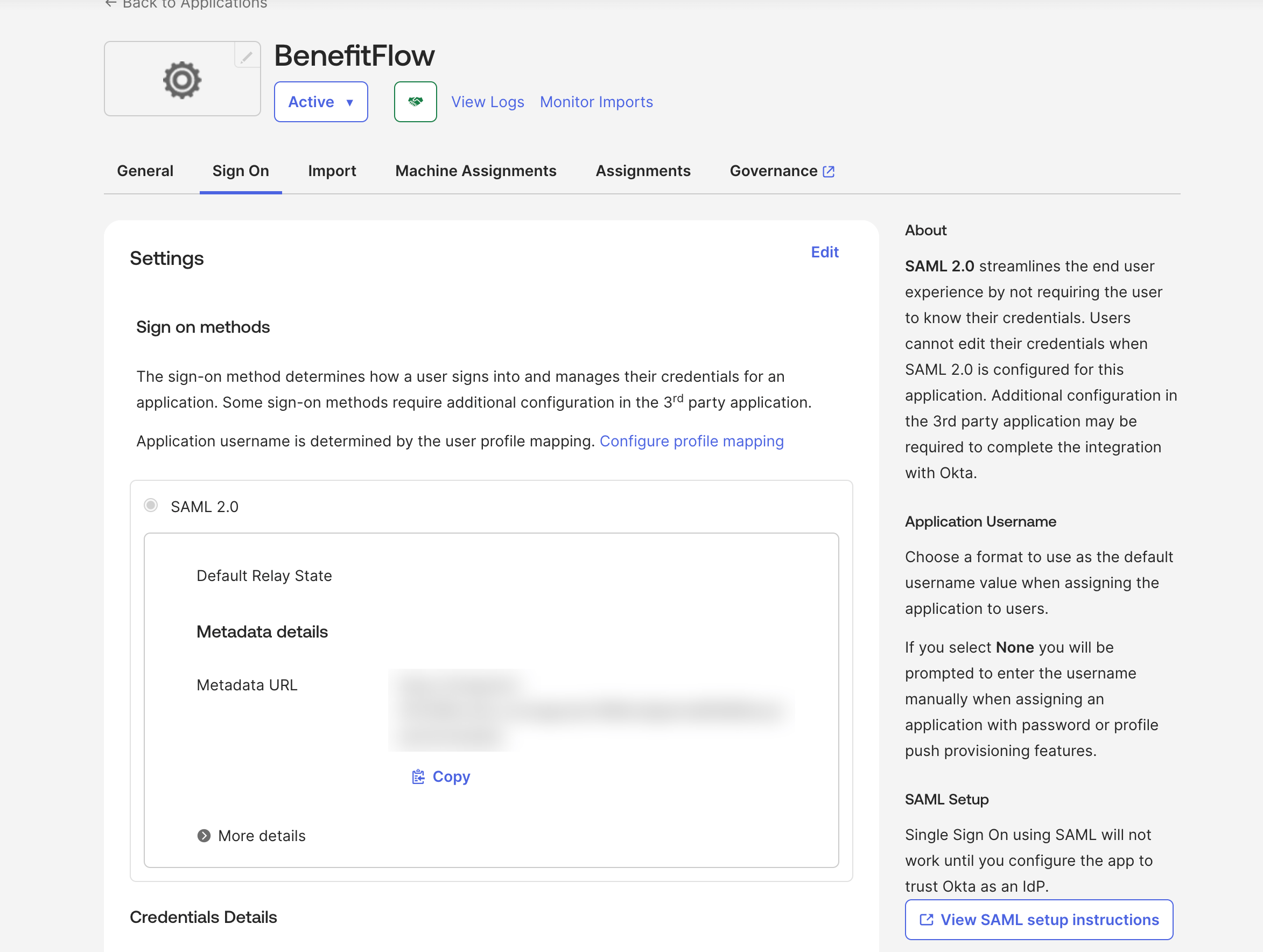
https://yourcompany.okta.com/app/.../sso/saml/metadata.7
Send us two things
Email these to your BenefitFlow contact:
- The metadata URL from Step 6.
- The email domain or domains your employees use (for example,
yourcompany.com). Include every domain in use if there’s more than one.
If sign-in doesn’t work
Someone signs in to Okta, then BenefitFlow says they have no account
Someone signs in to Okta, then BenefitFlow says they have no account
The Okta sign-in worked, but the address Okta sent didn’t match a BenefitFlow account. Check:
- Did you complete Step 4? Without the
emailattribute, we receive no address at all. - Is the primary email on that person’s Okta profile the same one they were invited under?
Someone invited as
jane@yourcompany.comwhose Okta primary email isjane.smith@yourcompany.comwon’t match.