

How to find contacts at a broker's clients
Find contacts at a set of employers
1
Select employers
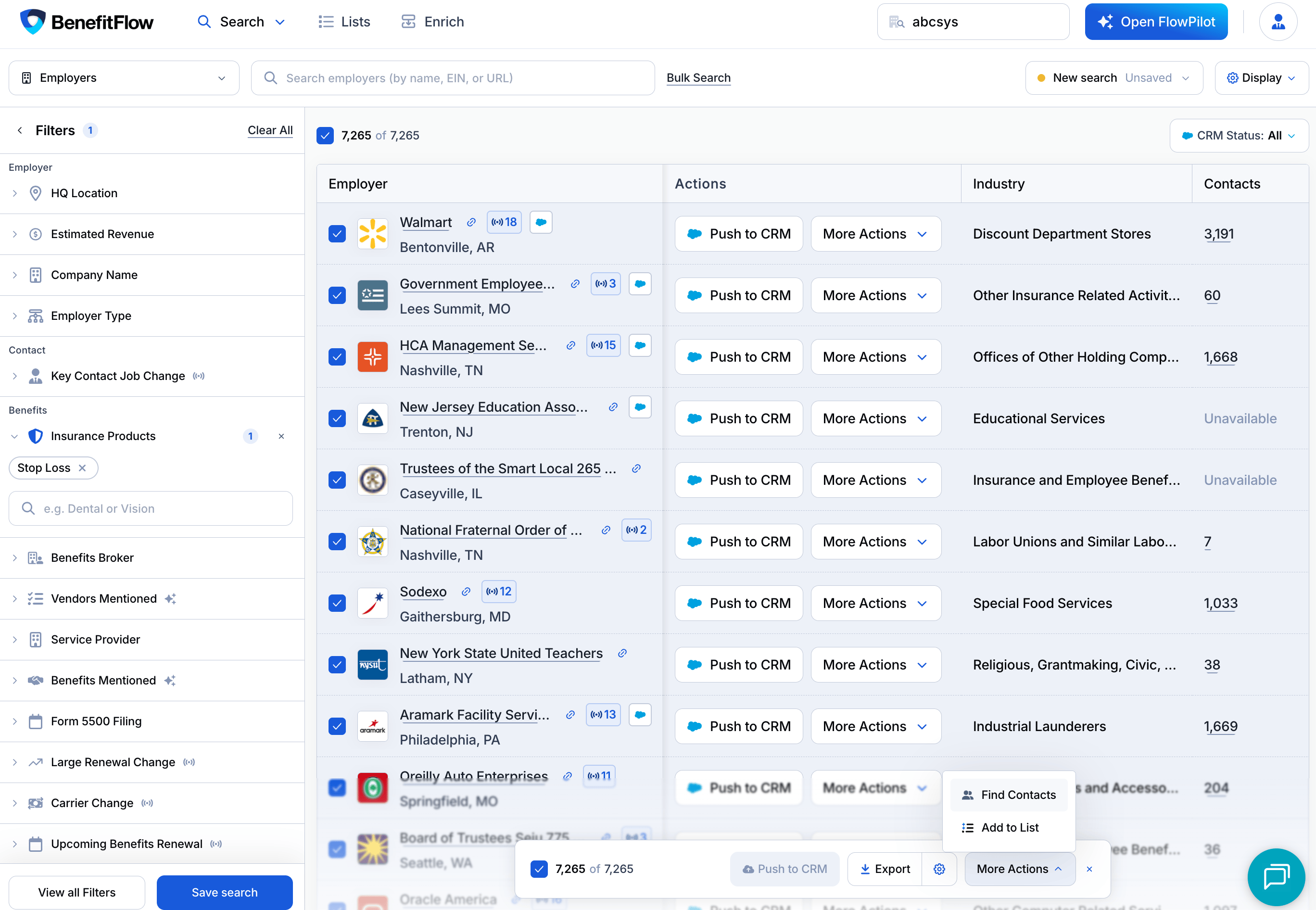
In Employer search, check the employers you want. To take every result, check the box at the top of the list.
2
Click More Actions, then Find Contacts
Use More Actions in the bar at the bottom of the page. For one employer, use More Actions on its row.
3
Narrow it down
Employer Contacts opens with only those employers in the Company Name filter. Add Job Title, Role, or any other filter to get to the right decision-makers.
Find a broker’s clients, then their contacts
1
Select brokers
In Broker search, check one or more brokers.
2
Click More Actions, then Find Clients
Employer search opens with the employers whose primary broker is one of the brokers you picked. You’ll see those brokers in the Benefits Broker filter.
3
Select all, then Find Contacts
You now have the decision-makers across that broker’s whole book.
Good to know
- Selecting all works for up to 10,000 employers or brokers. Over that, the option is grayed out with “Works on up to 10,000 companies. Narrow your selection.” Add a filter and try again.
- The filter Find Contacts or Find Clients sets works like any other. Remove it, or stack more filters on top.
- Your browser’s Back button takes you to your original results.