

CRM Filter works on Employer search and contact searches: Broker Contacts and Employer Contacts, plus the Contacts tab on broker and employer profiles. It is not yet available on Broker (company) search.
What You’ll See
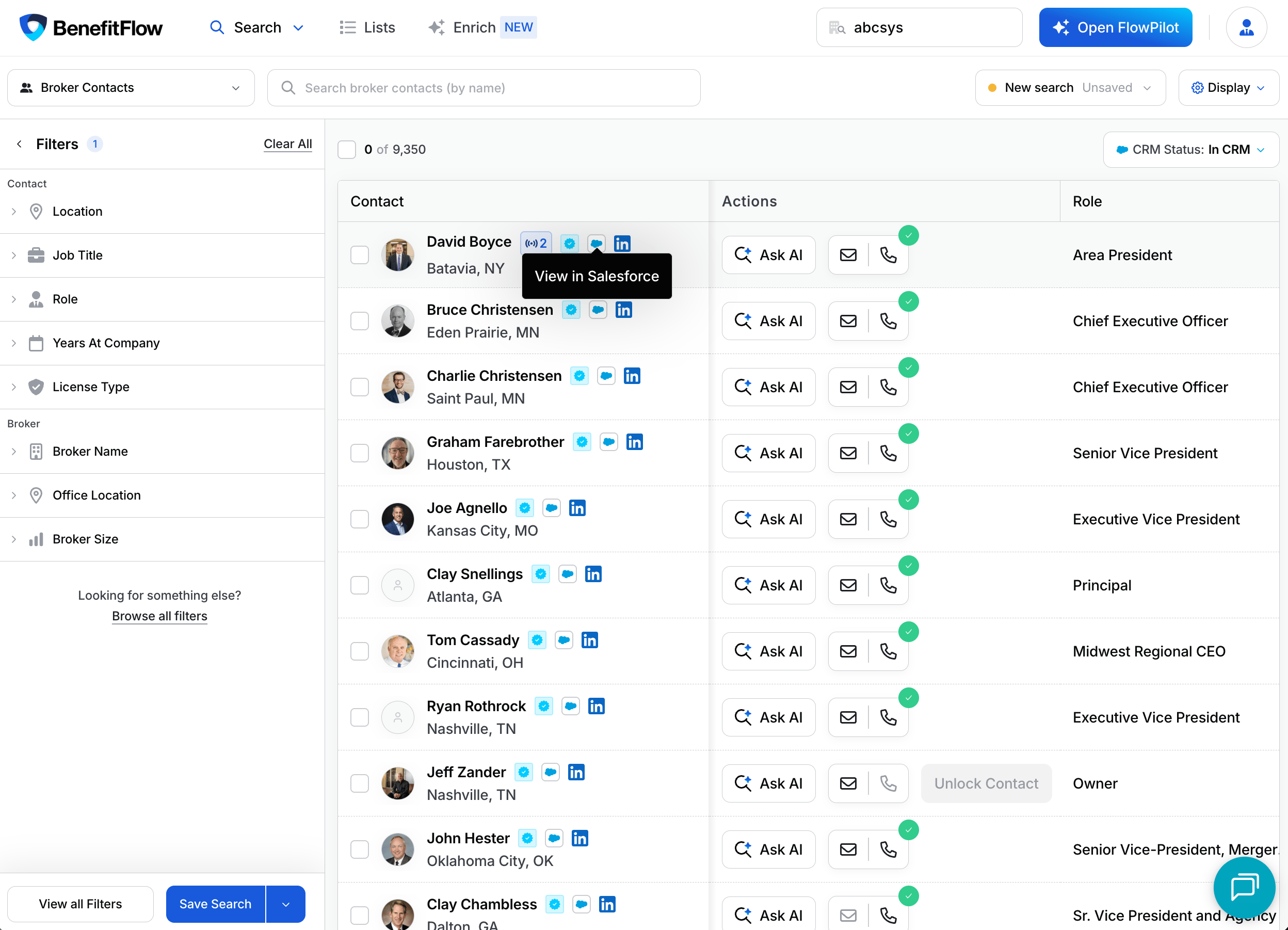
CRM Status filter — A dropdown at the top of your employer or contact results lets you switch between All, In CRM, and Not in CRM. It’s a filter in its own right: combine it with your other filters (industry, role, location, and so on) to target exactly the records you want.
How to Use CRM Filter
1
Verify your CRM connection
Go to Settings > Integrations and confirm your CRM is connected and the CRM Filter preference is enabled.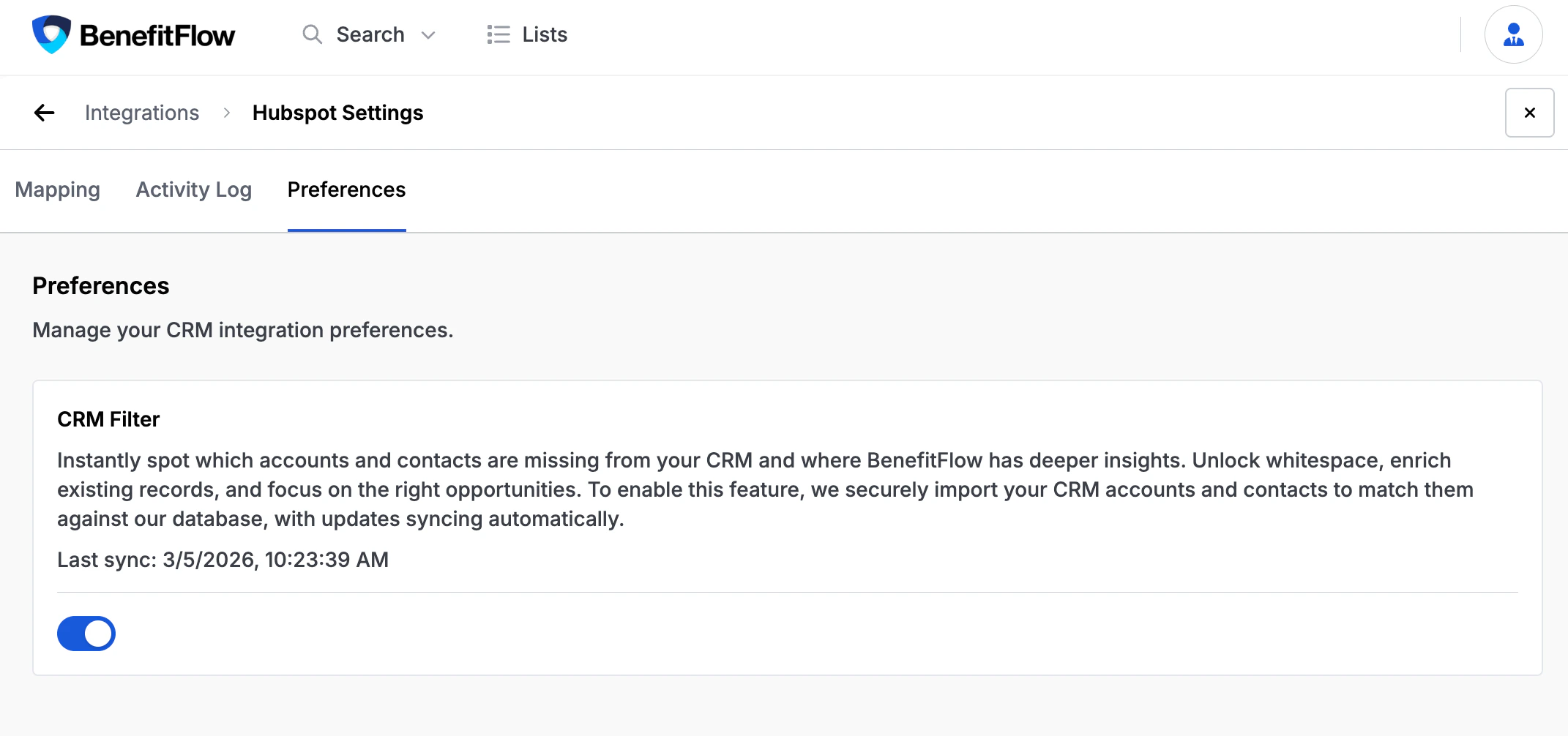
2
Open an employer or contact search
Go to Employers, Broker Contacts, or Employer Contacts, or open the Contacts tab on any broker or employer profile. CRM badges appear automatically on records that match your CRM — no extra setup required.
3
Filter by CRM status
At the top of your results, open the CRM Status dropdown and choose In CRM to see records you already have, or Not in CRM to find net-new accounts and prospects.
How It Works
Use Cases
FAQ
Can I filter employers by CRM status?
Can I filter employers by CRM status?
Yes. CRM Status filtering works on Employer search and on contact searches (Broker Contacts and Employer Contacts, plus the Contacts tab on profiles). Broker (company) search is not supported yet.
Do I need to be an admin to use CRM Filter?
Do I need to be an admin to use CRM Filter?
No. Any user can see CRM badges and use the filter once an admin has connected a CRM integration and enabled CRM Filter in Settings.
How often does CRM data refresh?
How often does CRM data refresh?
It depends on where the change happens:
- Records you sync from BenefitFlow — CRM badges appear within a few minutes.
- Changes made directly in your CRM — BenefitFlow picks these up automatically a few times a day.
Why don't I see badges on some records?
Why don't I see badges on some records?
Badges appear only when BenefitFlow can match a record to your CRM — contacts by email address, employers by company website. If there’s no matching email or website in your CRM, no badge shows.
Does this work with all supported CRMs?
Does this work with all supported CRMs?
Yes. CRM Filter works with Salesforce, HubSpot, and Microsoft Dynamics 365. The experience is the same regardless of which CRM you use.