

Your CRM has to be connected before anyone can push. That’s a one-time admin setup. See Connecting Your CRM (Admin Setup).
Push a record from search
1
Find the record
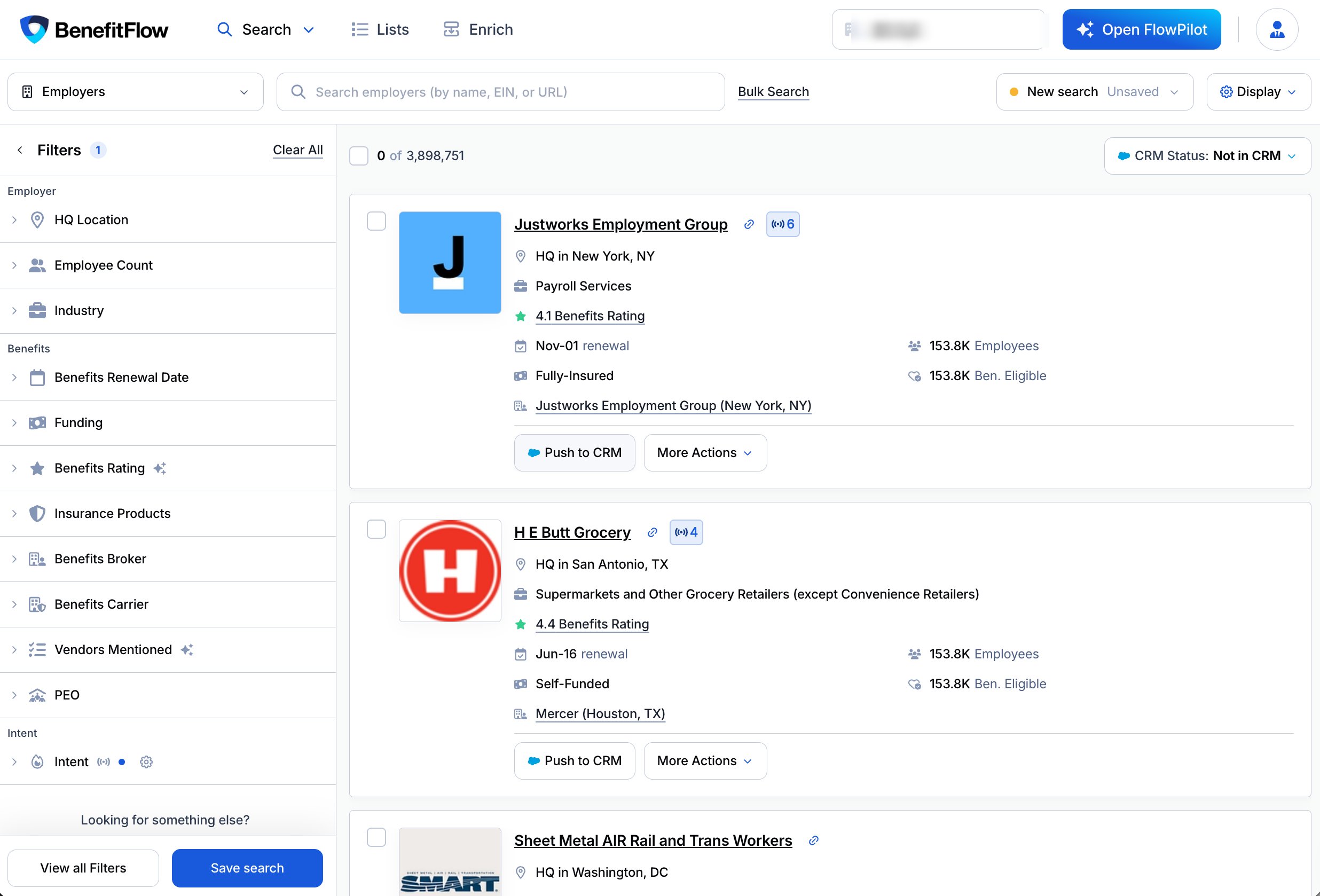
Search Employers, Brokers, Employer Contacts, or Broker Contacts.
2
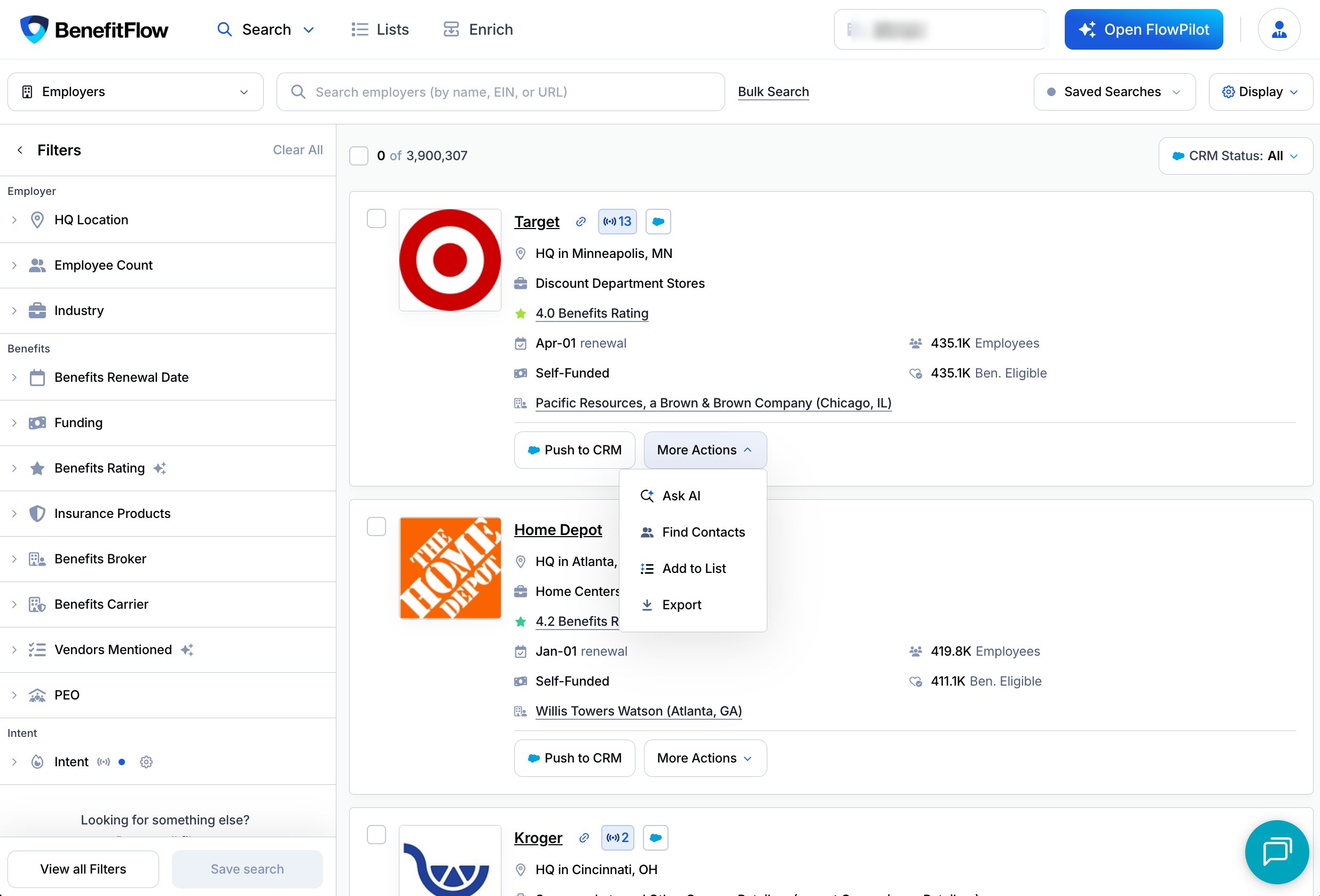
Click Push to CRM
It’s on every result, next to More Actions.
Push from a profile
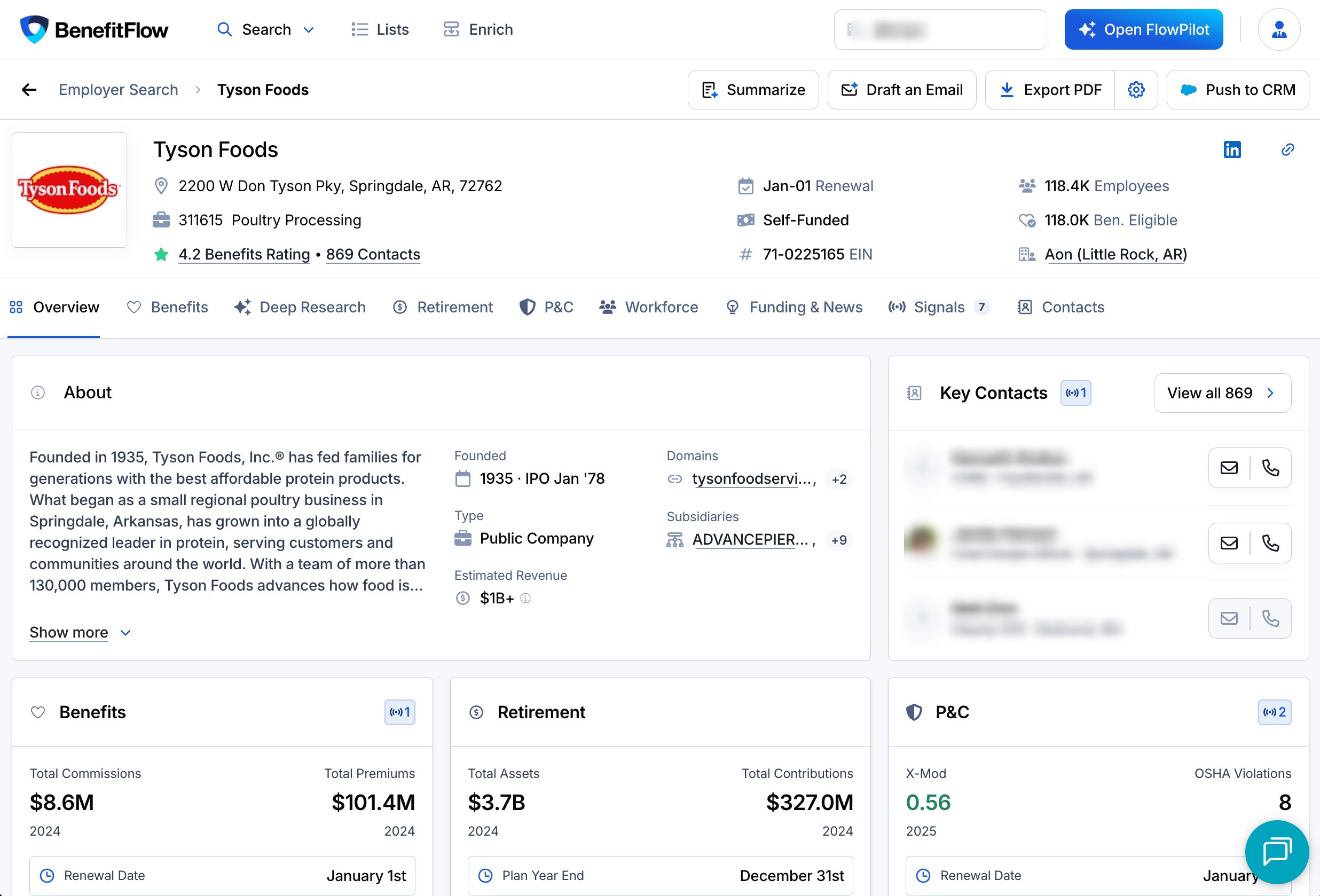
Open an employer, broker, or broker office profile and click Push to CRM in the top right. Broker offices can only be pushed from their own profile, not from search results or the broker’s Offices tab.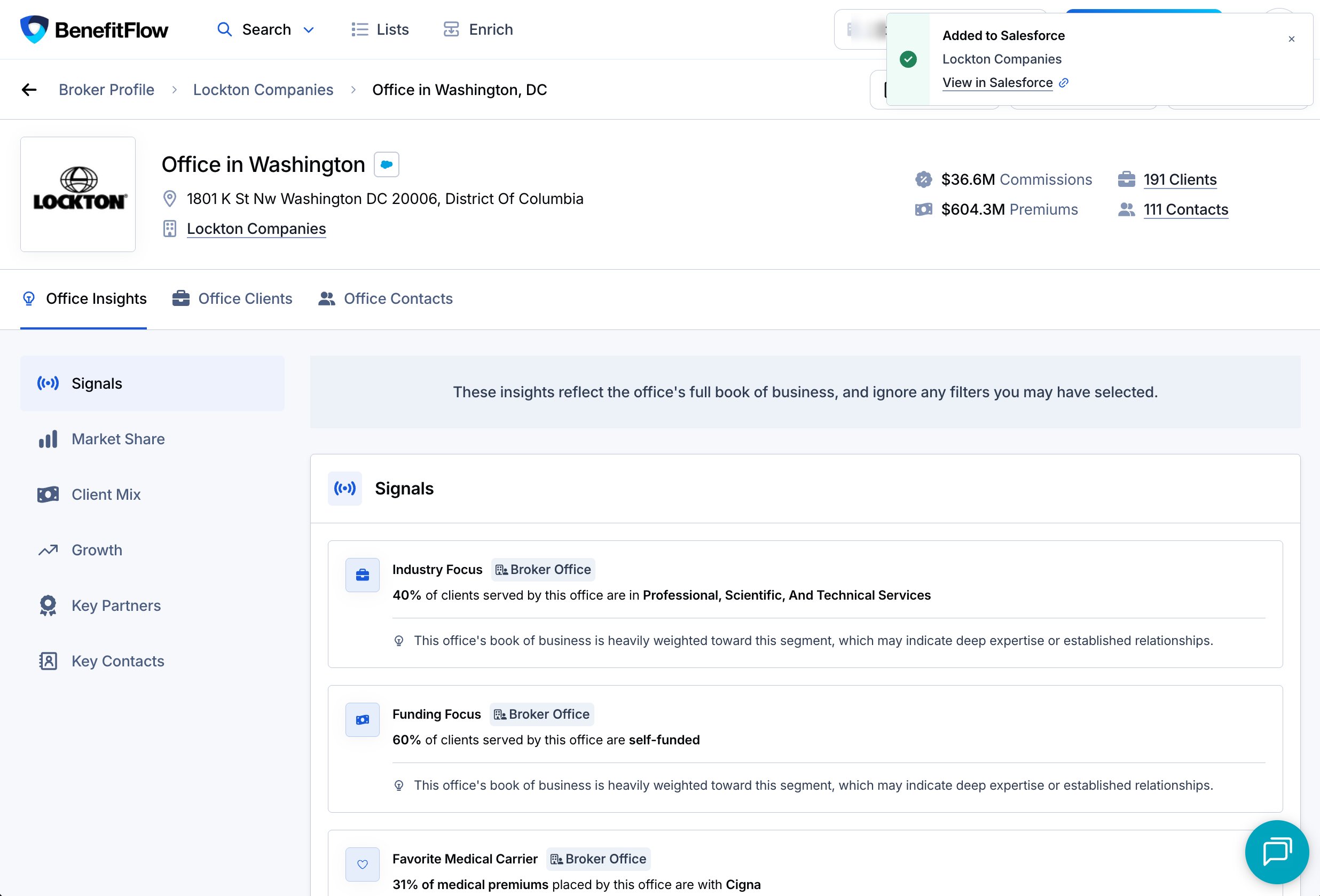
What you’ll see
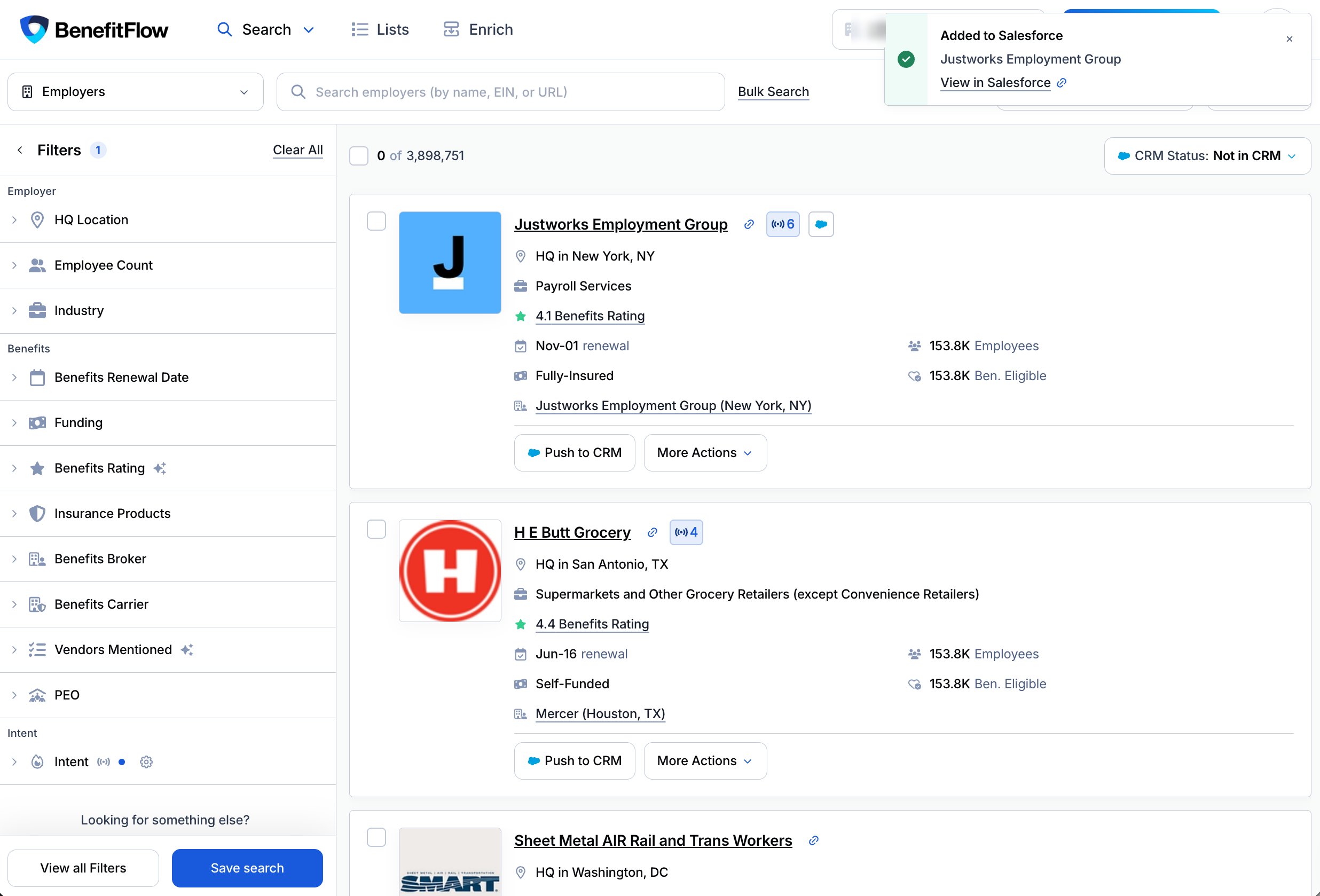
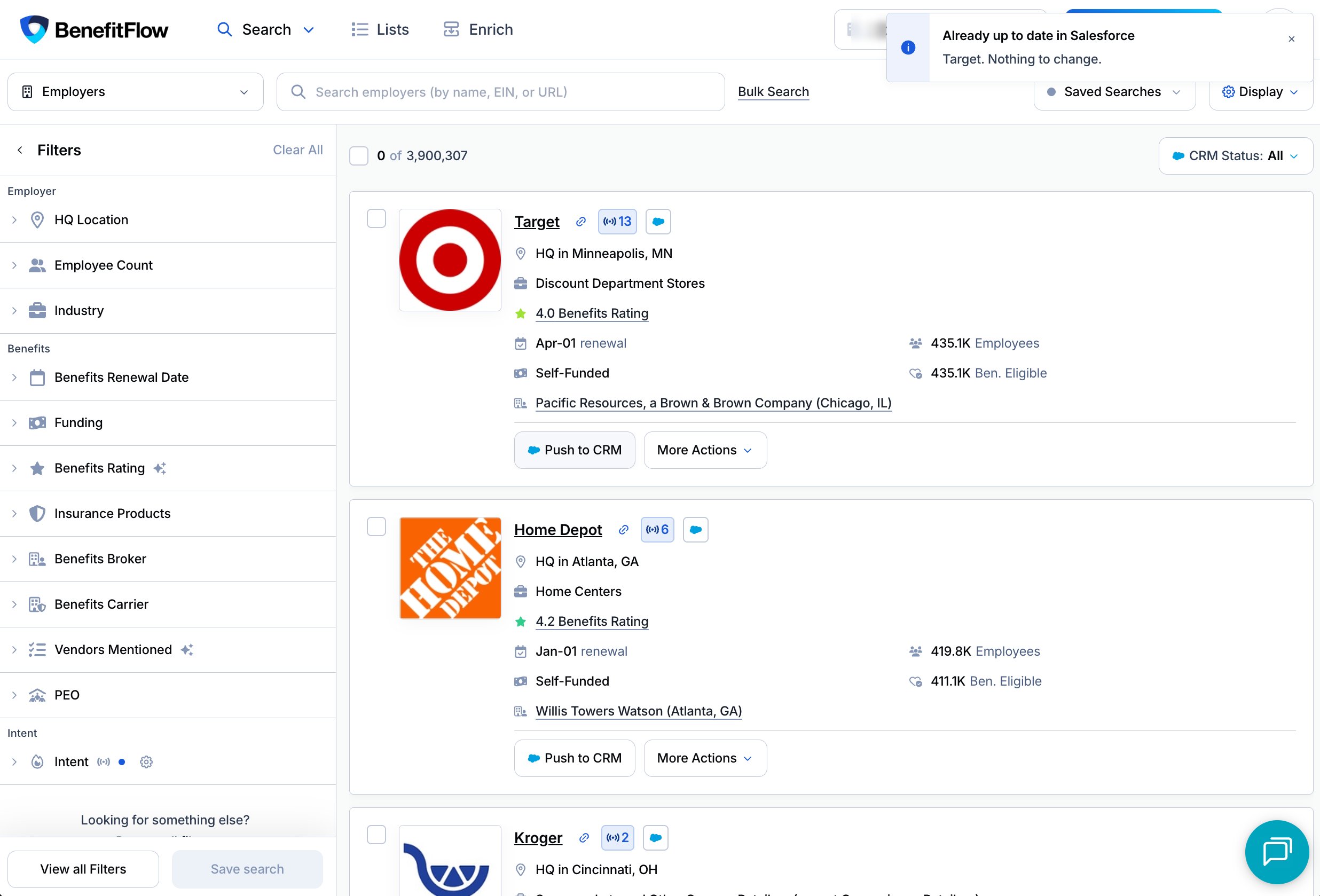
A message in the top right tells you how it went.
When a single record is added or updated, click View in your CRM on the message to jump straight to it.
Push several at once
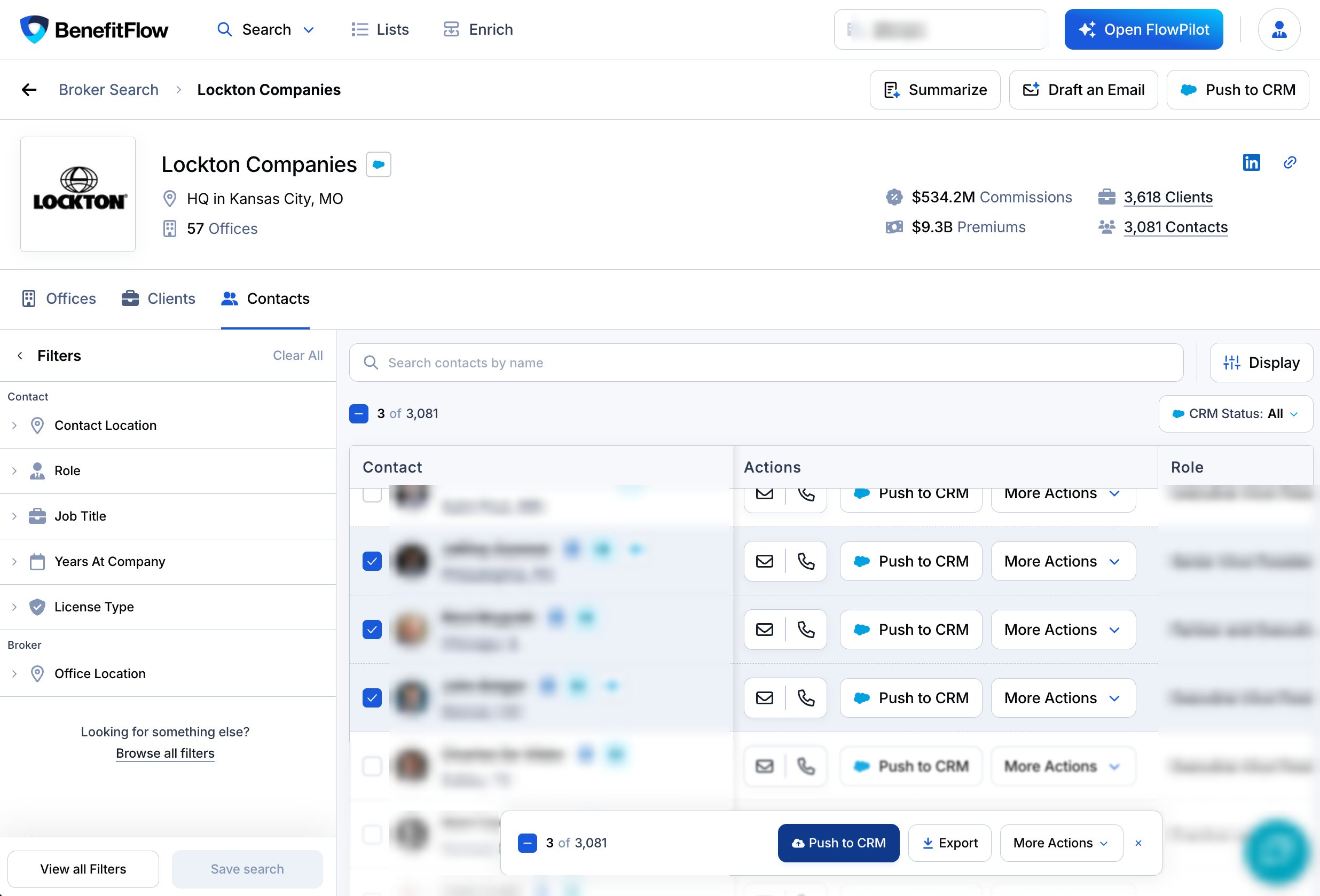
Check the boxes on the records you want, then click Push to CRM in the bar at the bottom of the page.- You can push up to 500 records at a time.
- Pick records one by one. Select all isn’t supported for pushes.
- To push a larger set, add it to a list and sync the list.
Pushing contacts
Locked contacts. Pushing a contact you haven’t unlocked yet unlocks it first, which uses 1 credit. Hover over Push to CRM to see a reminder. Contacts anyone on your team has already unlocked push without using a credit.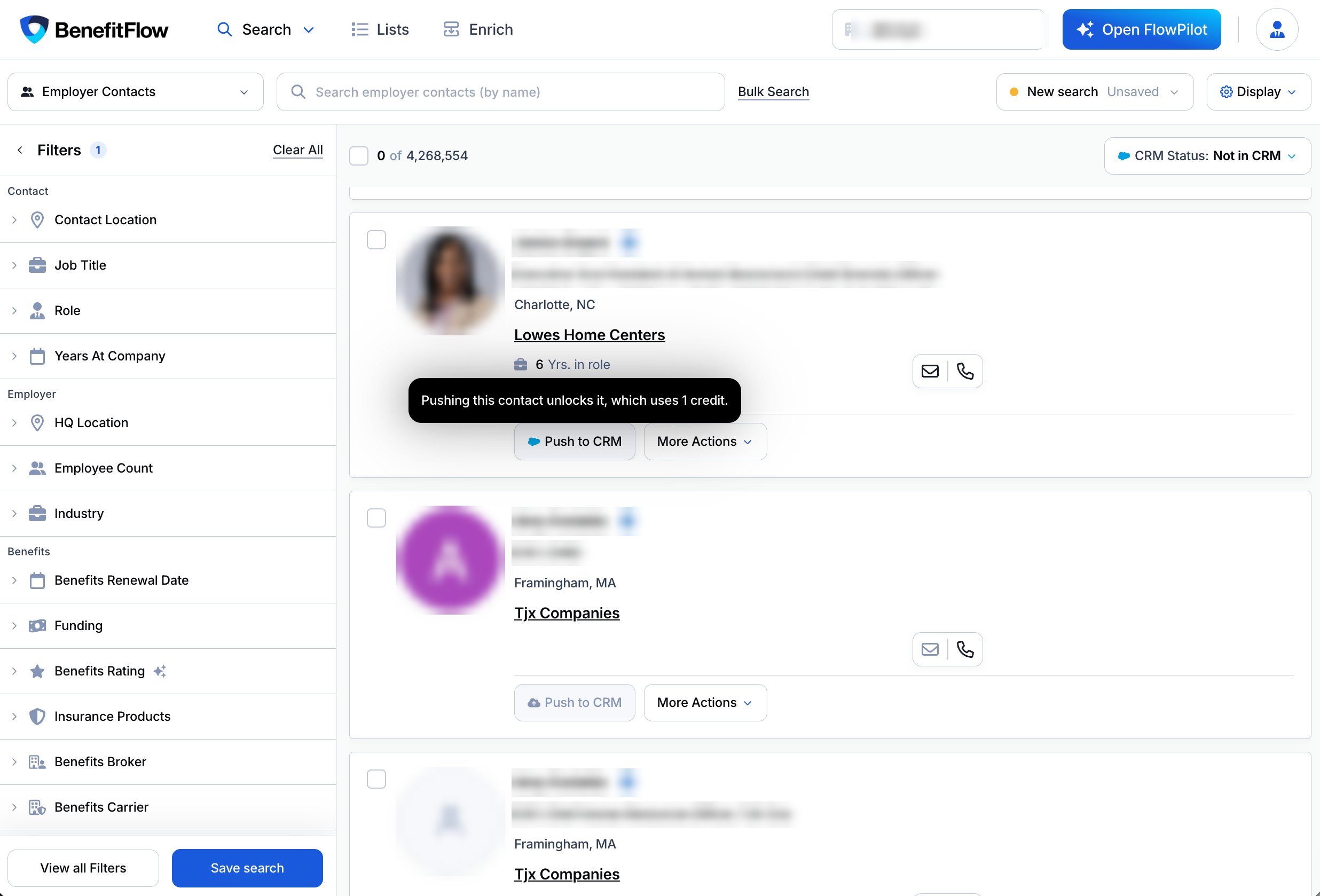
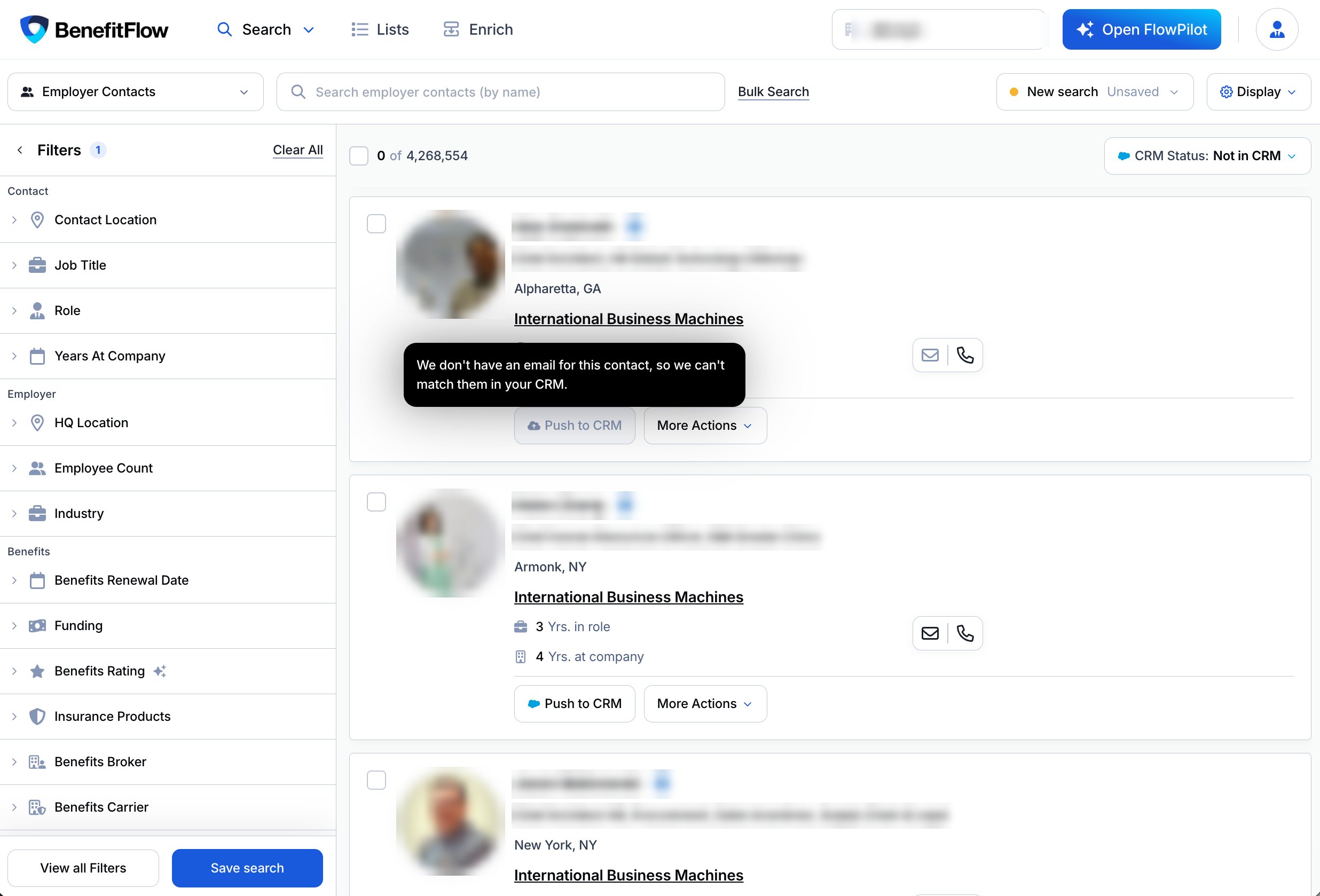
How records connect in your CRM
- Contacts are linked to their company. If the company isn’t in your CRM yet and we have its website, BenefitFlow adds it in the same push. If your CRM creates new people as Leads, they aren’t linked to a company.
- Broker offices are created under their parent broker. If the parent isn’t in your CRM yet, BenefitFlow adds it in the same push. If the parent can’t be added, the office isn’t pushed.
- Employers aren’t linked to their broker office automatically. To set that up, see Linking Employers to Their Primary Broker Office.
If a push fails
If your CRM rejects a record, nothing is written for that record and the message tells you why. Other records in the same push still go through. Fix the issue, then click Retry.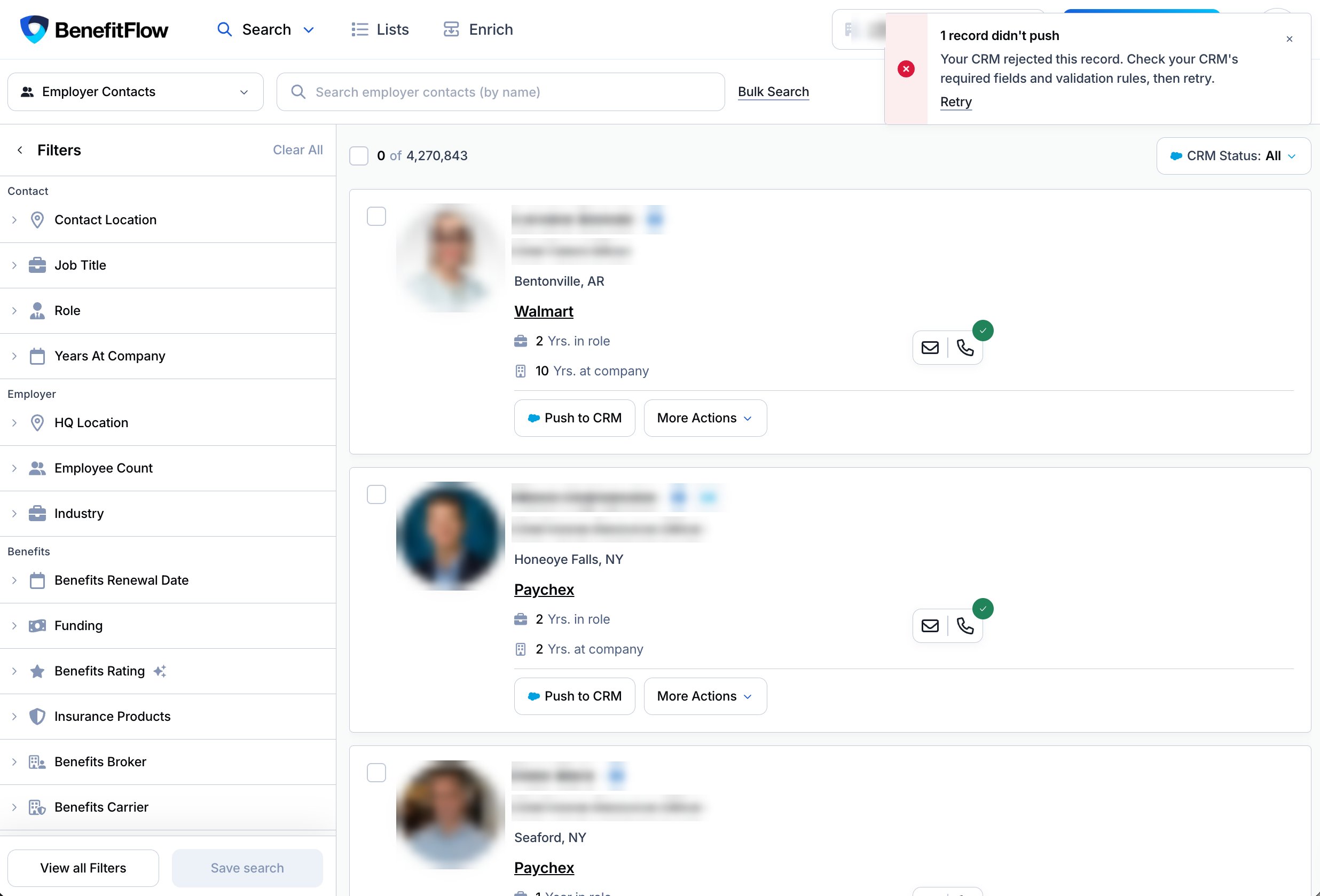
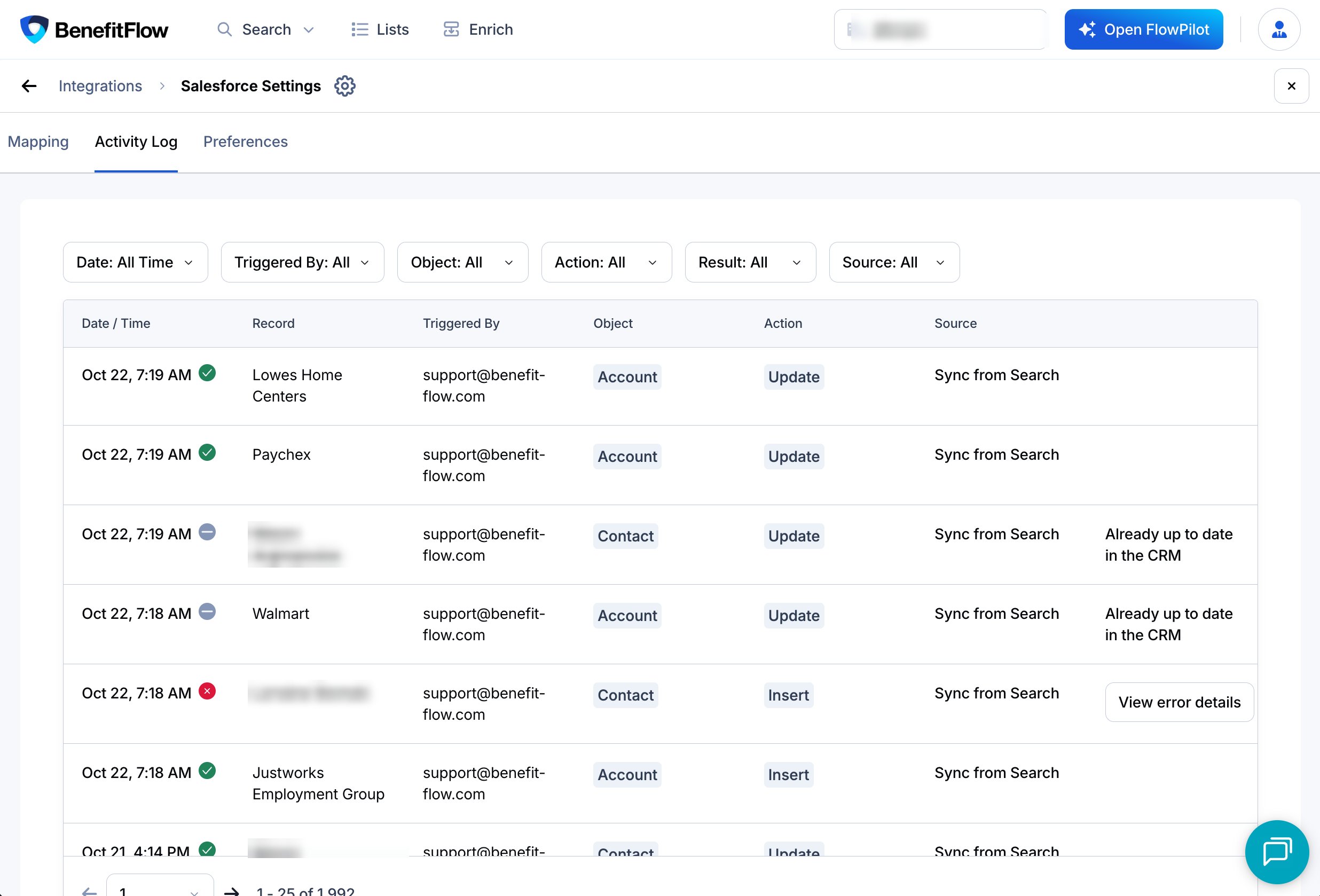
Every push shows up in your CRM’s Activity Log in Integration Settings. Filter Source to Sync from Search to see pushes from search and profiles, including any errors.
Why is Push to CRM grayed out?
Hover over the button to see the reason.No CRM connected yet
No CRM connected yet
Your team hasn’t connected a CRM. Admins can connect one in Integration Settings. Everyone else, ask an admin.
You don't have permission to push
You don't have permission to push
Your admin controls who can push and whether you can add new records, update existing ones, or both. If a record is already in your CRM and you can only add new ones, the hover says so. Ask your BenefitFlow admin for access. See Configuring sync permissions.
No email or website on file
No email or website on file
BenefitFlow matches contacts by email and companies by website. Without one, we can’t check your CRM for an existing record, so the push is blocked to avoid duplicates.
The contact is on your do-not-contact list
The contact is on your do-not-contact list
Contacts on your do-not-contact list can’t be pushed.
Related
How to Sync to Your CRM
Push a whole list at once.
CRM Enrichment
Keep records already in your CRM up to date on a schedule.
CRM Filter
Find records that are or aren’t in your CRM.
CRM Integration FAQ
Mapping, permissions, and troubleshooting.